

One Time Reports
One time reports are listed by type (with a brief description), date created, date range of the report, and its status. Click the X to delete the report, click the down-facing arrow to download it when its status becomes Completed. Note: You can see whether the report was published in Reports 1.0 or Reports 2.0 in the UI.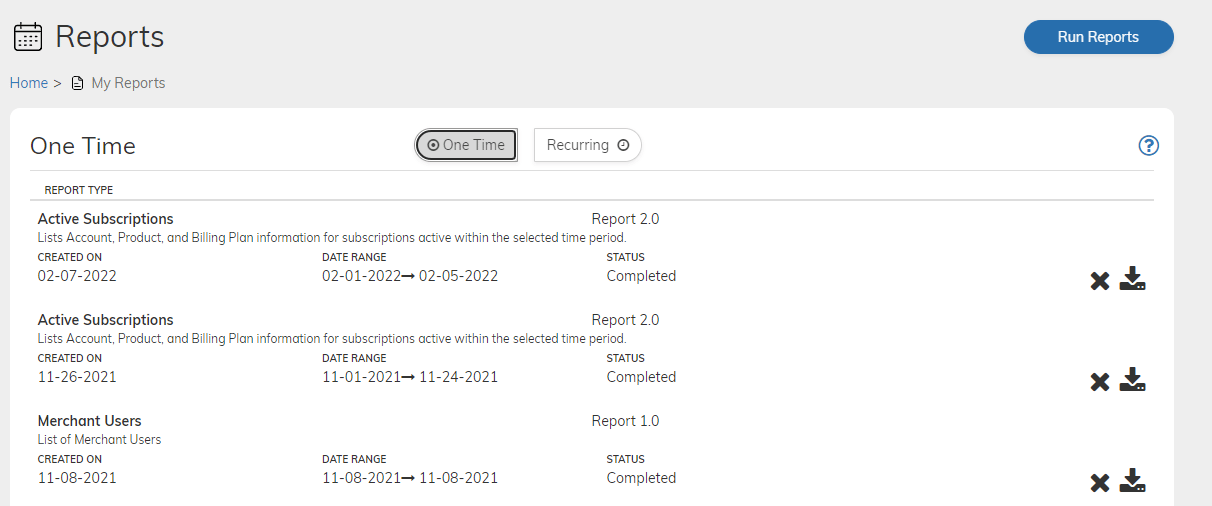
Recurring Reports
Recurring reports are listed by type (with a brief description), date created, date range of the report, frequency, and its status. Note that if you stop a report, it will remain visible and accessible. The three most recent reports appear under each report schedule. Select See All to see the full list. Click the down-facing arrow to download it when its status becomes Completed. Note: You can see whether the report was published in Reports 1.0 or Reports 2.0 in the UI. From the More Options (3 dotted) menu, you can select to:- Stop the report schedule—allows you to stop creating new reports as based on the schedule. This action cannot be undone.
- Delete the report schedule—allows you to stop creating new reports and deletes available reports. This action cannot be undone.
- Change the notification email for the report—Enter the alternate email to which you’d like to receive notifications. Click Update.
- Change the defined SFTP settings— Enter alternate SFTP settings and click Update.