

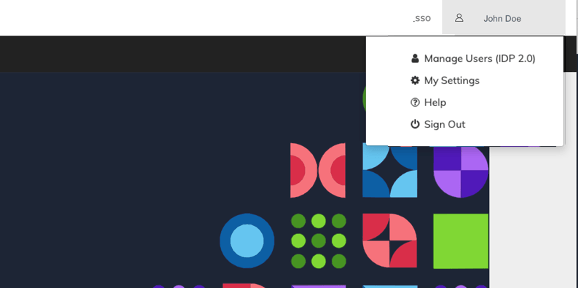
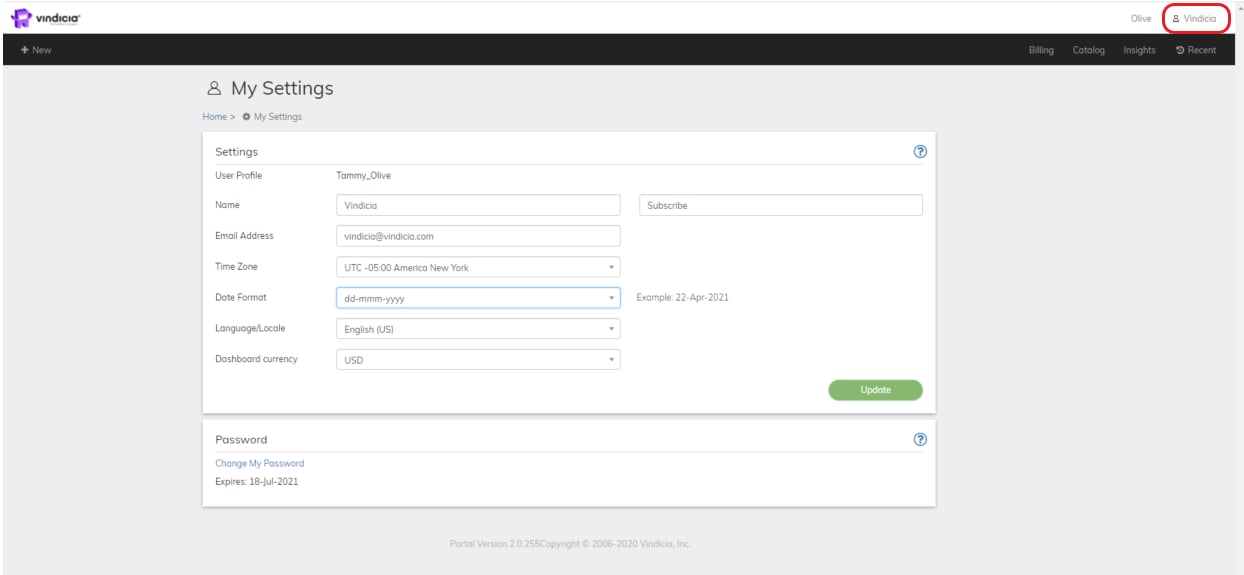
- Configure My Settings: Your personal account area, which provides customizable settings for your account.
- Manage Users: Merchant Admins (Super User) can access User Management in the Vindicia IDP console.
- In My Settings area, request a new Password for existing merchants or access Vindicia IDP to change your sign in credentials.
- Help: Access the full online help guide for contextual guidance within the portal. The online help opens in a new tab.
- Sign out: Leave the Vindicia Merchant Portal.
- Portal My Settings
Your personal account area, which provides customizable settings for your account. - Subscribe Portal User Roles and Access
During the Subscribe implementation phase, designate authorized users that can access the Subscribe Portal. One of these users must be named a Super User, who has high-level administrator access to all the objects. - User Sign In - Vindicia IDP
Vindicia products are built to keep data secure and compliant and meet Payment Card Industry (PCI) SSAE-18 SOC 1 Type 2 and SOC 2 Type 2 requirements and ISO 27001 security requirements. Accordingly, Vindicia’s merchant Portal users sign in to the Portal via Vindicia’s IDP (Identity Provider) app. Users define their own password and can reset it within the simple-to-use Identity Provider app. - External User Sign In
Vindicia products are built to keep data secure and compliant and meet Payment Card Industry (PCI) security requirements. Your organization uses an external identity management system for authentication and log in to the Vindicia Merchant Portal . - Portal Password
Portal users are assigned a randomly generated password that meet Payment Card Industry (PCI) SSAE-18 SOC 1 Type 2 and SOC 2 Type 2 requirements and ISO 27001 security requirements. Vindicia’s Portal provides a password of at least 8 characters and strong Password complexity. Users are blocked after 5 invalid access attempts.