

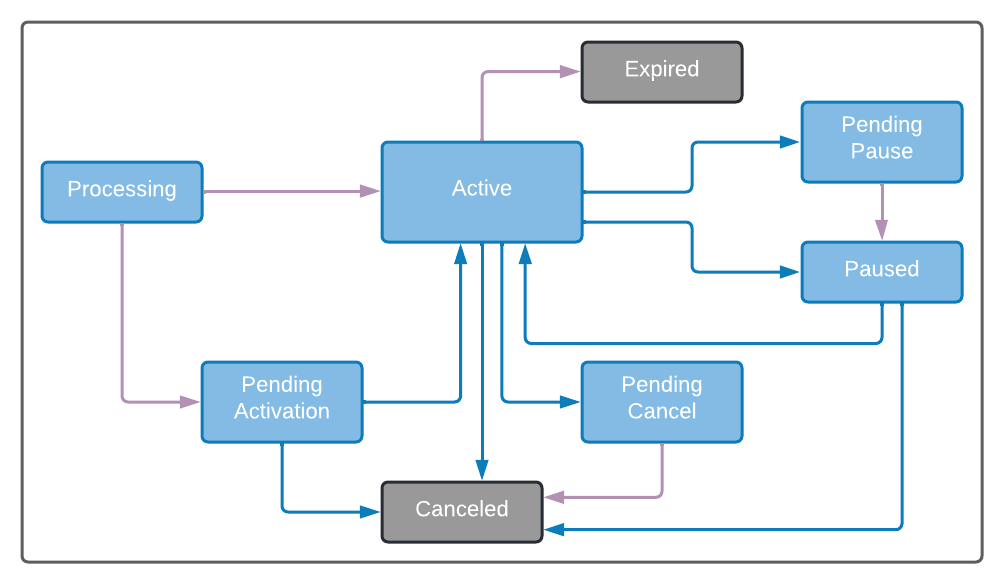
The following color scheme is used:
- Gray color indicates terminal statuses.
- Purple arrows indicate system-performed status transition.
- Blue arrows indicate transitions that are either user-performed or system-performed.
-
Subscriptions can be created in one of the following ways:
- Via Subscribe API, a recurring purchase sent from the merchant’s online store.
- Via Subscribe Portal created from the Account page.
- Use the Subscribe Portal to create a subscription or to view the subscription details. Subscriptions can start immediately or be created with a deferred start date (Pending Activation).
- When first creating a Subscription with an associated payment method, it is sent for authorization to the payment processors. The capture of the subscription can take place simultaneously. Typically, a batch capture of the authorized payments will take place at a later time. At this authorization point, customers may be required to authenticate themselves as the owners of the credit card for example as required by 3DS (PSD2) authentication.
- When editing an active subscription, you can edit subscription details without monetary effects, such as the name, the invoice format, or the shipping address. You can also edit details that will have a monetary effect, such as adding/removing a Subscription Item (the subscription’s product) or applying a discount campaign to the subscription. Tip: For Subscription Items change, consider whether the update is immediate and whether pro-ration is needed.
- Use the Subscribe API or the Subscribe Portal to grant a credit to a subscription or to revoke a credit from a subscription.
- Pause an active Subscription at any time at the beginning of the next billing cycle (default) or immediately with a reason for the pause. Subscription Pause revokes entitlements on the effective date of the pause. If no other action is taken upon the Subscription, it will remain paused for 5 years, and then cancel. Paused subscriptions can either be resumed or canceled.
- For a paused Subscription, resume the Subscription and decide whether to keep the previously used billing date (default) or make the current date the new subscription billing date.
- Cancel a Subscription at any time and define the deletion parameters from the Subscribe Portal.
- If using season sets in the subscription, ensure a new season has been added before creating the subscription. For more details, see Working with Season Sets.
- Use the Subscription reports, available as part of the Insights menu, for an aggregated view of subscriptions over a period.
- Learn about the projected revenue of specific product sales as part of a subscription in Projections Summary by Product Report or projections of all subscriptions in Projections Detail Report as part of the Insights menu