

- Read before adding a rule.
- Ensure that a merchant was previously created for the merchant.
- Log in to Subscribe Merchant Portal 1.0 as an Admin user.
- From the Admin menu, select Merchant .Configurations. The Merchant Configurations screen appears.
- Select the relevant merchant from the Merchant Company Name drop-down list. The selected merchant’s configuration page appears.
- Click the Edit Merchant Configurations link at the top right of the screen
-
Scroll to the Routing Rules section.
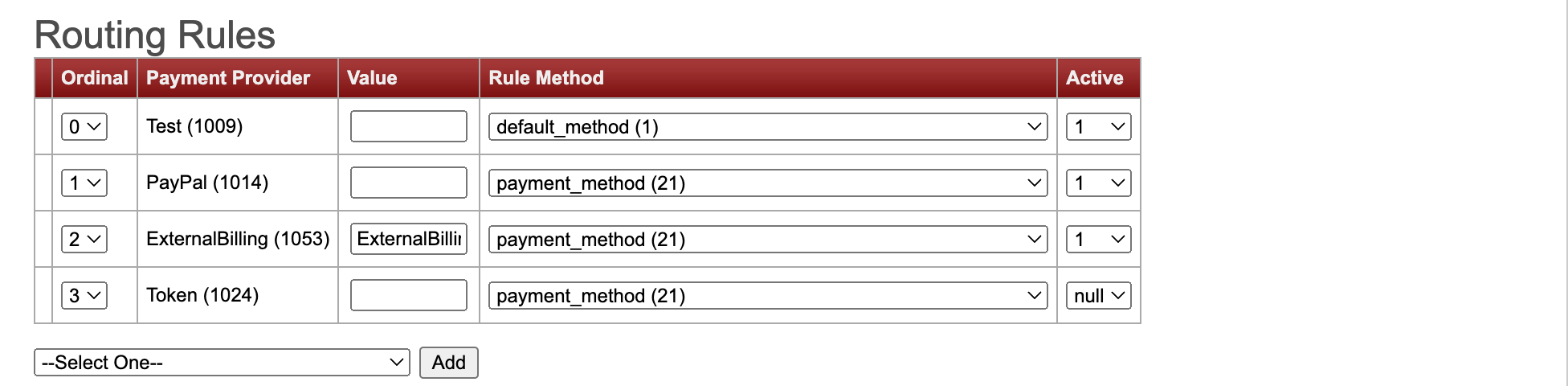
- Select the relevant rule from the list and click Add A new line is added to the Routing Rules section.
- Select the Ordinal number from the dropdown for the rule. Tip: Remember that a higher value gets applied first. Ordinal 0 is the default as it will be applied if all other rules did not fit the transaction.
- Enter a value, if relevant
- Select the relevant Rule Method from the list. For more details see,
- Define if the rule is Active. Select 1 for Active, 0 for inactive.