

- Transactions can’t be created in the Subscribe Portal rather only viewed. They hold all the relevant data of the request for funds sent to a payment processor. A full or partial refund can be issued for Captured Transactions.
- To locate a specific Transaction, go to Billing > Transactions. The Transaction Query Filter appears.
- Search according to relevant data in the key search fields, displayed with a light blue background. At least one key search field (with a blue background) must be used in order to search. Click Apply. For more details, see Filtering Transactions in Subscribe. A list of relevant Transactions appears. Note: If the search returns only one result, the details page opens immediately.
-
To view the relevant Transaction page, click the Transaction ID field.
The specific Transaction page appears.
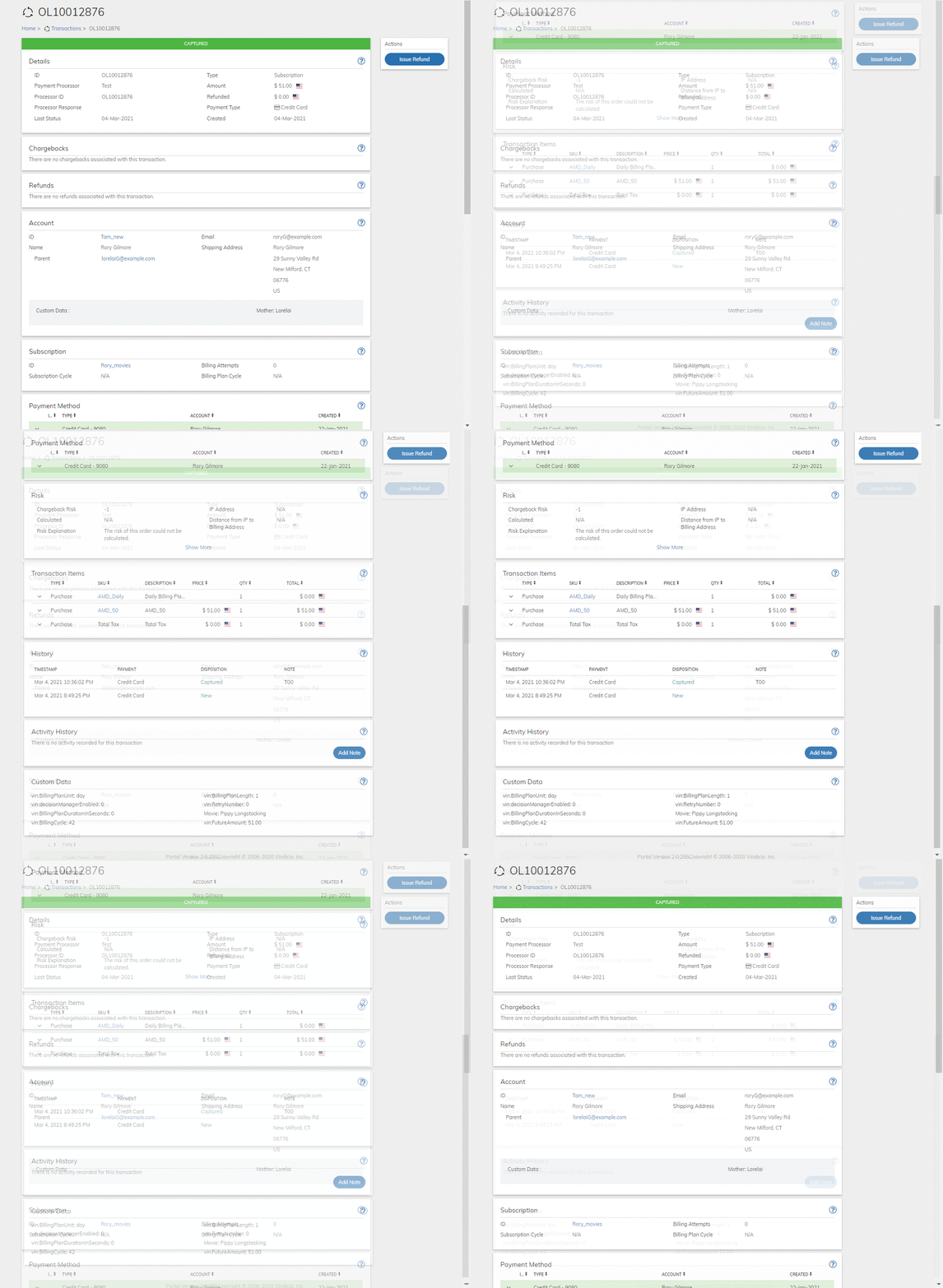
- View and understand the Transaction data. Refer to the tables below for guidance regarding the fields.
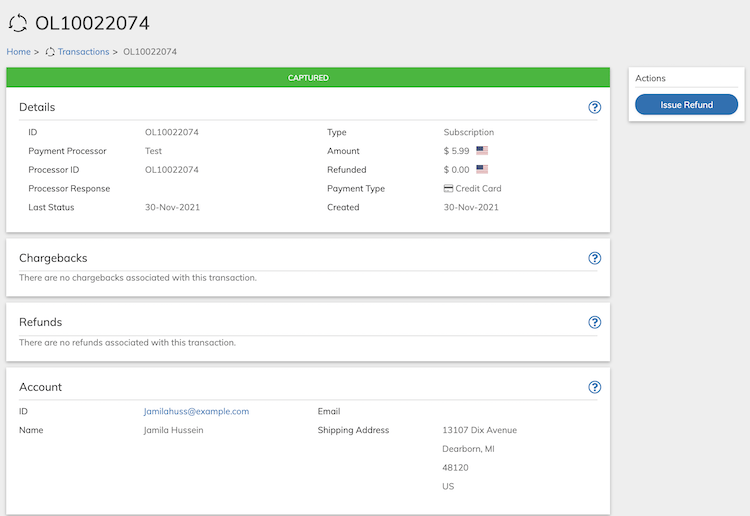
- For a transaction, you can issue a refund by clicking the Issue Refund button that appears on the Actions panel.
- Transaction Details Pane
The current Transaction status is displayed in the title bar of this pane. - Transaction Chargebacks Pane
A chargeback is a reversal of a credit card transaction, typically initiated when a customer disputes the legitimacy of a financial transaction. When a chargeback occurs, the amount of the transaction in dispute is taken back from the merchant’s account, often together with an additional bank payment processor fee, and the amount will not be returned unless the merchant can prove the original transaction is legitimate. - Transaction Refunds Pane
Refunds provide a way to reverse a charge, returning money to the customer. A refund can only be executed against an existing, successfully captured transaction. The pane lists all of the refunds issued for the Transaction up to the total Transaction amount. - Transaction Account Pane
Customer Account information relevant for this transaction. - Transaction Subscription Pane
The recurring subscription responsible for generating this Transaction. If a One-time purchase generated the transaction, this pane will not appear. - Transaction Payment Methods Pane
Payment Method(s) for this Transaction. The payment method type is displayed in the bar at the top of the section. - Transaction Risk Pane
If Chargeback Fraud screening is enabled then the chargeback probability is calculated. This probability is from 0-100. - Transaction Items Pane
Transaction Items are the line items associated with the transaction. For a Purchase these are the products and billing plans. - Transaction History Pane
This pane lists the transaction history, that is, the status of payments activity on the transaction. - Transaction Activity History Pane
This pane lists Subscribe or customer activity, such as email notifications or payments, related to the Transaction. - Custom Data
Custom data lets you store merchant-specific data to Products, Rate Plans, Billing Plans, Season Sets, Subscriptions, Accounts, and Payment Methods as a pair of matched text strings, called name-value pairs. These name-value pairs can help you categorize and sort aspects of your objects. Use Name to define a category, and Value to define a specific item in that category. For example, you could use name-value pairs to track your sales teams. Define a name-value pair with Office as the Name and the city in which the office is located as the Value. - Issue a Refund for a Transaction
Transaction Details Pane
The current Transaction status is displayed in the title bar of this pane.Transaction Chargebacks Pane
A chargeback is a reversal of a credit card transaction, typically initiated when a customer disputes the legitimacy of a financial transaction. When a chargeback occurs, the amount of the transaction in dispute is taken back from the merchant’s account, often together with an additional bank payment processor fee, and the amount will not be returned unless the merchant can prove the original transaction is legitimate.Transaction Refunds Pane
Refunds provide a way to reverse a charge, returning money to the customer. A refund can only be executed against an existing, successfully captured transaction. The pane lists all of the refunds issued for the Transaction up to the total Transaction amount.
Parent topic:View Transaction Info
Transaction Account Pane
Customer Account information relevant for this transaction.
Parent topic:View Transaction Info
Transaction Subscription Pane
The recurring subscription responsible for generating this Transaction. If a One-time purchase generated the transaction, this pane will not appear.
Parent topic:View Transaction Info
Transaction Payment Methods Pane
Payment Method(s) for this Transaction. The payment method type is displayed in the bar at the top of the section.
Parent topic:View Transaction Info
Transaction Risk Pane
If Chargeback Fraud screening is enabled then the chargeback probability is calculated. This probability is from 0-100.Transaction Items Pane
Transaction Items are the line items associated with the transaction. For a Purchase these are the products and billing plans.Transaction History Pane
This pane lists the transaction history, that is, the status of payments activity on the transaction.Transaction Activity History Pane
This pane lists Subscribe or customer activity, such as email notifications or payments, related to the Transaction.Custom Data
Custom data lets you store merchant-specific data to Products, Rate Plans, Billing Plans, Season Sets, Subscriptions, Accounts, and Payment Methods as a pair of matched text strings, called name-value pairs. These name-value pairs can help you categorize and sort aspects of your objects. Use Name to define a category, and Value to define a specific item in that category. For example, you could use name-value pairs to track your sales teams. Define a name-value pair with Office as the Name and the city in which the office is located as the Value.Issue a Refund for a Transaction
A refund is a way to reverse a charge, returning money to the customer. A refund can only be executed against an existing, successfully captured transaction. Refunds can be issued for the full transaction amount, a partial transaction amount, or a percentage of the transaction amount. To issue a refund to the transaction:- Search for the relevant transaction from Billing > Subscriptions. Note: At least one key search field (with a blue background) must be used in order to search.
-
Click the Issue Refund button in the Actions Panel.
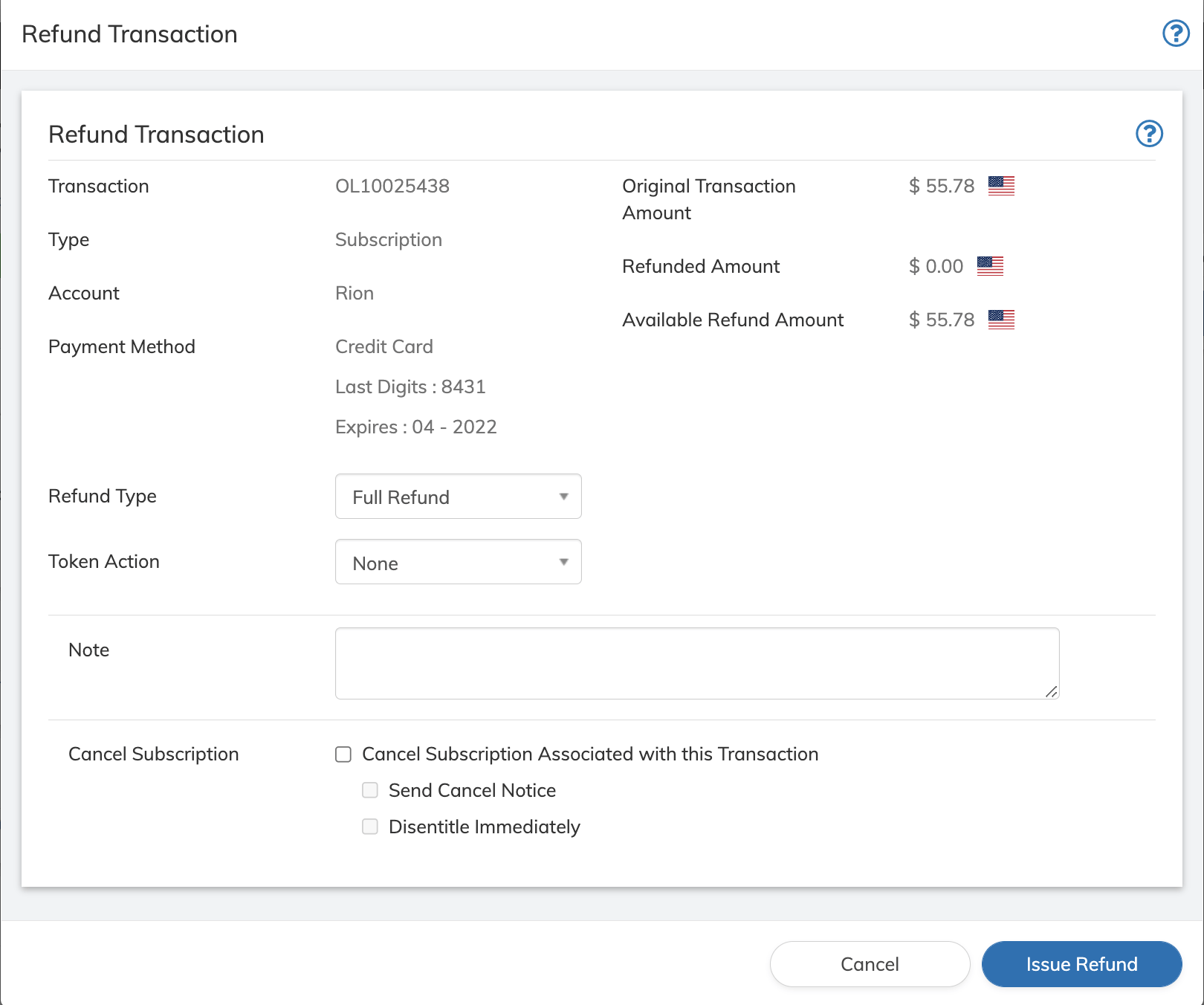
- Define the Refund Transaction fields as needed. Refer to the table below for guidance regarding the fields.
- Click Refund button on the Refund Transaction dialog box. You will receive a success message if the refund transaction goes through successfully.