-
Select your starting point from the following options:
- To create a new account, click the + New button and select Account.
- To edit an existing account, select the relevant existing account from Billing > Accounts and click Edit. Note: When filtering for specific accounts, use at least one key field (blue background) in the filter. The 500 most recent results are returned. For more details, see Filtering Accounts in Subscribe.
- To duplicate an account, find the account you’d like to duplicate from Billing > Accounts. Click the 3 dot Actions menu to the right and select Duplicate. The Account page appears.
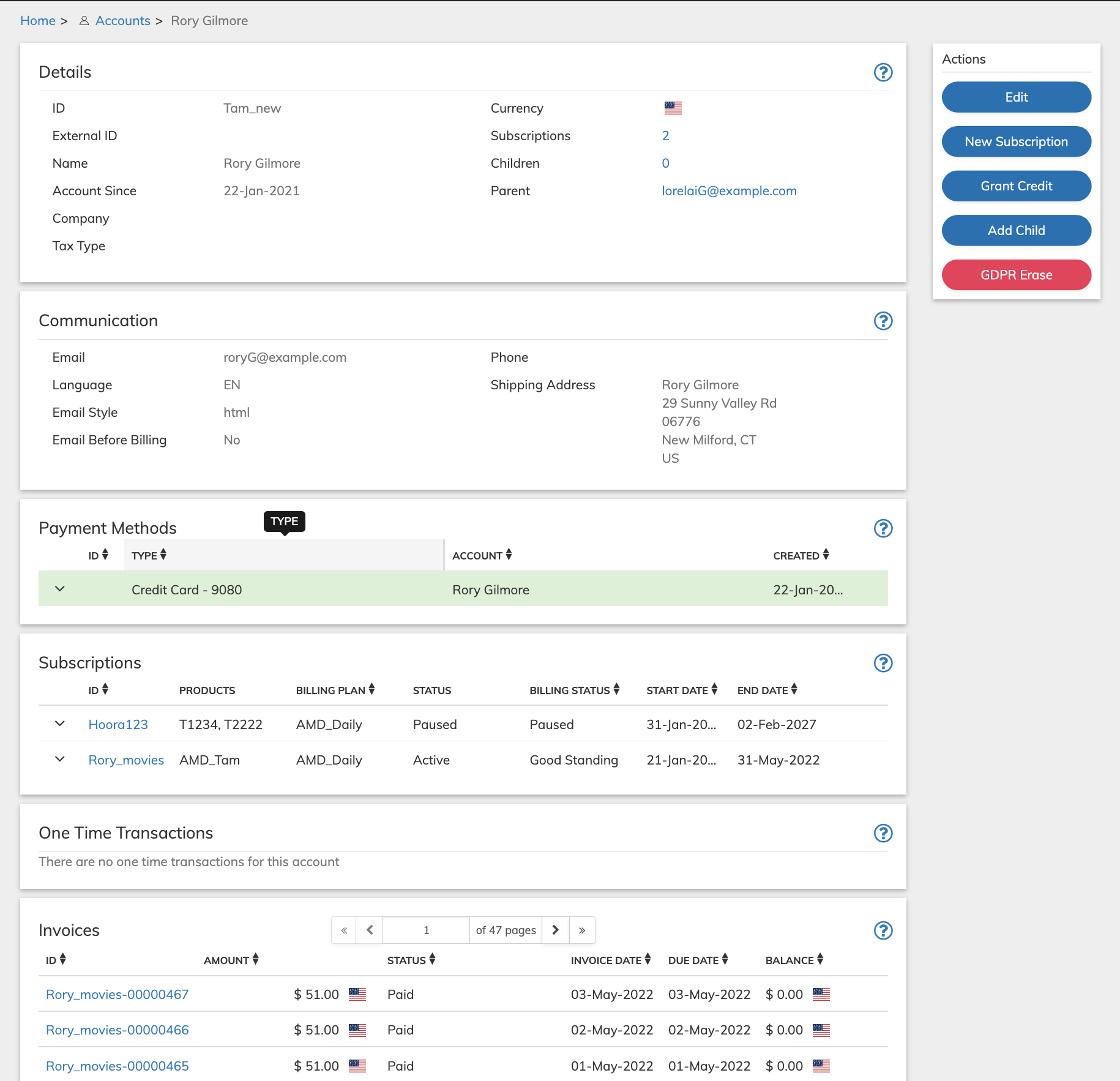
- Define the Account fields as needed. Refer to the tables below for guidance regarding the fields.
- When you’re done, click Save or Update. You can return and continue editing the saved Account at any time.
- For an existing Account, you can apply a currency credit to the Account by clicking the Grant Credit button that appears in the Actions panel and filling in the relevant details.
- For an existing Account, you can add a child to the Account by clicking the Add Child button that appears in the Actions panel.
- For an Existing Account, you can set up a new Subscription for the Account by clicking the New Subscription button that appears in the Actions panel and filling in the relevant details..
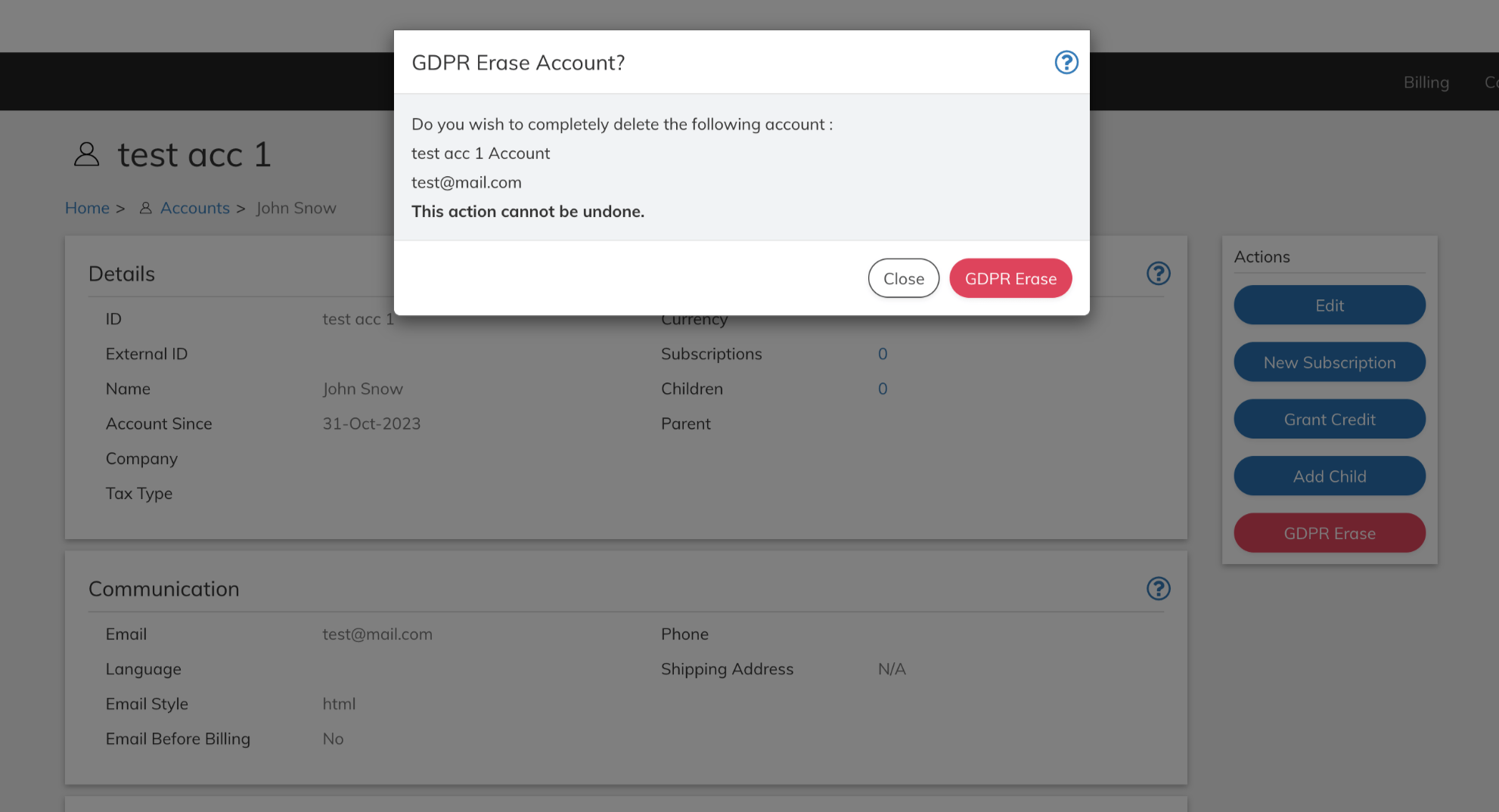
- Merchant users with the Super User role can permanently delete accounts with no active subscriptions by clicking GDPR Erase. For more details, see Account GDPR Erase.
- Account Details Pane
-
Account Sales Tax Exemptions Pane
Account-specific tax exemption based on country jurisdiction and code. Multiple tax exemptions are supported per account. When a customer with a tax exemption purchases a taxable product, Subscribe will not charge taxes if there is a tax exemption on the account for the applicable country or region. -
Account Payment Methods Pane
Payment Methods are the means by which a customer pays for purchases or in other words the account covers its transactions. Defined Payment methods are listed in the order of their preferred use. - Account Add Payment Method Pane
-
Custom Data
Custom data lets you store merchant-specific data to Products, Rate Plans, Billing Plans, Season Sets, Subscriptions, Accounts, and Payment Methods as a pair of matched text strings, called name-value pairs. These name-value pairs can help you categorize and sort aspects of your objects. Use Name to define a category, and Value to define a specific item in that category. For example, you could use name-value pairs to track your sales teams. Define a name-value pair with Office as the Name and the city in which the office is located as the Value. -
Grant Credit to the Account
You can grant currency or token credits to an account using this page. Typically this is done in response to a customer service call. Account-based credits will be consumed by the next transaction that uses the currency or token on the account, either a subscription renewal transaction or a one-time purchase transaction. Credits granted to a subscription will be used first before account credits. -
Revoke Credit
You can revoke or take back all or some of the credit that was granted that has not been used. -
Add Child to the Account
Subscribe supports a two-level account hierarchy letting you establish parent and child accounts. This is to allow for customers who use your product or service as a family. A parent account can have multiple child accounts that share the parent account’s payment method. Parent/child accounts can also use different payment methods. - Account GDPR Erase
Account Details Pane
Account Sales Tax Exemptions Pane
Account-specific tax exemption based on country jurisdiction and code. Multiple tax exemptions are supported per account. When a customer with a tax exemption purchases a taxable product, Subscribe will not charge taxes if there is a tax exemption on the account for the applicable country or region.Account Payment Methods Pane
Payment Methods are the means by which a customer pays for purchases or in other words the account covers its transactions. Defined Payment methods are listed in the order of their preferred use.Account Add Payment Method Pane
Custom Data
Custom data lets you store merchant-specific data to Products, Rate Plans, Billing Plans, Season Sets, Subscriptions, Accounts, and Payment Methods as a pair of matched text strings, called name-value pairs. These name-value pairs can help you categorize and sort aspects of your objects. Use Name to define a category, and Value to define a specific item in that category. For example, you could use name-value pairs to track your sales teams. Define a name-value pair with Office as the Name and the city in which the office is located as the Value.Grant Credit to the Account
You can grant currency or token credits to an account using this page. Typically this is done in response to a customer service call. Account-based credits will be consumed by the next transaction that uses the currency or token on the account, either a subscription renewal transaction or a one-time purchase transaction. Credits granted to a subscription will be used first before account credits. To grant a credit to the account:- Access the account from Billing > Accounts.
-
Click Grant Credit in the Actions Panel.
The Grant Credit dialog box appears.
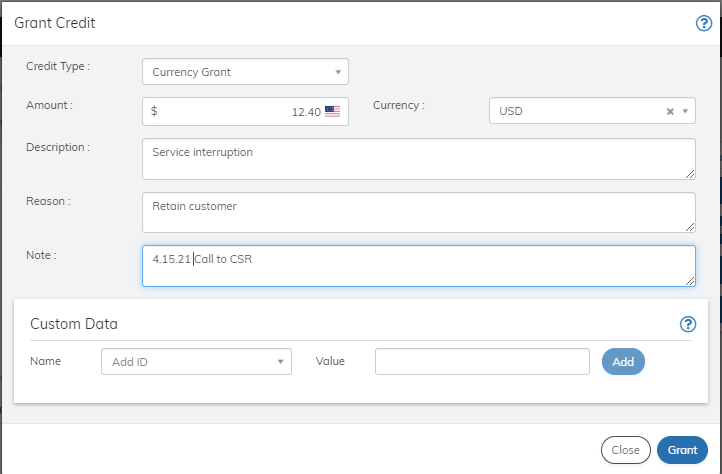
- Define the Grant Credit fields as needed. Refer to the table below for guidance regarding the fields.
- When you’re done, click Grant. The credit is granted to the account and appears in the Credits pane.
Revoke Credit
You can revoke or take back all or some of the credit that was granted that has not been used. To revoke a credit in the account or subscription:- Access the account from Billing > Accountsor the subscription from Billing > Subscriptions.
- Go to the Credits Pane.
- Find the relevant credit to revoke from the list.
-
Click the 3 dot action icon next to the credit listing and select Revoke.
The Revoke Credit dialog box appears.

- Define the Revoke Credit fields as needed. Refer to the table below for guidance regarding the fields.
- When you’re done, click Submit. The credit is revoked and no longer appears in the Credits pane.
- To see the revoke activity, From the Insights menu option, select Token Activity or Credit Activity as relevant.
Parent topic:Working with Accounts
Add Child to the Account
Subscribe supports a two-level account hierarchy letting you establish parent and child accounts. This is to allow for customers who use your product or service as a family. A parent account can have multiple child accounts that share the parent account’s payment method. Parent/child accounts can also use different payment methods. To add a child to the account:- Create/find the child account. For more details, refer to Working with Accounts.
- Note the Account ID for the child account.
- Access the parent account you’d like to link from Billing > Accounts.
-
Click Add child in the Actions Panel.
The Add Child box appears.
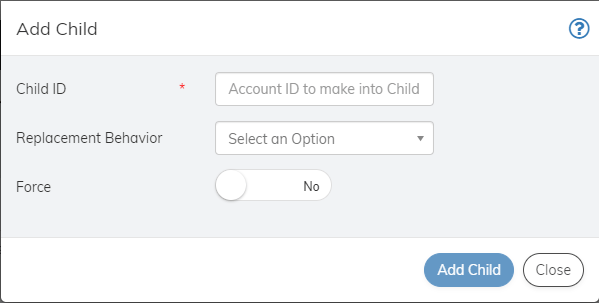
- Define the fields as needed. Refer to the table below for guidance regarding the fields.
- When you’re done, click Add Child. The account is linked as a child account and appears in the Child Accounts pane.
Account GDPR Erase
General Data Protection Regulation (GDPR) is an expansive privacy and security law that gives European Union (EU) citizens more control over their data and may often also be followed elsewhere in the world. Vindicia allows Super Users role holders to delete individual customer accounts when a customer requested erasure. Deletion is allowed only when there are no active subscriptions associated with the account. Merchant Super Users, complete the following steps to perform a GDPR erasure of an account:- On the Accounts filter search page, enter the ID or Email associated with the account.
- To erase the account from the Account Search page, click the 3 dot Action menu for the specific account and click GDPR Erase.
- To erase the account from the Account Details page, click GDPR Erase on the Actions panel.
-
On the GDPR Erase Account? page, confirm that the correct account ID and Email appear and click GDPR Erase.