

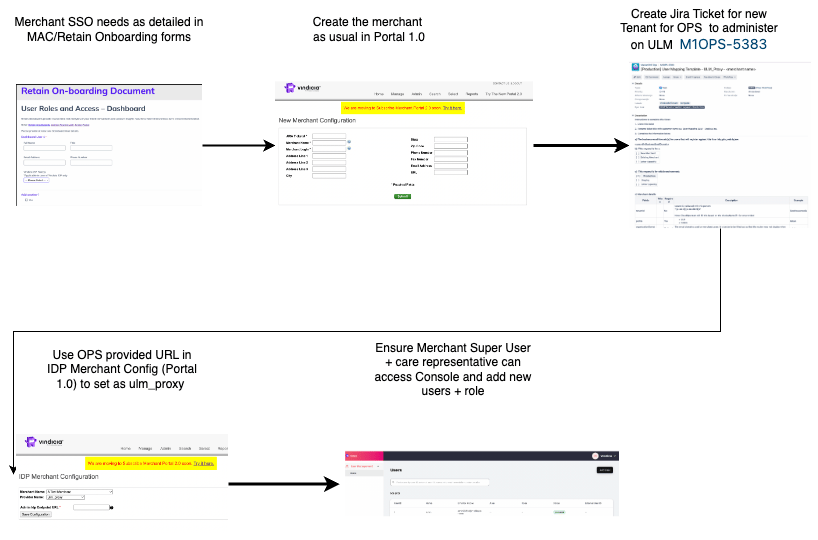
Configure Vindicia IDP 2.0 (ULM_Proxy) for Authentication and Authorization
- The relevant merchant must already be created in the system
- Ensure you have the merchant’s MAC document or Retain Onboarding doc and received any guidance about increasing security for password reuse or lifetime. For details, see Password Requirements
- For Vindicia IDP 2.0, open a ticket based on M1OPS-5383 template with the M1 OPS team (Guilermo Betanzos) - two day turnaround expected. Include details of the environment needed (Staging/Prod), the relevant Portal (Retain/Subscribe), relevant merchant details (Merchant ID, display name and business domain) and details of an initial merchant user that will be receiving Super user and Care representative permissions.
- Using an Admin user, access Subscribe Portal 1.0 https://secure.staging.us-west.vindicia.com/login/secure/
- Select Admin > IDP Merchant Configuration The IDP Merchant Configuration screen appears.
- Select the relevant Merchant from the Merchant Name drop-down list.
-
Select
ulm_proxyvalue from the Provider Name drop-down list. The ULM_ PROXY IDP Merchant Configuration screen opens.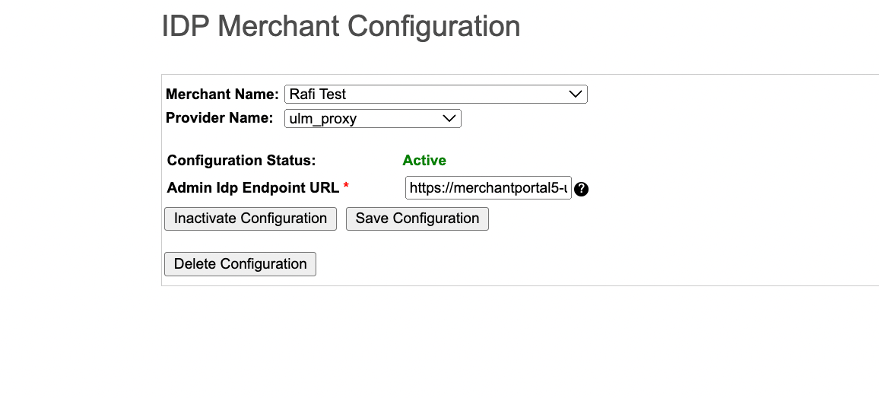
- Enter the Admin Idp Endpoint URL you received from M1 Operations team. Be sure to enter only the tenant URL without appending info such as csr or admin.
- Click Save Configuration. The entered configuration is saved. Note: This only saves the configuration but does not activate it. Only one IDP can be active per merchant.
- Ensure that at least one merchant user with Super User and Care representative roles has been created on the relevant Vindicia IDP 2.0 Tenant.
- When ready, click Activate Configuration. Remember: Only one IDP configuration can be active per merchant at one time. Inactivate any other configuration before activating a new configuration.
- Ensure that the the merchant user can add other new merchant users and immediately assign roles to them.