

- Log into the Vindicia Portal.
- Click Merchant Login at the top right corner of the Vindicia home page.
-
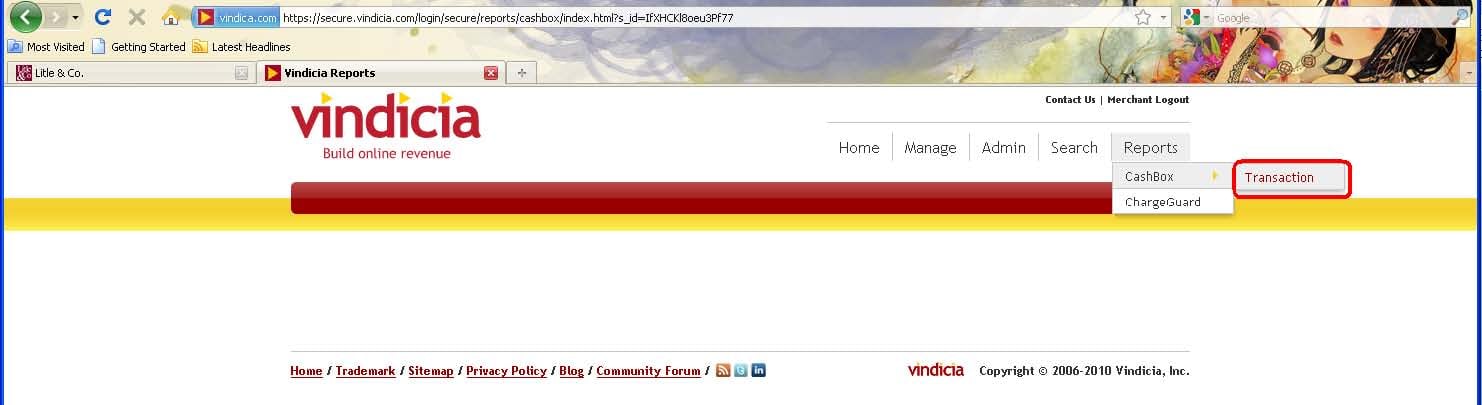
Click Reports and drag to select Vindicia Subscribe > Transaction from the drop-down menu.
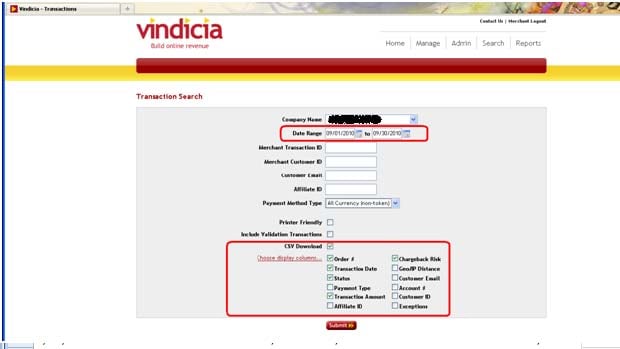
- Enter the same dates used for the Litle Transaction Summary report (in the procedure above.)
-
Select CSV Download. (The report can be more easily manipulated as a spreadsheet when dowloaded as a CSV file.)
Note:
Do not select Include Validation Transactions**.**Selecting this option disables the comparison process.
-
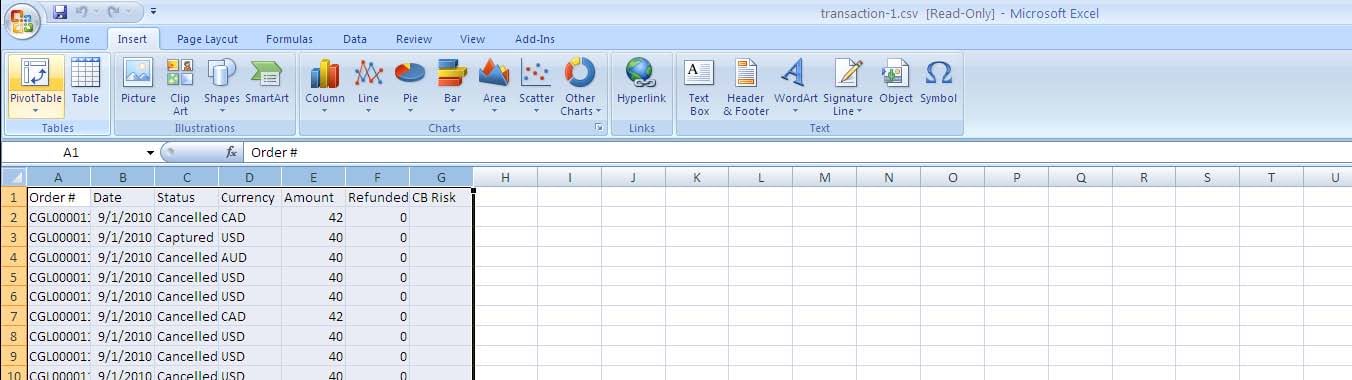
In your spreadsheet application (Microsoft Excel or other), place the transaction data into a pivot table to make it easier to examine: Select the cells containing data, and choose Insert > Pivot Table. When prompted, create the pivot table in a new sheet.
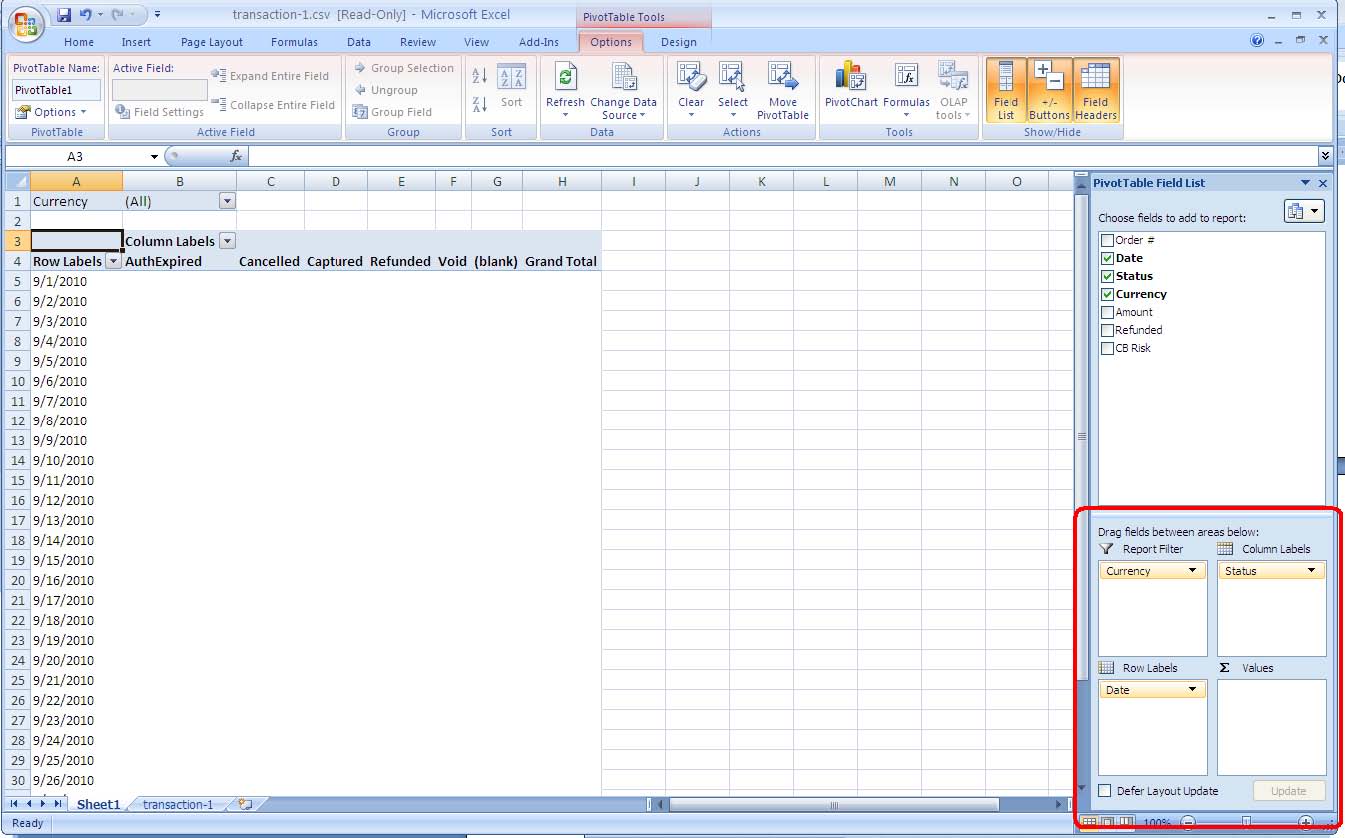
- In the pivot table, create a filter by currency.
-
Set up columns with Transaction Status options (AuthExpired, Cancelled, and so on.) Set up rows with Transaction Date. To set up columns and rows, drag the appropriate field into the corresponding section of the report layout at the lower right corner of the spreadsheet window.
- To calculate the sum of the amounts, drag the Amount field into the Values area of the table layout. Note: Examine the values displayed to ensure that they are a sum of the amounts.
-
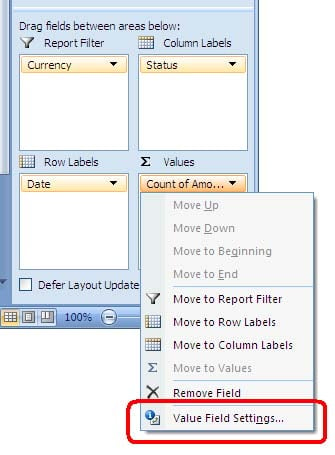
In the Count of Amount title bar, click the down arrow and select Value Field Settings.
-
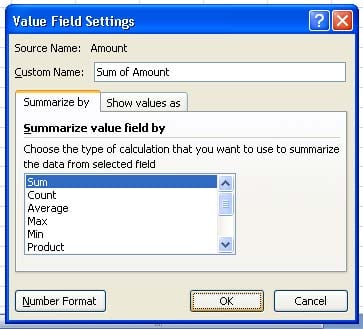
In the Value Field Settings dialog box, in the Summarize By tab, select Sum.
Note:
To view the value fields more easily, format the fields as currency.
-
Use the Filter box in cell A2 to choose the appropriate currency designation (in this example, USD.)
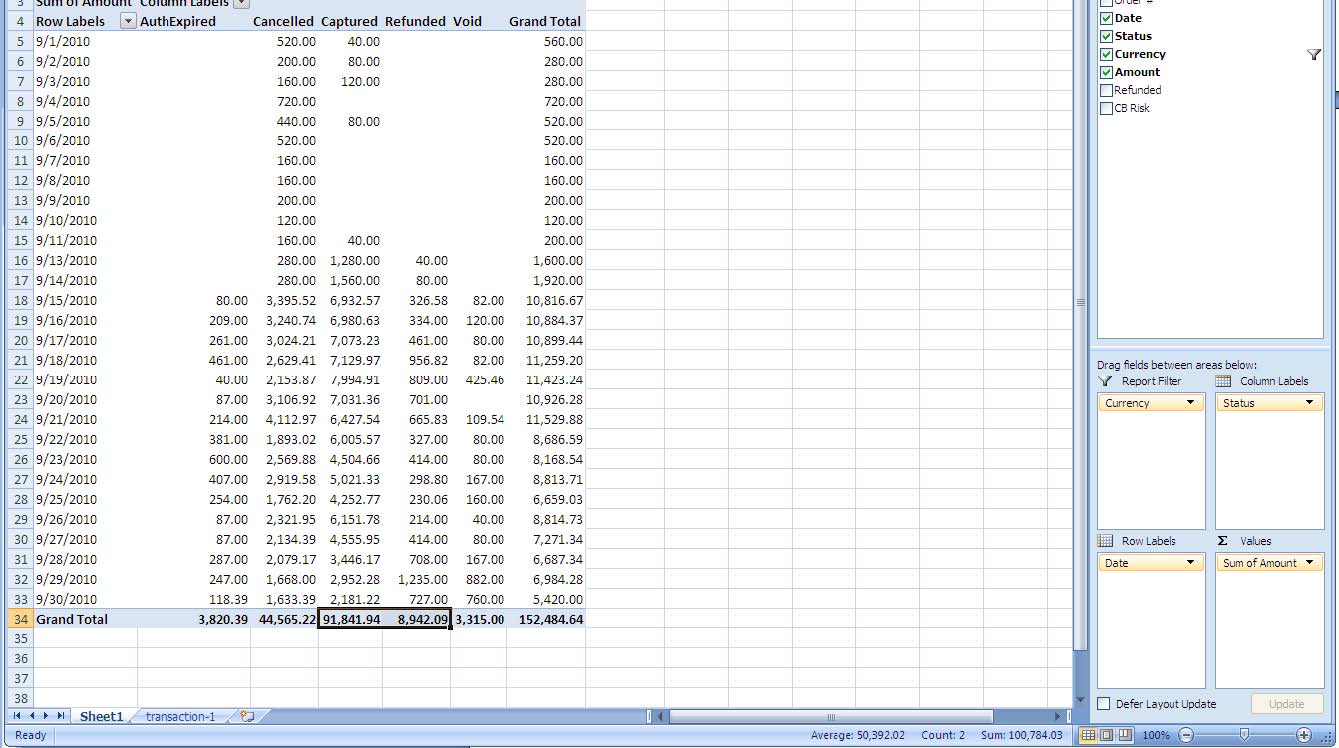
As explained above in the section About Transaction Records, Vindicia Subscribe presents each transaction based on the date it was initially authorized. The Captured column identifies the amount captured, and the Refunded column identifies the amount of any subsequent refund. In the example below, adding the Captured amount of 8,942.09 yields a total of $100,784.03.
Retrieve Transactions in Subscribe
To retrieve transactions captured by Vindicia Subscribe, run the Vindicia Subscribe Transaction Report as follows: