

-
Select your starting point from the following options:
- To create a new rate plan, click the + New button and select Rate Plan.
- To duplicate an existing rate plan, select the relevant existing rate plan from
Catalog >Rate Plansand click Duplicate. - To edit an existing rate plan select the relevant existing rate plan from
Catalog >Rate Plansand click Edit. The Rate Plan page appears.
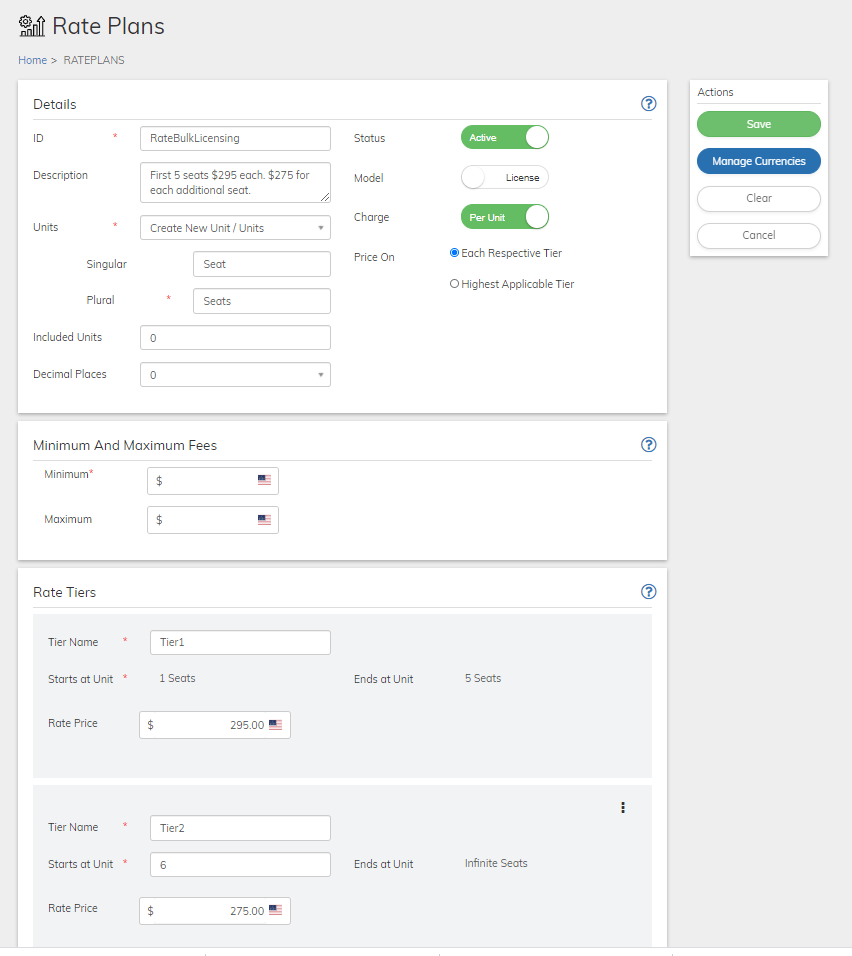
- Define the Rate Plan fields as needed. Refer to the tables below for guidance regarding the fields.
- When you’re done, click Save or Update. You can return and continue editing the saved Rate plan if it has not been activated yet.
- If saved as inactive, click Activate in the Actions panel.
- To stop the rate plan, click Disable in the Actions panel. A confirmation message appears. Note: Rate plans that are in use can’t be disabled and a relevant error message will appear.
- Rate Plan Details Pane
Rate Plans are usage-based pricing structures that let you price your offering according to consumption or tiers. - Rate Plan Minimum and Maximum Fees Pane
The Minimum and/or Maximum charge levied, per Billing Cycle. Your customer will not be charged less than the minimum fee, or more than the maximum fee, for any given Billing Cycle, regardless of their access level. A minimum fee is required. - Rate Plan Rate Tiers Pane
Tiers define one price for the first number of a given Product, and a different price for subsequent blocks of the same Product. - Custom Data
Custom data lets you store merchant-specific data to Products, Rate Plans, Billing Plans, Season Sets, Subscriptions, Accounts, and Payment Methods as a pair of matched text strings, called name-value pairs. These name-value pairs can help you categorize and sort aspects of your objects. Use Name to define a category, and Value to define a specific item in that category. For example, you could use name-value pairs to track your sales teams. Define a name-value pair with Office as the Name and the city in which the office is located as the Value.