

- Access the invoice from Billing > Invoices
-
Click the Reverse Payment button in the Actions Panel.
Note: Reverse Payment button is visible only if there is one or more captured or authorized transactions with Merchant Accepted Payment payment method type.
The Reverse Payment dialog box appears.
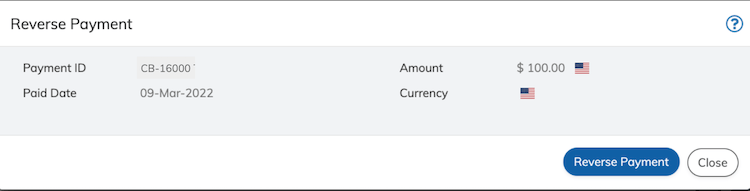
- Define the fields as needed. Refer to the table below for guidance regarding the fields.
- Click Reverse Payment button on the Reverse Payment dialog box. On reversing the payment successfully, the associated transaction is updated to Canceled.