

- Ensure that your Subscribe catalog includes a pre-defined Product/Billing Plan.
-
Select your starting point from the following options:
- To create a new Campaign, click the + New button and select Campaign.
- To clone an existing Campaign, select the relevant existing campaign from Catalog > Campaigns and click Clone.
- To edit an existing inactive Campaign, select the relevant existing campaign (ID) from Catalog > Campaigns and click Edit. The Campaign page appears.
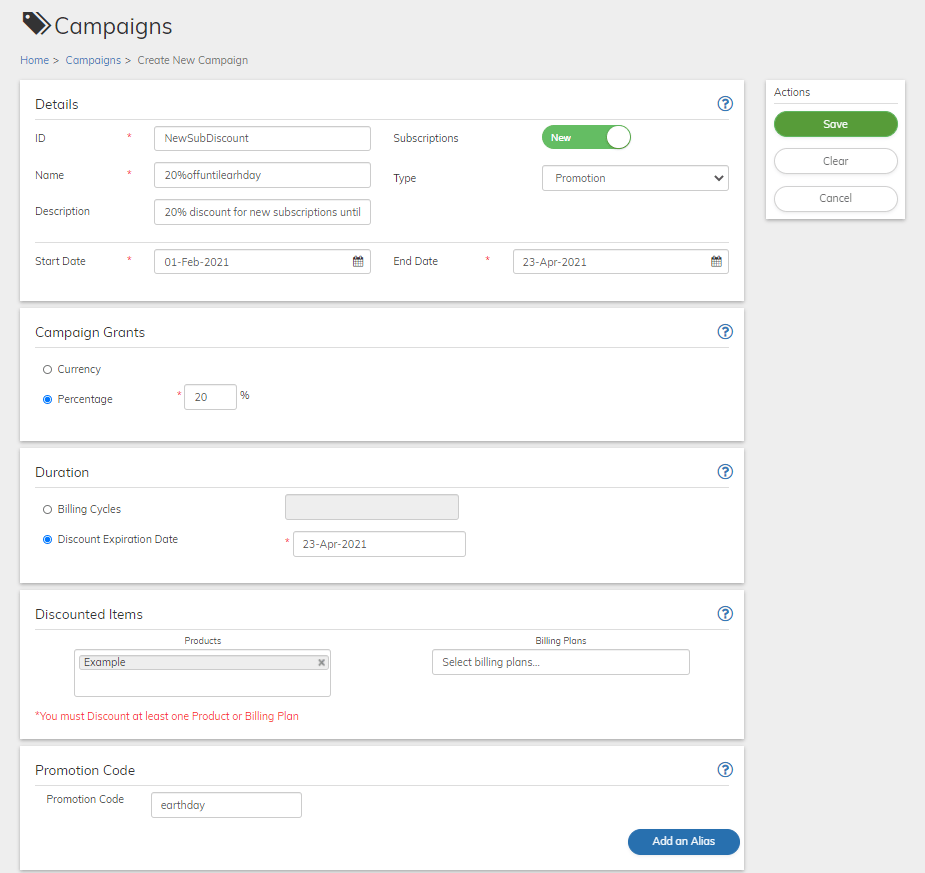
- Define the Campaign fields as needed. Refer to the tables below for guidance regarding the fields.
- When you’re done, click Save or Update. The Campaign is saved in Pending state
- For Coupon Campaigns, generate the coupon codes prior to activating the campaign by clicking the Generate CodesGenerate Codes button in the Actions panel .
- Click the Activate button that appears in the Actions panel.
- To temporarily stop the campaign, click the Deactivate button that appears in the Actions panel.
- To permanently stop the campaign, click the Cancel button that appears in the Actions panel. A confirmation message appears. Click Cancel Campaign to continue.
- Campaign Details Pane
-
Campaign Grants Pane
A Campaign Grant is the discount that you want to offer -
Campaign Duration Pane
Campaign Duration is the period of time for which the discount is granted. -
Campaign Discounted Items Pane
Discounted Items are the Product and/or Billing Plans that are eligible for the discount. -
Campaign Promotion Code Pane
A promotion code is not unique to individual users and is typically publicly available through mass distribution. You can define any alphanumeric string as your promotion code. -
Campaign Coupon Codes Pane
Coupon codes are unique strings used to redeem the campaign’s discount offer. Coupon Campaign Codes include a prefix, which you can define. Subscribe appends 16 randomly generated, non-sequential, alphanumeric characters to the Prefix to create a unique Coupon code. - Manage Coupon Codes