

-
Select your starting point from the following options:
- To create a new Billing Plan, click the + New button and select Billing Plan.
- To duplicate an existing Billing Plan, select the relevant existing Billing Plan from Catalog > Billing Plans and click Duplicate.
- To edit an existing Billing Plan, select the relevant existing Billing Plan from Catalog > Billing Plans and click Edit. The Billing Plan page appears.

- Define the Billing Plan fields as needed. Refer to the tables below for guidance regarding the fields.
-
When you’re done, click Save or Update.
You can return and continue editing the saved Billing Plan at any time before it is activated.
Note: You can edit the Billing Plan at any time prior to its use by subscriptions. It is important to understand that any changes will impact all subscriptions (existing and new) using the Billing plan. Please consider this before making a change. The user interface will show an orange caution at the top of the page stating that the Billing Plan is in use on Subscriptions
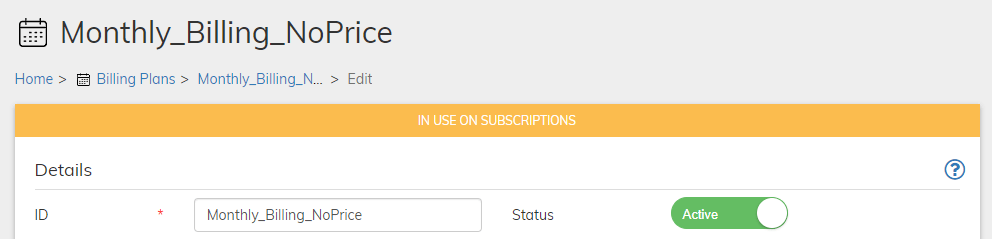
- When the Billing Plan has been saved and completed, activate it by clicking Activate in the Actions panel on the right.
- Disable the Billing Plan at any time, by clicking Disable in the Actions panel on the right. Note that the Billing Plan will no longer be offered to new customers (or appear in the catalog). However, existing subscriptions of the Billing Plan will continue uninterrupted.
- Billing Plan Details Pane
-
Billing Plan Periods Pane
In the Billing Periods pane you can define multiple Billing Periods. For each, set a cycle length, which defines the length of the billing period; and the number of times to repeat the cycle, which defines the length of the subscription. Cycle length can be days, weeks, months, or years. Customers are billed on the first day of the billing cycle. Billing Periods are active sequentially, according to their order in the Billing Plan. The first Billing Period in the list will be in effect when the subscription is first purchased, and it will remain in effect until it completes its defined number of cycles. -
Billing Plan Advanced Behavior Pane
The Advanced Behavior pane enables you to configure more complex billing scenarios. You can either use seasonal billing (bill and entitle during a specific season and not at other times of the year), or configure Subscribe to repeat billing periods in specific ways. -
Billing Plan Entitlements Pane
Entitlements are IDs identifying the purchased billing plan or product and providing access to it. Use IDs from your system that provide subscribers access to the relevant products or services.Entitlements for a Billing Plan are controlled by the Advanced behavior of the Billing Plan. Advanced behavior can allow entitlements to be granted outside of the payment schedule of the billing plan. Season sets also can control when Entitlements are granted, allowing for entitlements to be granted uncoupled from the payment schedule -
Custom Data
Custom data lets you store merchant-specific data to Products, Rate Plans, Billing Plans, Season Sets, Subscriptions, Accounts, and Payment Methods as a pair of matched text strings, called name-value pairs. These name-value pairs can help you categorize and sort aspects of your objects. Use Name to define a category, and Value to define a specific item in that category. For example, you could use name-value pairs to track your sales teams. Define a name-value pair with Office as the Name and the city in which the office is located as the Value.
Billing Plan Details Pane
Billing Plan Periods Pane
In the Billing Periods pane you can define multiple Billing Periods. For each, set a cycle length, which defines the length of the billing period; and the number of times to repeat the cycle, which defines the length of the subscription. Cycle length can be days, weeks, months, or years. Customers are billed on the first day of the billing cycle. Billing Periods are active sequentially, according to their order in the Billing Plan. The first Billing Period in the list will be in effect when the subscription is first purchased, and it will remain in effect until it completes its defined number of cycles.Billing Plan Advanced Behavior Pane
The Advanced Behavior pane enables you to configure more complex billing scenarios. You can either use seasonal billing (bill and entitle during a specific season and not at other times of the year), or configure Subscribe to repeat billing periods in specific ways.
Parent topic:Working with Billing Plans