

Overview
An essential task for all merchants is to ensure that the revenue generated from sales of products and services is actually received. Vindicia recommends that you conduct regular audits to reconcile Vindicia Subscribe transactions with payment processor transactions and deposits. This article describes how to reconcile transaction records in Vindicia Subscribe with those in Chase Paymentech. This is a manual process but is easily automated. For more information about transaction reconciliation in Vindicia Subscribe see Settlement Reconciliation.Discrepancies in Date-Based Reconciliation
If you attempt to reconcile transactions and associated revenue between Vindicia Subscribe and the payment processor by simply matching records for a specified date, it does not usually allow for complete reconciliation. This is due to the nature of credit card processing. As shown in the following diagram, a transaction is authorized in Vindicia Subscribe in real time and submitted to the payment processor as a part of a batch shortly thereafter. However, the transaction is settled some time later (typically minutes or hours), leading to the deposit in the merchant account. Therefore, a transaction can be settled on the day after it was submitted. This process prevents the use of a single timestamp across the merchant and payment processor systems to compare transactions or revenue.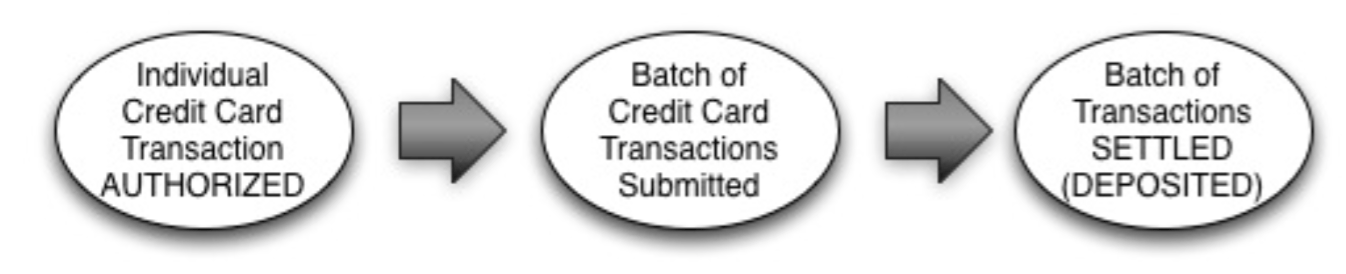
- The Vindicia Subscribe Portal typically uses the Authorization or Submission timestamp for views or reports, as these times are the most relevant to common customer service and management functions. Also, these times are usually associated with finance and accounting practices driven by the delivery date of service or the subscriber’s perceived receipt of the product or service.
- Chase Paymentech deposit-focused reporting uses the Settlement timestamp. While some Chase Paymentech reports include Authorization and Submission times, transactions are sorted and run using the Settlement time (typically at the whole-day level.)
True Transaction-Level Reconciliation
The instructions below describe a recommended semi-manual procedure for completing a true reconciliation between Vindicia Subscribe and Chase Paymentech. Additional procedures can also be used. With an understanding of the key data fields explained here, you can use combinations of other reports and Vindicia Subscribe Portal search results to accomplish the same result. The Chase Paymentech report used here (ACT= 0010) and similar reports are available as an automated feed. When combined with the extensive Vindicia Subscribe API, you can use these reports to automate a reconciliation that matches the manual results detailed here.About the Vindicia Subscribe Transaction Reports
Vindicia Subscribe provides two types of transaction reports. The Vindicia Subscribe Transaction Success Detail Report displays information about successful transactions that result in a deposit to your merchant account. The Vindicia Subscribe Transaction Refund Detail Report displays information about refund transactions that result in a deduction from your merchant account. For more information about Vindicia Subscribe reports, see The Transaction Detail Report in the Vindicia Subscribe Portal User Guide. Key data in the Vindicia Subscribe reports are as follows:- In both Vindicia Subscribe reports, Captured and Refunded status indicate originally captured transactions that must be accounted for as deposits during reconciliation.
- A refund request generates a new Transaction ID, labeled the Refund ID. The Refund ID (not the Original Transaction ID) is matched to the refund transaction in Chase Paymentech. (A refund Action Code identifies a refund transaction in the Chase Paymentech report.)
- The Vindicia Subscribe Transaction Refund Detail Report shows a refund as a positive amount. The Chase Paymentech Deposit Report shows a refund as a negative amount, because the refund is a deduction from your merchant account. The reconciliation formula must account for this variation in order to balance.
- To view additional fields in either Vindicia Subscribe report, expand Display Columns and select the desired fields when you create the report.
About the Chase Paymentech ACT-0010 Deposit Detail Report
The Chase Paymentech ACT-0010 Deposit Detail Report displays information about transactions that result in deposits and deductions on your merchant account. Key Data in the ACT-0010 Report are as follows:
Considerations:
- The string value (text) of the Chase Paymentech Merchant Order # is the exact reverse of the Vindicia Subscribe Transaction ID (for example, Transaction ID VIN001 becomes Merchant Order # 100NIV.) In the case of refunds, the Merchant Order # is the reverse of the Vindicia Subscribe Refund ID.
- Amount is in the indicated currency. Use the pre-exchange or pre-conversion value for reconciliation with Vindicia Subscribe.
- The ACT-0010 Report is available in several formats and as an automated feed.
Pre-Formatted Reconciliation Spreadsheet
Vindicia provides a preformatted Microsoft Excel spreadsheet that you can use when reconciling Vindicia Subscribe data with Chase Paymentech data. The spreadsheet is designed for cut-and-paste input of the three reports listed in the steps below. Click here to download an example of the preformatted spreadsheet showing a one-day period’s reconciliation with actual anonymized data from a production system. To use the spreadsheet for your reconciliation, replace the example data with data from your Vindicia Subscribe and Chase Paymentech reports. The spreadsheet includes pre-built formulas for finding the transactions in both systems, reversing the Transaction IDs (and Refund IDs), and calculating the amount differences. The reconciliation process balances when no transactions are missing and the differences are all 0 (thus, a large number of transactions can be quickly reconciled using the spreadsheet.) Some formulas in the spreadsheet (including the number of columns required to reverse the Transaction ID or Refund ID) must be adjusted based on the number of characters in your Vindicia Subscribe transaction prefix, particularly if multiple prefixes of different lengths are used.Reconciling the Vindicia Invoice with the Transaction Record
The Vindicia invoice identifies charges to you as the merchant for successfully captured transactions. Charges are calculated using the pricing tiers specified in your merchant contract with Vindicia. To reconcile the Vindicia invoice with the record of captured transactions, simply apply the appropriate Vindicia pricing tiers to the record of transactions. Vindicia charges to merchants are based on the value of successfully captured transactions. Because merchant refunds are outside of the control of Vindicia, Vindicia does not deduct refunded transactions from the total charges. Parent topic:Settlement ReconciliationReconcile Transaction Data from Chase Paymentech and Subscribe
To perform a transaction-level reconciliation:-
Retrieve Vindicia Subscribe transaction reports using the dates for your accounting close (usually, these represent the Vindicia Subscribe transaction dates when the service was considered paid.) Use the same dates for both Vindicia Subscribe reports.
- The Transaction Success Detail Report uses the date a transaction was submitted.
- The Transaction Refund Detail Report uses the date a refund request was submitted. (This is not the date of the original transaction. For a refund transaction, the original transaction is already reconciled previously, in this run or in an earlier run.)
-
Compile a complete list of Vindicia Subscribe transactions with relevant data (Transaction ID, Currency, Amount, and Transaction Type.)
- Retrieve all transactions from the Transaction Success Detail Report, including both Captured and Refunded transactions (Refunded indicates that the transaction has subsequently had a full or partial refund request.) At this point, reconcile only the originally captured charge. Refunded transactions will be reconciled in a subsequent step.
- Add the Refunds from the Transaction Refund Detail Report to this list of transactions. The list should now include every Vindicia Subscribe transaction that must be matched against transactions in the Chase Paymentech ACT-0010 Report. Note: When adding refund transactions, use the Refund ID, not the Original Transaction ID.
- Retrieve the Chase Paymentech Deposit Detail ACT-0010 Report using the same dates used for the Vindicia Subscribe reports, adding one day before and one day after to allow for processing timestamp discrepancies. The expanded dates will result in extra transactions on the Chase Paymentech report, which are accounted for in earlier or later reconciliations. This overlap ensures that all transactions are reconciled. Note: In the ACT-0010 Report, ensure that only items with the Vindicia PID are included.
-
Reverse each Vindicia Subscribe Transaction ID or Refund ID to match the corresponding Merchant Order # in the ACT-0010 Report, to compare transactions from the two systems.
- Every charge transaction from the Vindicia Subscribe reports should be found in the ACT-0010 Report with the same Currency code and Amount.
- Every refund transaction from the Vindicia Subscribe reports should be found in the ACT-0010 Report with the same Currency code and a negative value of the same Amount.
- If any Vindicia Subscribe transaction or refund is not found in the ACT-0010 Report, extend the dates of the ACT-0010 Report by one day earlier or later and compare the transaction lists again. Missing transactions typically only occur for timestamps near the start or end of a day.
- Similarly, if any transaction in the ACT-0010 Report is missing from the Vindicia Subscribe reports, extend the dates of the Vindicia Subscribe reports by one day earlier or later. Transactions near the start of the reconciliation period should have been accounted for in the prior period’s reconciliation audit. Transactions near the end of the period should be accounted for in the next period’s reconciliation audit.