

- you must be a Vindicia Subscribe customer
- you must be running Salesforce.com Enterprise Edition (or greater)
- you must have administrative privileges in your Salesforce instance
-
Obtain the installation link from your Vindicia contact point
The link will be in the following format:
https://login.salesforce.com/packaging/installPackage.apexp?p0=04t4U000000cOUb -
If you are installing into a sandbox organization, replace the initial portion of the URL with:
http://test.salesforce.com. For example:http://test.salesforce.com/packaging/installPackage.apexp?p0=04t4U000000cOUb - Log in to your Salesforce instance and go the provided install link. You are prompted to select your Subscribe application access.
-
Select Install for All Users.
Note: If you select Install for Specific Profiles there is an additional step, in which you provide access to the desired user profiles.
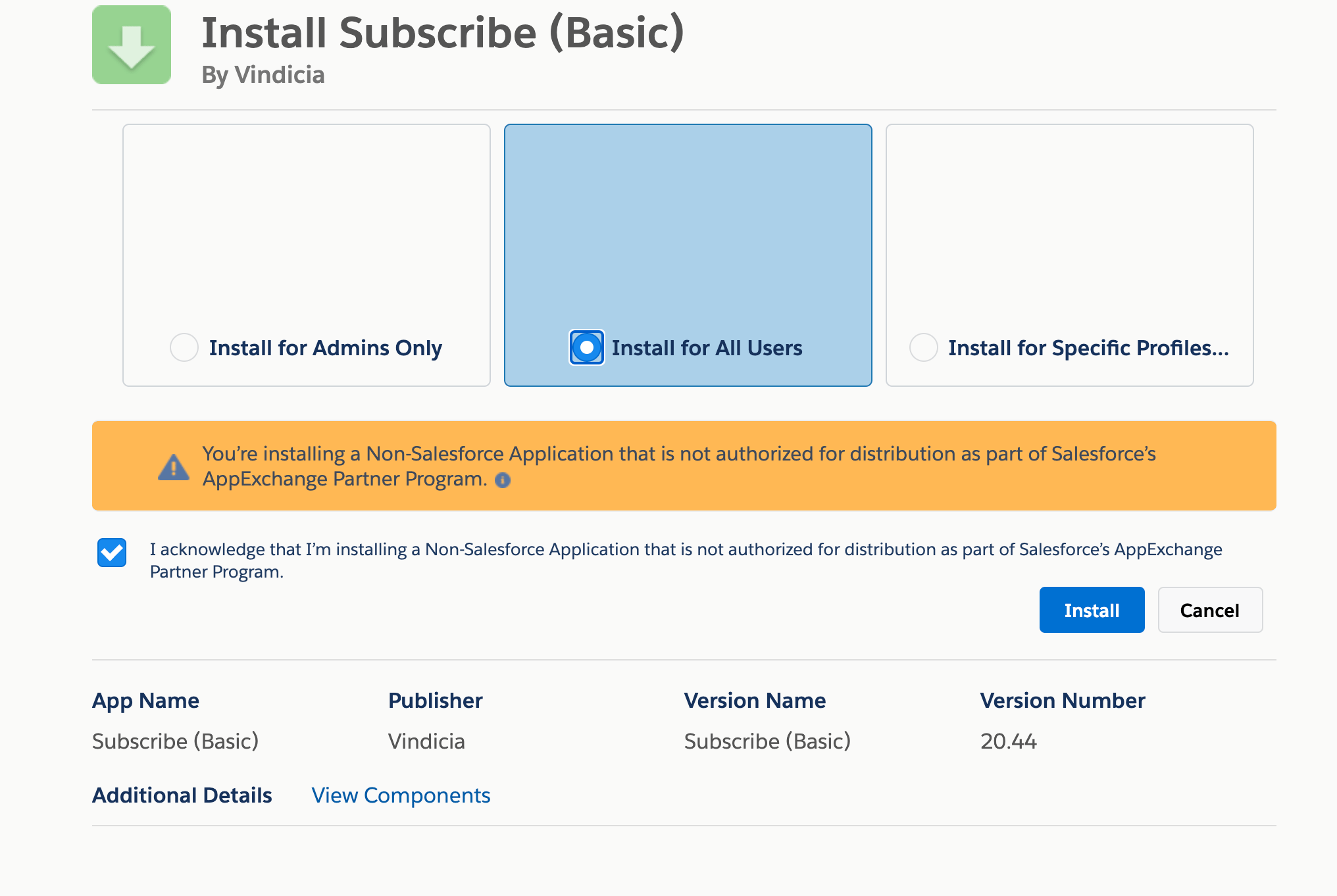
- Grant access and continue the installation process. The installation process normally takes a few minutes. If it takes longer, Salesforce alerts you that a notification email will be sent to you upon completion of the installation. Click to accept the alert message. You can proceed with other activities while you wait for the email notification informing you that the installation has finished.
- If you have purchased the Subscribe (Premium) application, repeat this installation procedure for Subscribe (Premium), using the link and other information provided to you by your Vindicia representative.