

Creating Accounts
You can create Accounts in Salesforce, but accounts do not integrate with Subscribe (synchronize Purchase, Payment Methods, Credits, and so on) until the account (customer) makes a purchase. When the account is integrated, a link is established (either byVindicia ID or Customer ID) and, going forward, any changes in Subscribe are reflected in Salesforce. Similarly, some changes to Accounts data in Salesforce automatically update the matching data in Subscribe, such as: billing address, payment method, email, or name-value pairs.
Creating and Modifying the Payment Method
The Payment Method is a Subscribe custom object. Any change to a payment method in Salesforce triggers an update in Subscribe, including creation of a new payment method. The following payment method types are available:- Credit Card
- Electronic Check
- Merchant Accepted Payment
- External Billing
Creating Purchases
With Subscribe (Premium), you can create two types of purchases: One-Time purchases and Subscription purchases. To create a new purchase in Salesforce, create a new Opportunity and select the Account, Currency and Billing Plan, then add the Opportunity products you want to sell. Only the products from the Pricebook for the currency you select are available. If you discount any of the products you might have to go through a pricing Approval Flow, if you have one enabled. By default, Subscribe does not enable any price approval flows. If you want to quote the customer before creating a purchase, use the Create Quote button on the Opportunity. In this case, Subscribe returns an amount, an expected first bill date, first bill amount and other quote-related fields. Confirm the quote, and click the Create Purchase button on the Opportunity. This generates an API call to Subscribe and creates the purchase. When the call completes, you are redirected to the newly created purchase.Modifying and Canceling Purchases
To make changes to an existing Purchase, use the following custom buttons:- Cancel Purchase
- Modify Purchase
- Replace Payment Method
- Refresh Purchase
Replacing Payment Methods
A dedicated custom button enables you to change the payment method on a Purchase. Click this button to open a custom page listing eligible payment methods for that Account, and select a new payment method. When you save your changes a call to Subscribe updates the payment method, and you are sent back to the Purchase, which now shows the new payment method on the account.Managing Credits
Subscribe supports Credits at the account level and at the Purchase level. To manage Credits click the custom button, Manage Credits, for Accounts or Purchases. A custom page opens as shown in the following figure, listing all Credits in two sections: Credits with a balance and Credits with a zero balance (fully consumed).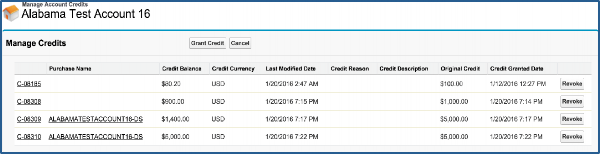
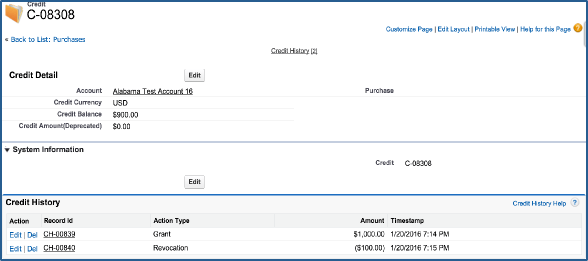
Managing Refunds
Subscribe for Salesforce enables Customer Care representatives to manage refunds when needed. The following figure shows the Manage Refunds page.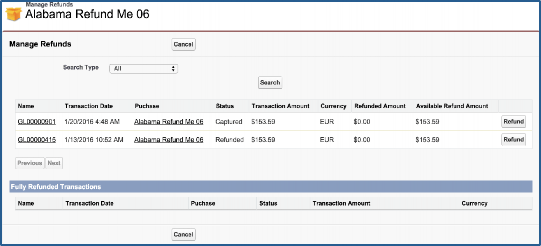
- Full
- Partial—Specify %
- Partial—Specify Amount
- Line Item
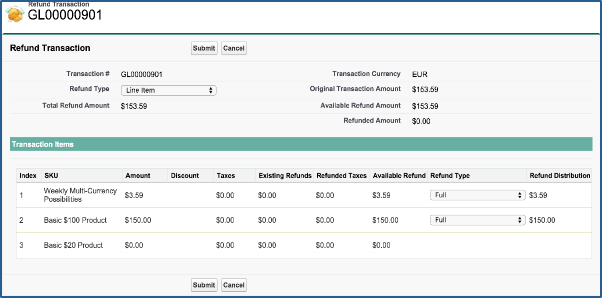
- If a transaction is paid by a Credit (fully or partially), a refund at the transaction level is supported and line item refunds are not available.
- If you perform a refund at the transaction level, the refund amount is NOT distributed to each line item, and any consecutive refund stays at the transaction level.
- For every line item refund, the sales taxes are always refunded for the amount you specify for the line item.