

Monitoring Import/Export Jobs
Two custom tabs have been added to help you monitor continuous sync jobs:- Subscribe Import Logs
- Subscribe Export Logs.
Import Logs
Import Logs is a custom tab where you can track all import logs. A record is created for each page of each import job. When the import is running in continuous/auto mode, you can track the sequence of import jobs and verify that all data makes it into Salesforce. There is an error flag on which you can build a list view and an error message for each of the import log records. If you run a manual import job, the import log also tracks all records.Export Logs
The Export Log is a custom tab where all export logs can be tracked. This includes updates to an account or payment method. Logs are kept for seven days.Data correction
At any time, if your Subscribe data does not conform to your Salesforce validation (as of release 14.0), all import problems due to the Salesforce database or validation issues are placed in a retry queue. Each failed record is logged with its Vindicia ID and the reason for failure (accessible in Subscribe under Admin > View Import Errors). You can correct the data in Subscribe or adjust the validation constraints in Salesforce. You can then either manually run a reimport for the failed record or, if it is not urgent, wait for the nightly retry job to make another import attempt for all failed records.Stop scheduled Jobs
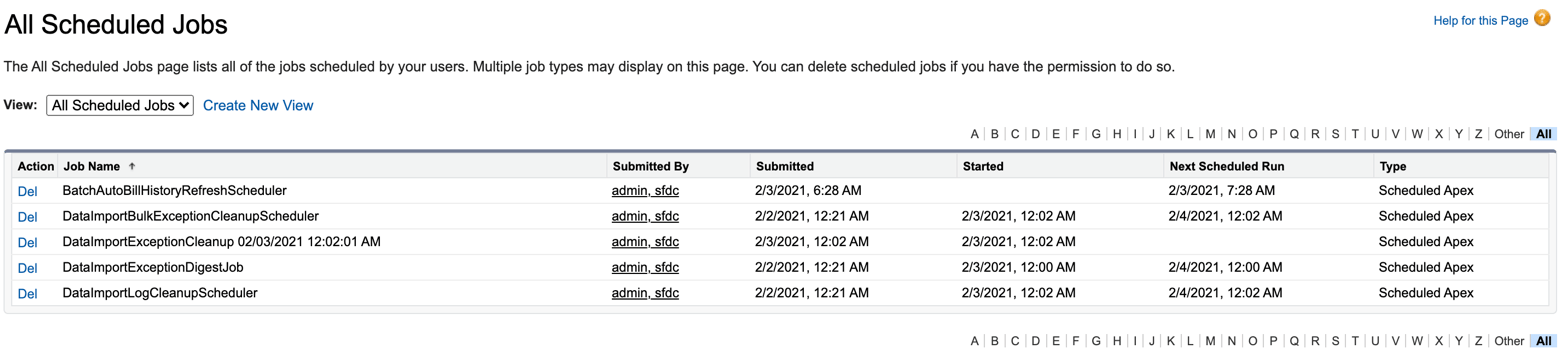
When you start the auto scheduled data import with the Start Data Import button on the Subscribe Admin tab, the following jobs are scheduled, as shown in the figure below.- Data Import Bulk Exception Cleanup Scheduler—runs daily and deletes exceptions logs older than seven days
- Data Import Exception Digest Job
- Data Import Log Cleanup Scheduler—deletes all import logs older than seven days
- Vindicia Data Import Scheduler—controls the continuous data import sequence, described in the Importing Data - Automatic and Continuous chapter.
Disable Subscribe Triggers
When an additional custom code is being deployed in your Salesforce organization, you may need to disarm Subscribe triggers for certain test classes. During debug or test mode, you can disable the triggers for Subscribe and get the rest of your test coverage to an acceptable point. Be sure to enable all Subscribe triggers before launching and resuming application data integration.Data Import Catch-up
Under the Subscribe Admin tab, a section called Data Import Shortcuts enables you to import specific object data manually. For the following objects, all available records from Subscribe are imported into Salesforce:- Products
- Billing Plans
- Rate Plans
- Accounts
- Purchases
- Transactions
- Credits
- Refunds