Required Merchant Information
[
Desired Merchant Configuration
(No optional merchant config for JusPay)
Parent topic:Payment Provider Specific Configuration
JusPay Merchant Setup Instructions
The following Instructions are written for Vindicia CTS and services delivery staff. To configure a merchant to use JusPay payment processor:Merchant Payment Providers
- In Subscribe Portal 1.0, using you’re admin account, go to Admin > Merchant Configurations.
- Select the relevant Merchant from the drop-down list.
- Click Edit Merchant Configurations.
- Enter the Jira Ticket # for configuring your merchant payment setup.
-
Add JusPay to Merchant Payment Providers:
- Select JusPay (1068) as the payment provider and click ADD.
- Leave Account Number blank.
- Set PP Type as BRD.
- Set Active to 1.
Routing Rule
-
Add a Routing Rule for JusPay.
- Select JusPay (1068) as the payment provider and click ADD.
- Add an Ordinal value of 1.
- Leave Value blank.
- Add a Rule Method value of default_method(1).
- Set Active to 1. Note: If the test payment provider is configured, set its Active value to 0.
Name/Value Pairs
The below api_key value is for Vindicia internal testing and should not be shared with merchants.Configuring the Checkout.com Gateway
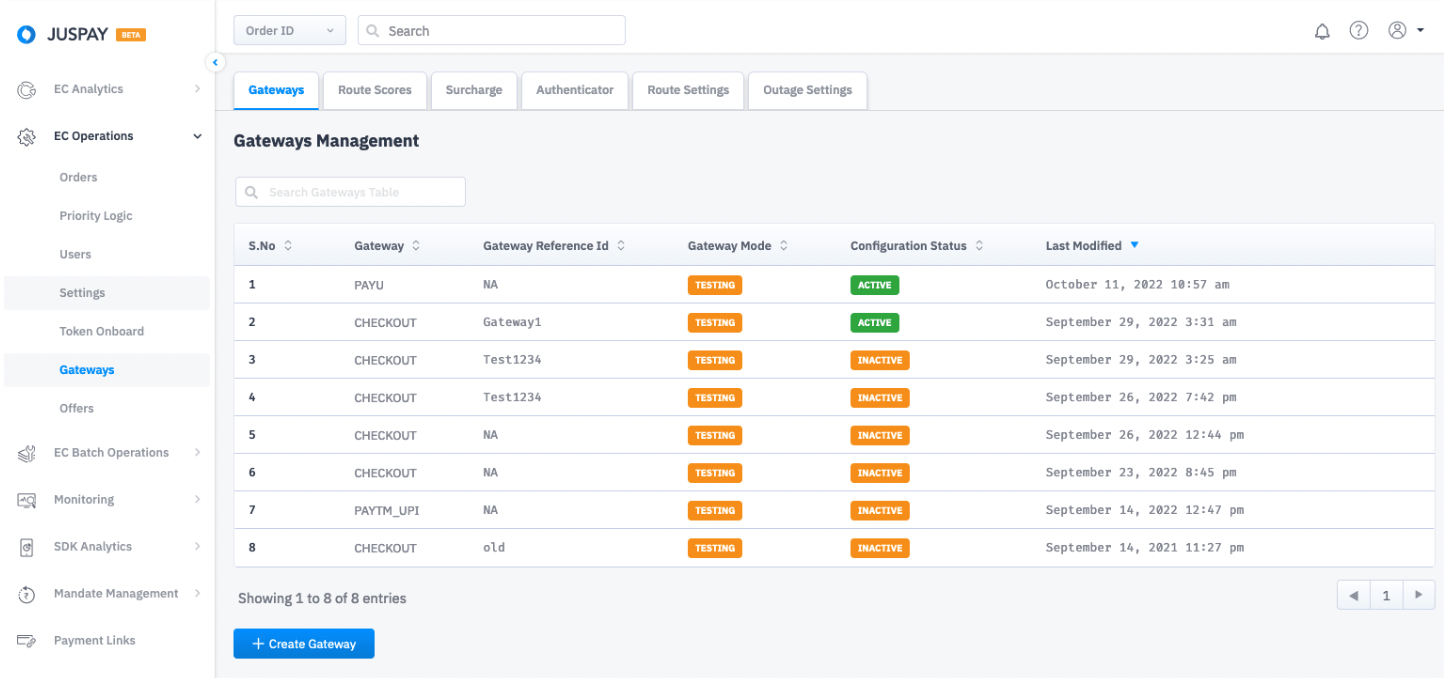
To use Checkout.com as a gateway with JusPay, complete the following steps in the JusPay portal.- Create a new merchant instance in the JusPay portal.
- Click Create Gateway.
-
Add a Gateway Type of Checkout.
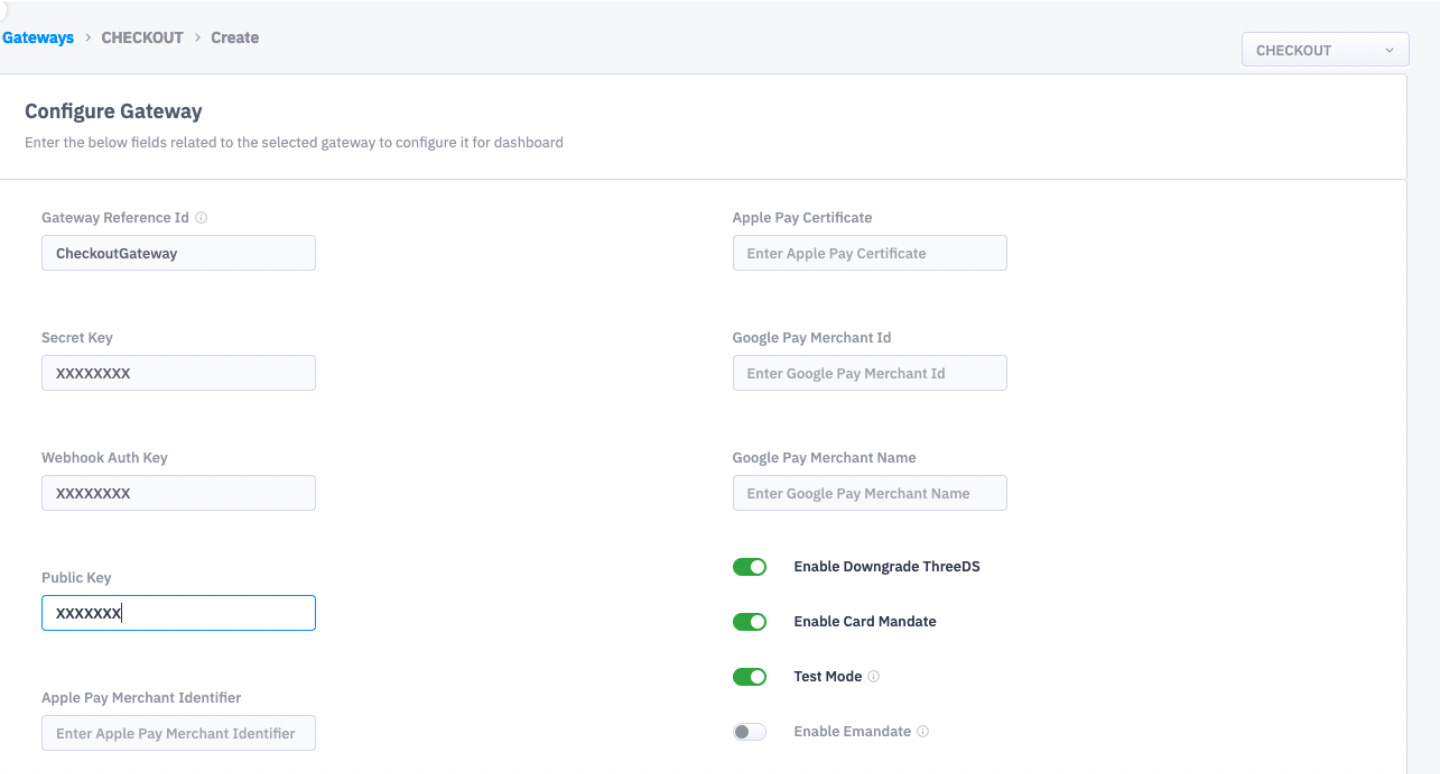
- Add the merchant’s public and secret keys from their Checkout.com merchant instance.
-
Add the Webhook Auth Key, if the merchant has it configured for Checkout.com.
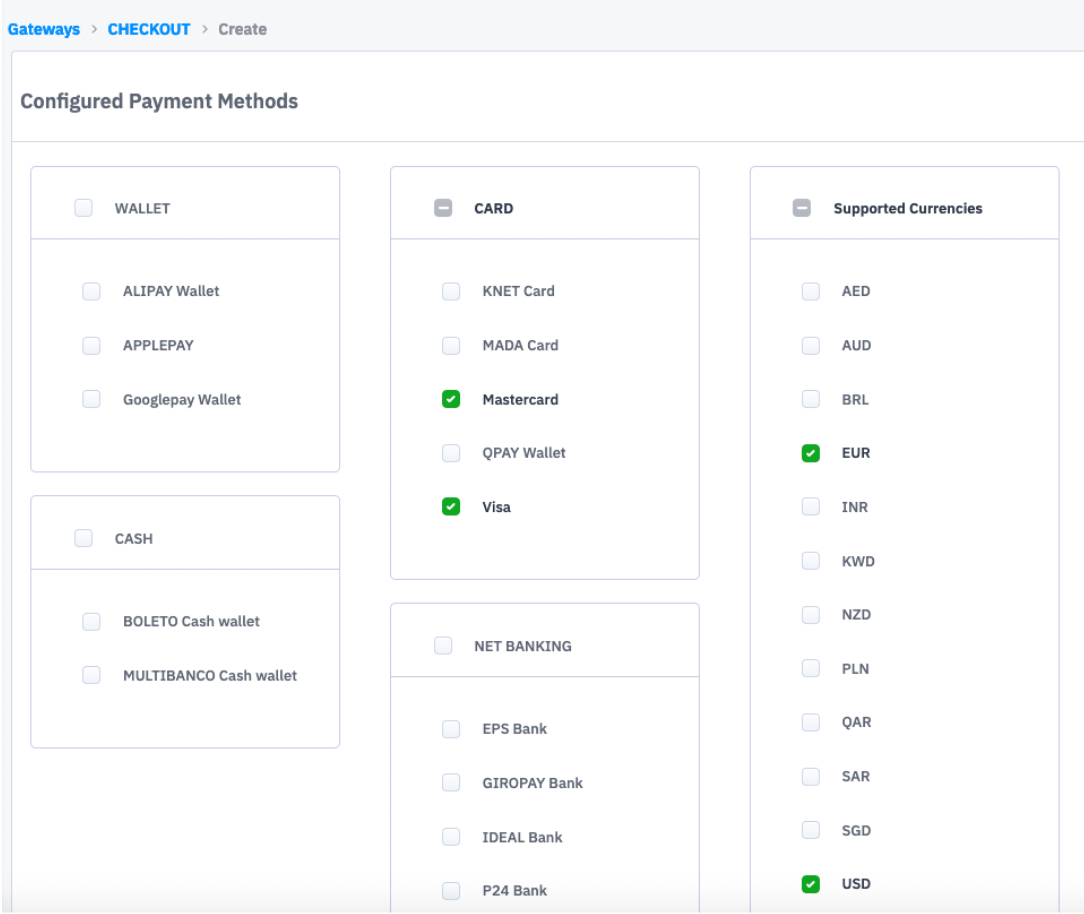
- Select the Cards checkboxes based on the merchant’s requirements.
-
select the Supported Currencies checkboxes based on merchant’s requirements.
Creating the Secret and Public Keys from the Checkout.com Portal
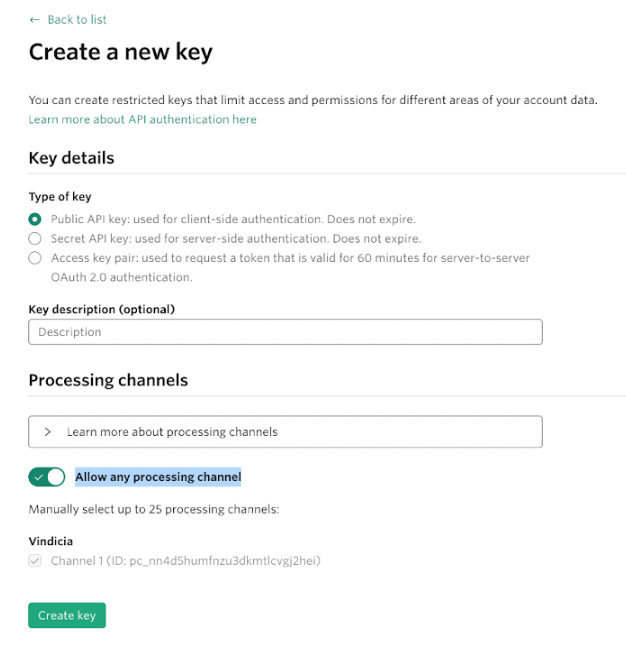
Checkout.com supports two versions of the API (2.0 and 2.1). The API version that the merchant uses to create the Token is the same version we need to configure in the Juspay dashboard. We have two separate dashboards to generate the keys for 2.0 and 2.1:- Version 2.0: https://sandbox.checkout.com/
- Version 2.1: https://identity-sandbox.checkout.com/