- It is recommended that the set up of your Okta account and application be performed twice:
- Okta staging > Vindicia Subscribe Staging
- Okta Production > Vindicia Subscribe Production
- Okta passwords must meet PCI requirements. See External User Authentication Requirements for details.
- Multi-factor Authentication and re-authentication is required for this implementation. See External User Authentication Requirements for details.
-
In your Okta org account, navigate to Applications > Applications.
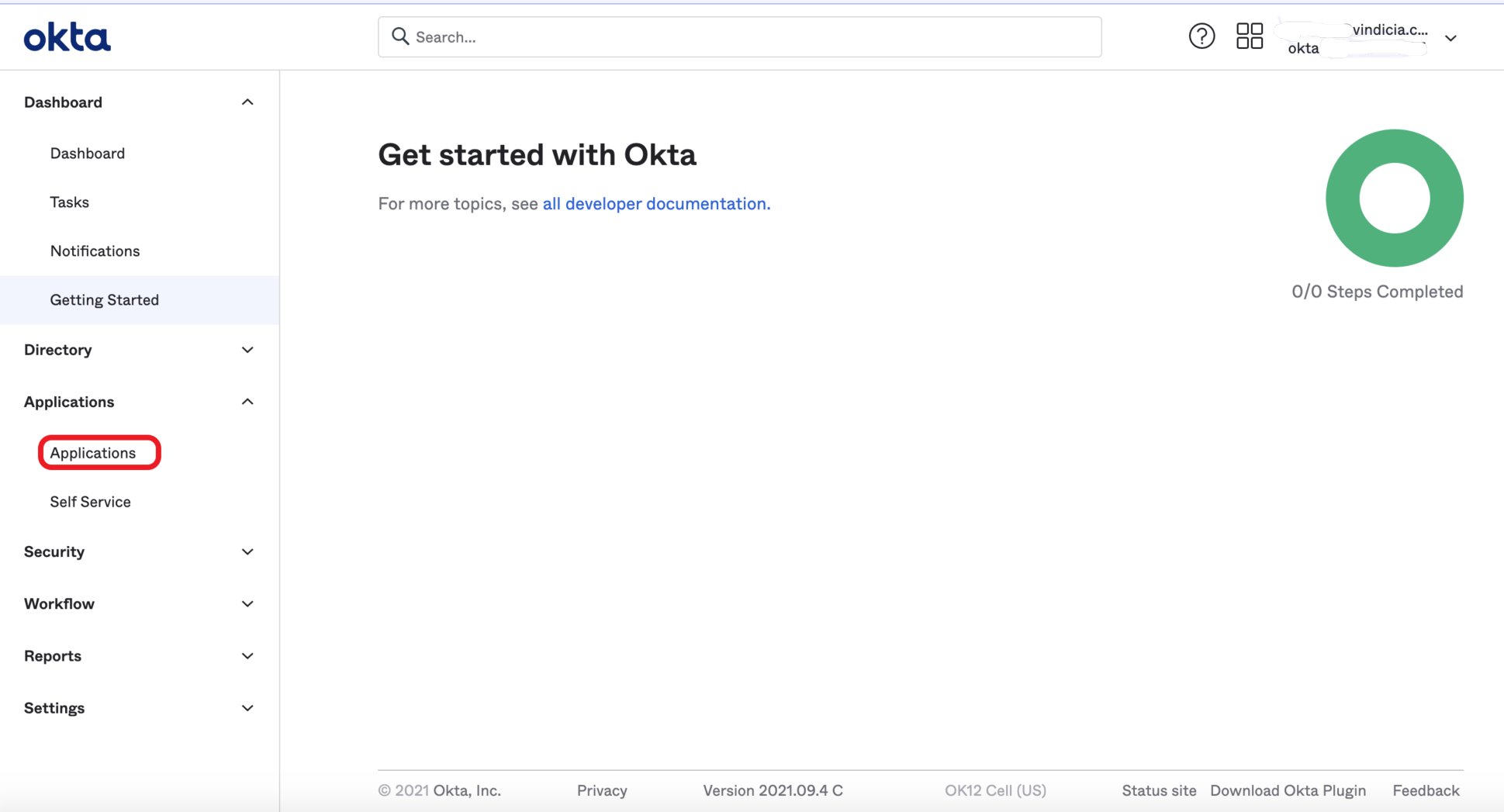
- Click the Create App Integration button. The Create a new app integration screen appears.
-
Define as follows:
- For Sign-in method, select OIDC - OpenID Connect.
- For Application type, select Web Application.
- Click Next.
-
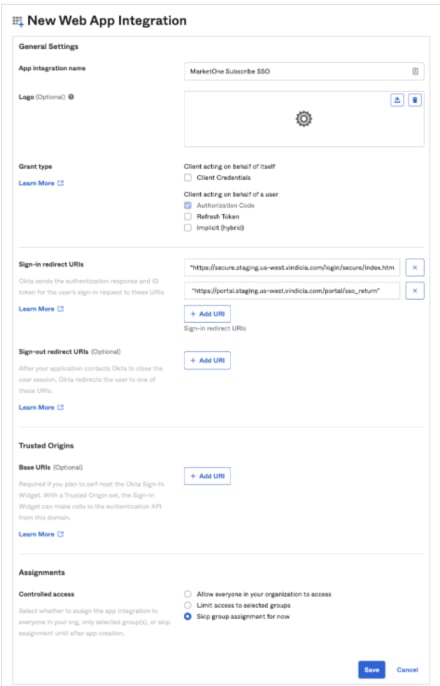
Define the New Web App Integration as follows:
- For App integration name, enter the name you’d like to give this app. For example, use Vindicia Subscribe.
- For Grant type, select Authorization Codeand ensure that all other checkboxes are clear.
-
For Sign-in redirect URIs, enter the following as relevant for either your production or staging implementation:
- Staging:
- Subscribe Portal 2.0 staging: https://portal.staging.us-west.vindicia.com/portal/sso_return
- Production:
- Subscribe Portal 2.0 production: https://portal.vindicia.com/portal/sso_return
- Staging:
- For Sign-out redirect URI, leave blank.
- For Trusted Origins, leave blank.
- For Assignments, limit access to the relevant groups in your organization that require access to Vindicia Subscribe.
- Click Save. The new Web integration App is saved.
-
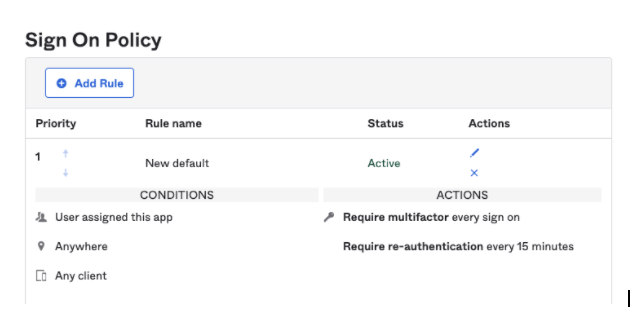
In the newly created web integration app, access the Sign On tab and set the following recommended options:
- click Add Rule.
- Set Require multifactor every sign on and Require re-authentication every 15 minutes.
-
In the newly created web integration app, access the General tab and note the required details to pass to Vindicia.
-
Copy the following details from the Client Credentials and General Settings panes and save them to a .txt file.
- Client ID
- Client secret
- Okta domain
- Encrypt the file and pass it to your Vindicia contact point for integration.
-
Copy the following details from the Client Credentials and General Settings panes and save them to a .txt file.
-
In Subscribe Portal 1.0, access Reports and run the Merchant Users report with User Status set to Active.
- Ensure that all the users that require access to Subscribe appear in the report with a corresponding email address.
- Ensure that the users’ emails in the report match the emails used in Okta.
-
To test the successful setup, access Subscribe Merchant Portal 2.0 at https://portal.staging.us-west.vindicia.com/ and enter your username.
You are redirected to to your Okta sign in page for authentication.