> ## Documentation Index
> Fetch the complete documentation index at: https://docs.slm.m1amdocs.com/llms.txt
> Use this file to discover all available pages before exploring further.
# G/L Journal Entry Support
As a finance manager, you can generate general ledger (G/L) journal entries using reports in the Subscribe Portal.
* **Use Case:** 2-6-03
* **Completed By:** Finance Manager
* **Estimated Completion Time:** Varies by G/L Model And Number of Product Lines
## Design Approach
Subscribe records the details of each new sale, recurring charge, payment, refund and credit, allowing you to post that detail to your G/L. Some merchants choose to post daily, others post weekly and some do all of their G/L entries as part of their month-end close procedures. Whatever the frequency with which you update your G/L, Subscribe holds the details until you are ready to build your journal entries and provides a simple report from which you can easily generate those entries.
Using standard Subscribe reports, you can generate the G/L journal entries needed to reflect the accounting activity that has taken place in Subscribe for a given accounting period. You can use these reports to manually generate the required journal entries and then post those journal entries to your financial system of record.
## On-Demand and Scheduled Reports
To generate a Subscribe report on-demand see [Generating Reports on Demand](https://docs.vindicia.com/bundle/Subscribe_Portal2_User_Guide/page/topics/reportsWorking.html).
To schedule a Subscribe report to generate automatically see [Create Scheduled Reports](https://docs.vindicia.com/bundle/Subscribe_Portal2_User_Guide/page/topics/reportsWorking.html).
* **[Post Cash And Revenue For New Sales And Recurring Subscription Charges](../topics/2603_r_glJournalEntrySupport#)**
* **[Account for Refunds](../topics/2603_r_glJournalEntrySupport#)**
* **[Recognize Deferred Revenue](../topics/2603_r_glJournalEntrySupport#)**
* **[Posting Credits](../topics/2603_r_glJournalEntrySupport#)**
* **[Account for Taxes](../topics/2603_r_glJournalEntrySupport#)**
**Parent topic:**[Finance](../topics/r_finance)
## Post Cash And Revenue For New Sales And Recurring Subscription Charges
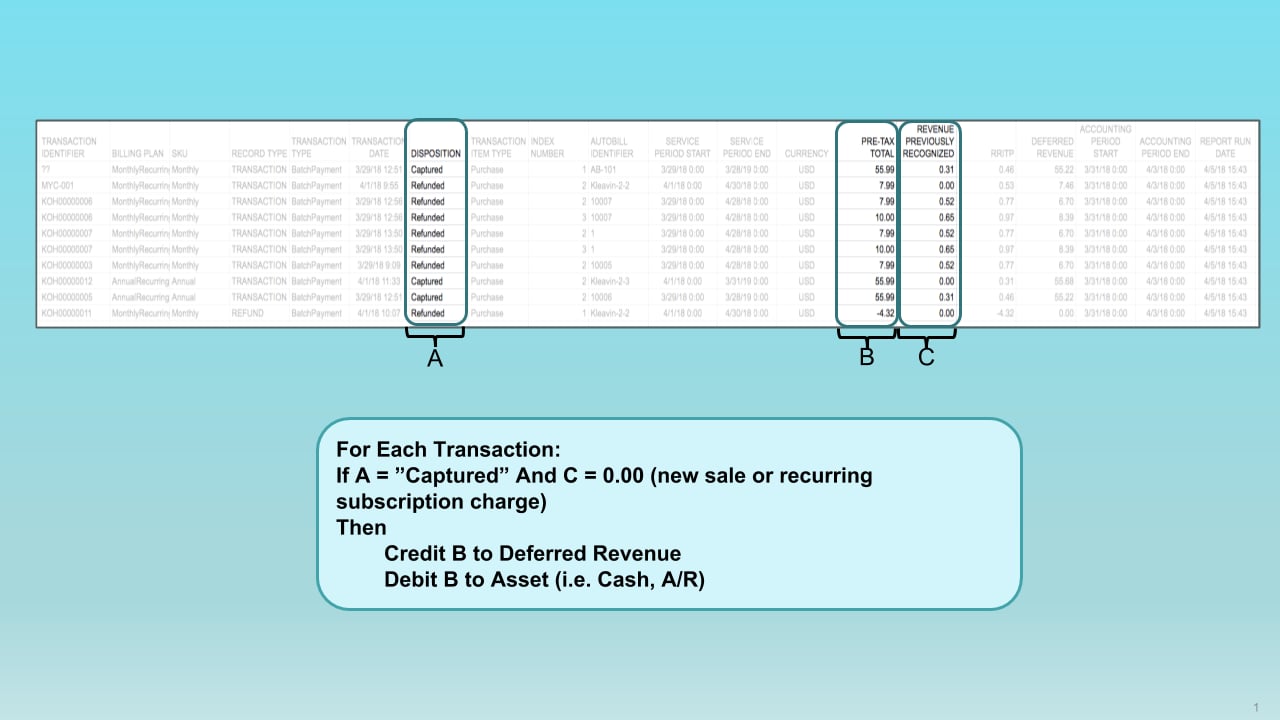
The Transaction Based Revenue Recognition Report includes all the information you need to generate journal entries and record new sales and recurring subscription charges in your G/L.
To use the Transaction Based Revenue Recognition Report to update your G/L:
1. Run the Transaction Based Revenue Recognition Report.
See: [Transaction Based Revenue Recognition Reports](https://docs.vindicia.com/bundle/Subscribe_Portal2_User_Guide/page/topics/reportsTransactionBasedRevenueRecog.html) in the **Subscribe Portal User Guide**.
2. To post cash and revenue:
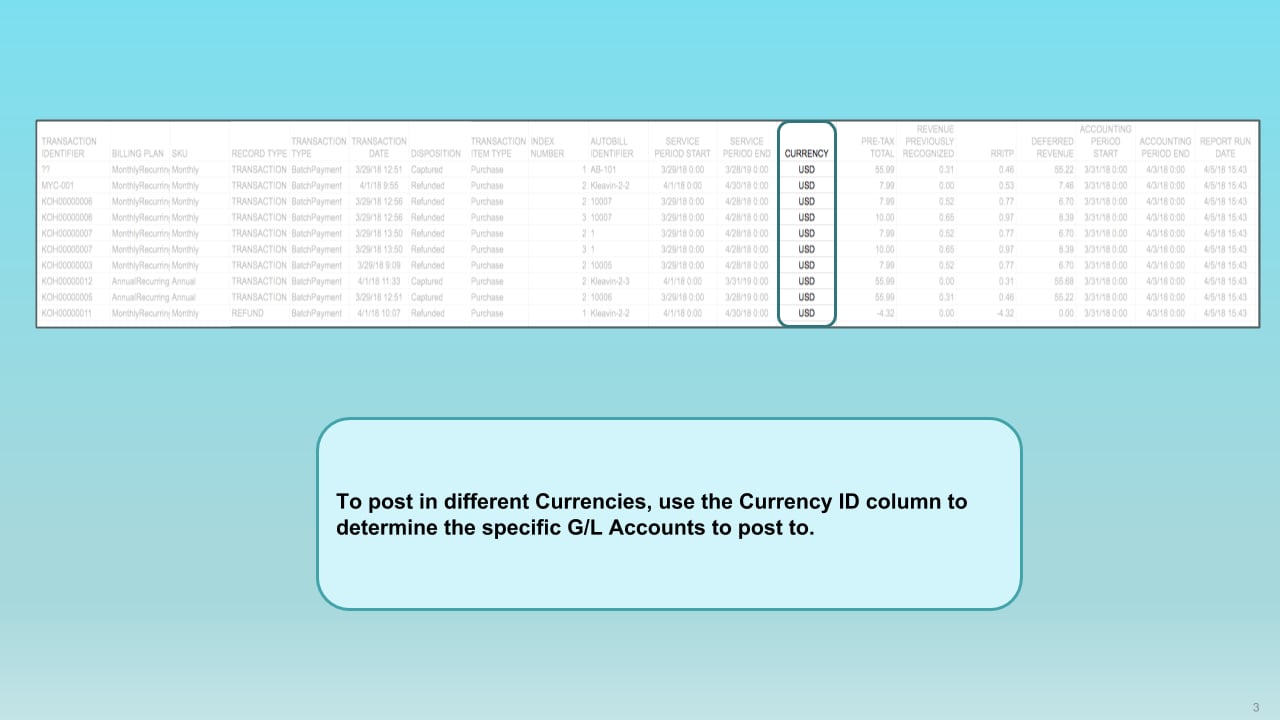
 3. To post cash and revenue by product line:
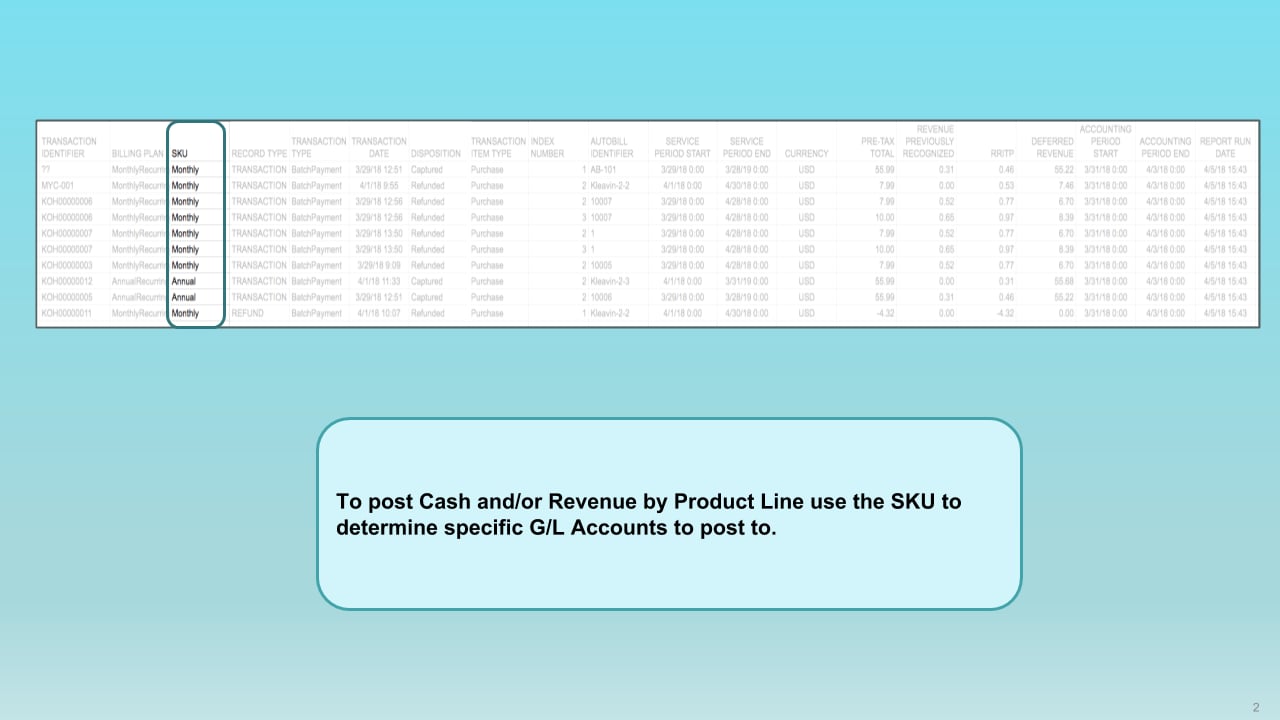
 4. To post cash in different currencies:
 **Parent topic:**[G/L Journal Entry Support](../topics/2603_r_glJournalEntrySupport#)
## Account for Refunds
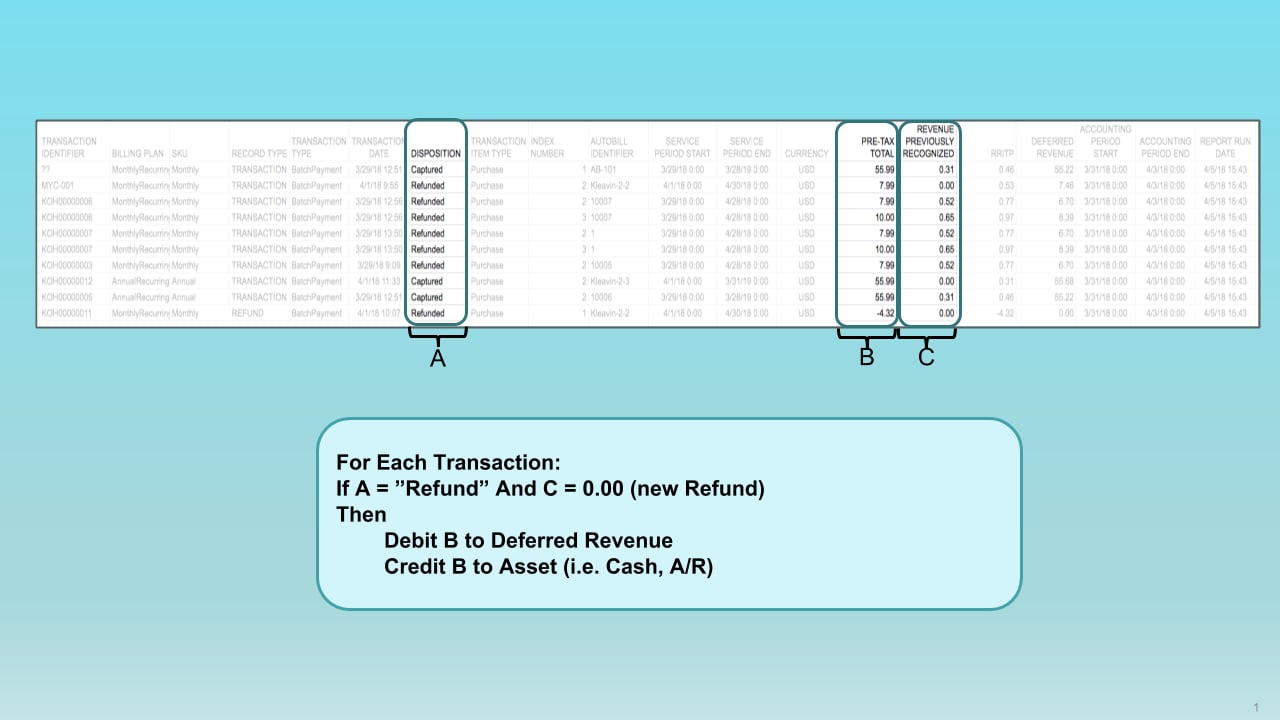
The Transaction Based Revenue Recognition Report also contains Refund Transactions. For information about Refunds in Subscribe, see [Refunding Transactions](https://docs.vindicia.com/bundle/Subscribe_Portal2_User_Guide/page/topics/transactionWorking.html#ariaid-title13) in the **Subscribe Portal User Guide**.
To use the Transaction Based Revenue Recognition Report to account for refunds:
1. Run the Transaction Based Revenue Recognition Report.
See: [Transaction Based Revenue Recognition Reports](https://docs.vindicia.com/bundle/Subscribe_Portal2_User_Guide/page/topics/reportsTransactionBasedRevenueRecog.html) in the **Subscribe Portal User Guide**.
2. To post refunds:
**Parent topic:**[G/L Journal Entry Support](../topics/2603_r_glJournalEntrySupport#)
## Account for Refunds
The Transaction Based Revenue Recognition Report also contains Refund Transactions. For information about Refunds in Subscribe, see [Refunding Transactions](https://docs.vindicia.com/bundle/Subscribe_Portal2_User_Guide/page/topics/transactionWorking.html#ariaid-title13) in the **Subscribe Portal User Guide**.
To use the Transaction Based Revenue Recognition Report to account for refunds:
1. Run the Transaction Based Revenue Recognition Report.
See: [Transaction Based Revenue Recognition Reports](https://docs.vindicia.com/bundle/Subscribe_Portal2_User_Guide/page/topics/reportsTransactionBasedRevenueRecog.html) in the **Subscribe Portal User Guide**.
2. To post refunds:
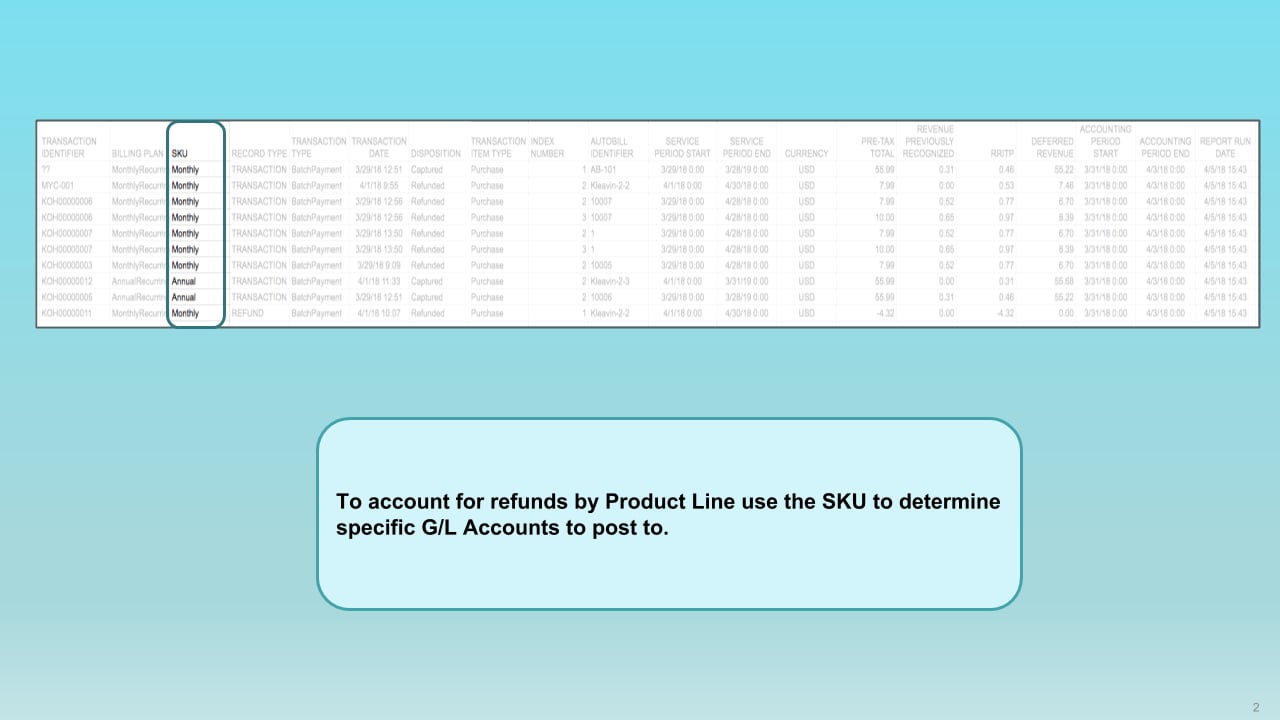
 3. To post refunds by product line:
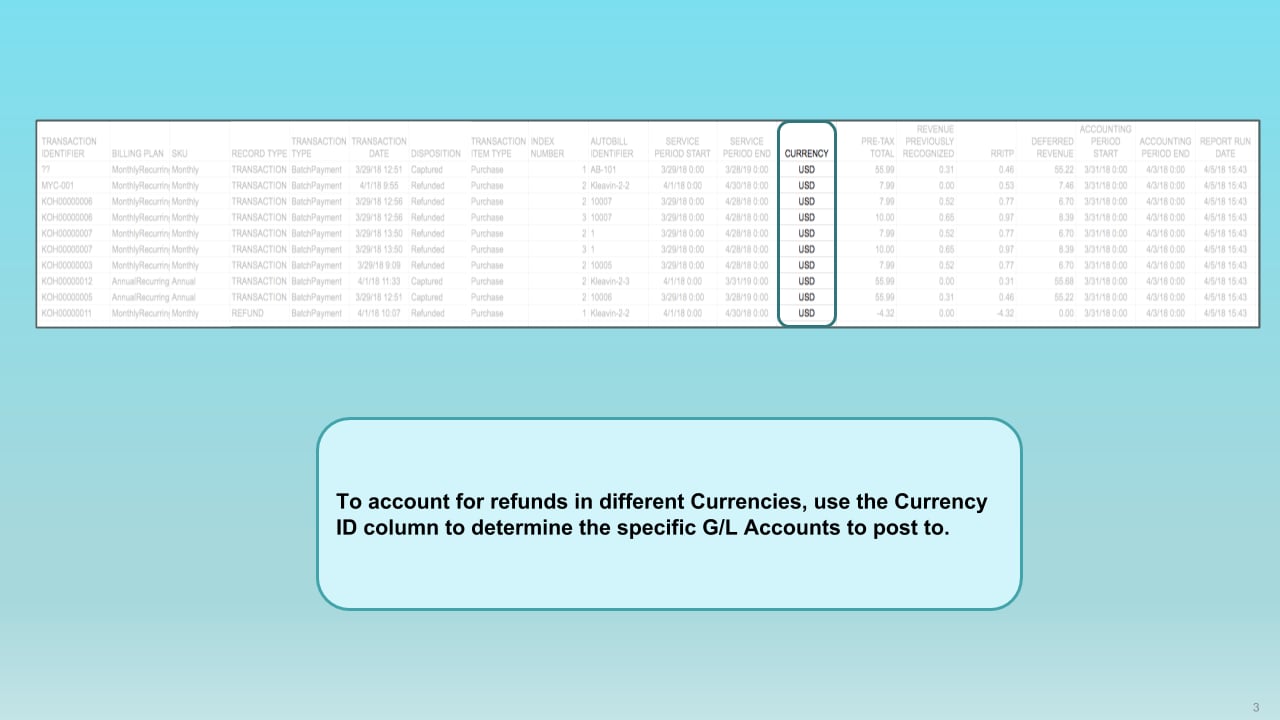
 4. To post refunds in different currencies:
 **Parent topic:**[G/L Journal Entry Support](../topics/2603_r_glJournalEntrySupport#)
## Recognize Deferred Revenue
You can also use the Transaction Based Revenue Recognition Report to recognize revenue over the course of the service period for each recurring subscription charge.
To use the Transaction Based Revenue Recognition Report to recognize revenue:
1. Run the Transaction Based Revenue Recognition Report.
See: [Transaction Based Revenue Recognition Reports](https://docs.vindicia.com/bundle/Subscribe_Portal2_User_Guide/page/topics/reportsTransactionBasedRevenueRecog.html) in the **Subscribe Portal User Guide**.
2. To recognize revenue:
**Parent topic:**[G/L Journal Entry Support](../topics/2603_r_glJournalEntrySupport#)
## Recognize Deferred Revenue
You can also use the Transaction Based Revenue Recognition Report to recognize revenue over the course of the service period for each recurring subscription charge.
To use the Transaction Based Revenue Recognition Report to recognize revenue:
1. Run the Transaction Based Revenue Recognition Report.
See: [Transaction Based Revenue Recognition Reports](https://docs.vindicia.com/bundle/Subscribe_Portal2_User_Guide/page/topics/reportsTransactionBasedRevenueRecog.html) in the **Subscribe Portal User Guide**.
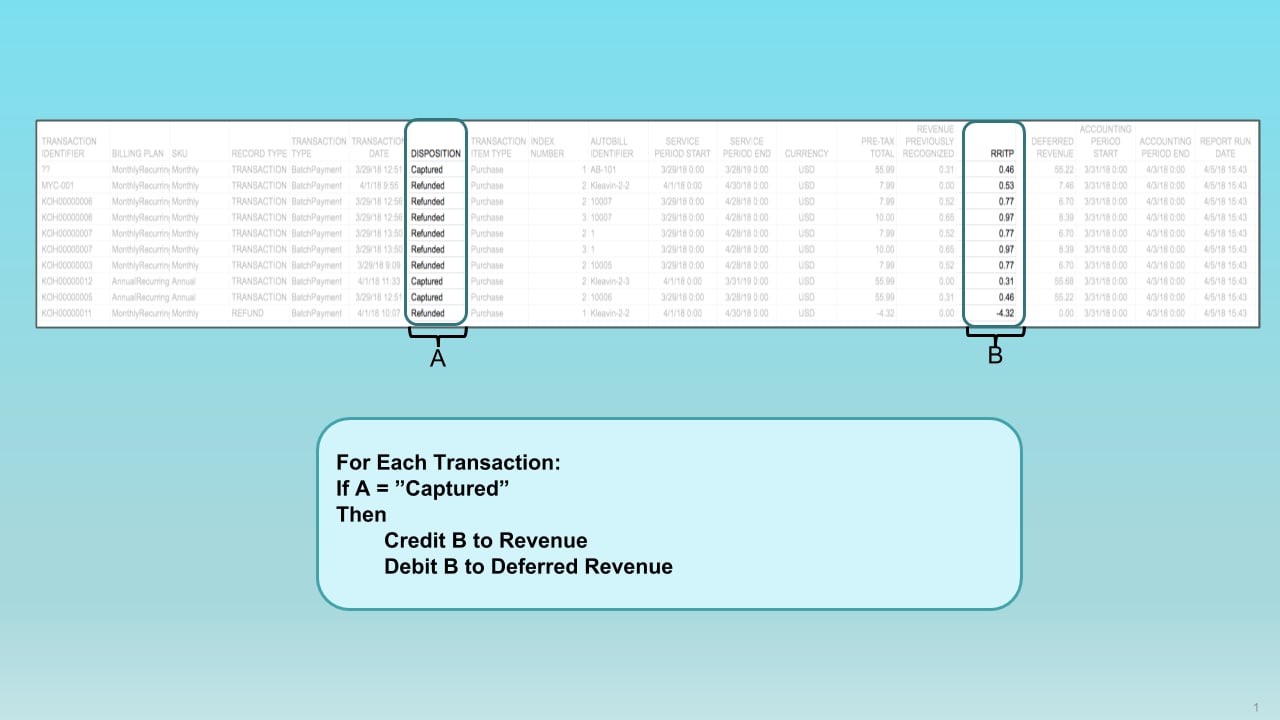
2. To recognize revenue:
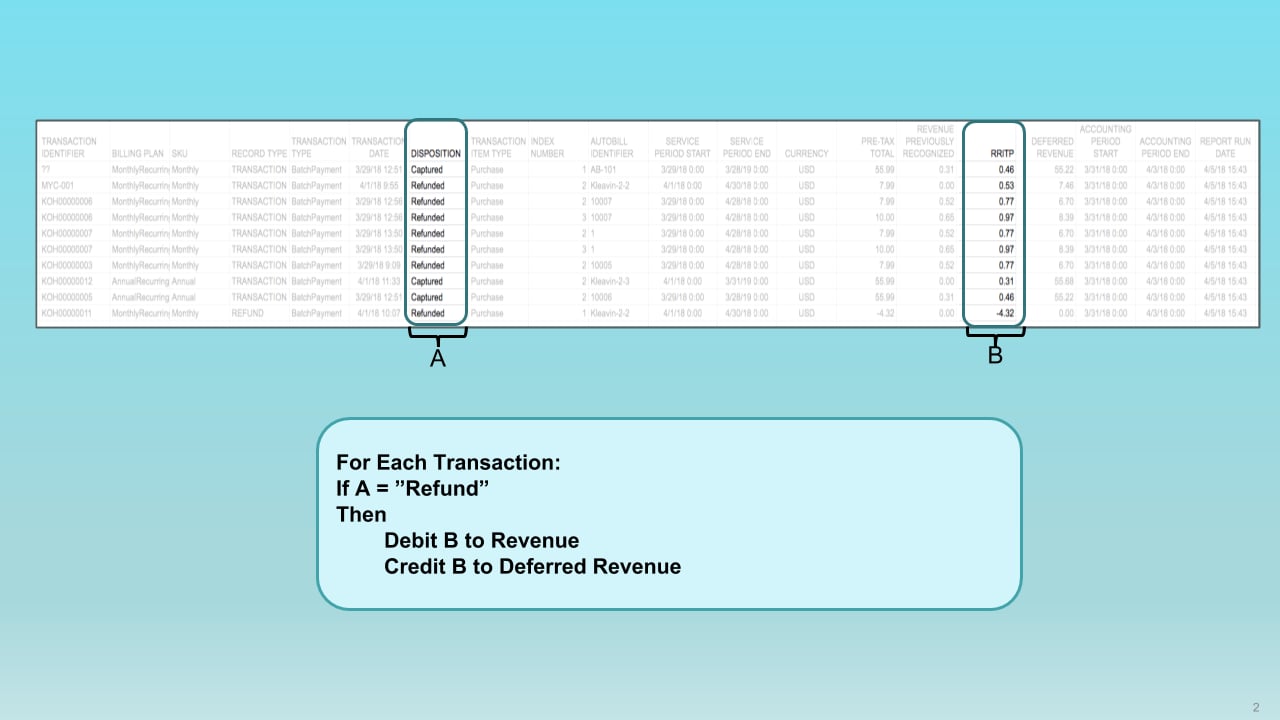
 3. To recognize refunded revenue:
 **Parent topic:**[G/L Journal Entry Support](../topics/2603_r_glJournalEntrySupport#)
## Posting Credits
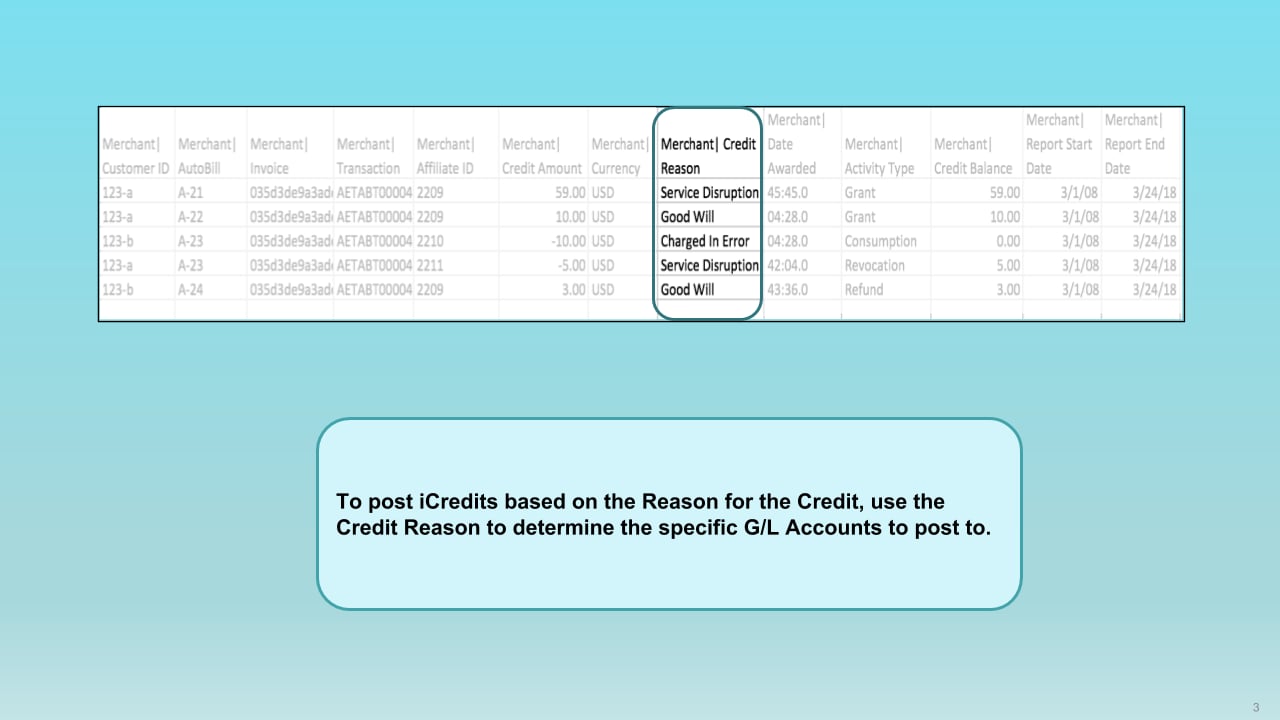
Subscribe allows qualified users to grant credits to subscriber accounts or subscriptions. Credits granted to the subscriber are automatically applied to the subscriber's next billing cycle, reducing the amount that will be charged to the subscriber's credit card. When granting Credits, users can enter a free-form Reason. The Reason provides additional information on why the Credit was granted. For more information about Credits in Subscribe, see [Credits](https://docs.vindicia.com/bundle/Subscribe_Portal2_User_Guide/page/topics/creditActivity.html) in the **Subscribe Portal User Guide**.
To use the Credit History Report to generate the needed Journal Entries to account for any credits granted to subscribers:
1. Run the Credit History Report.
See [Credit History Report](https://docs.vindicia.com/bundle/Subscribe_Portal2_User_Guide/page/topics/reportsCreditHistory.html) in the **Subscribe Portal User Guide**.
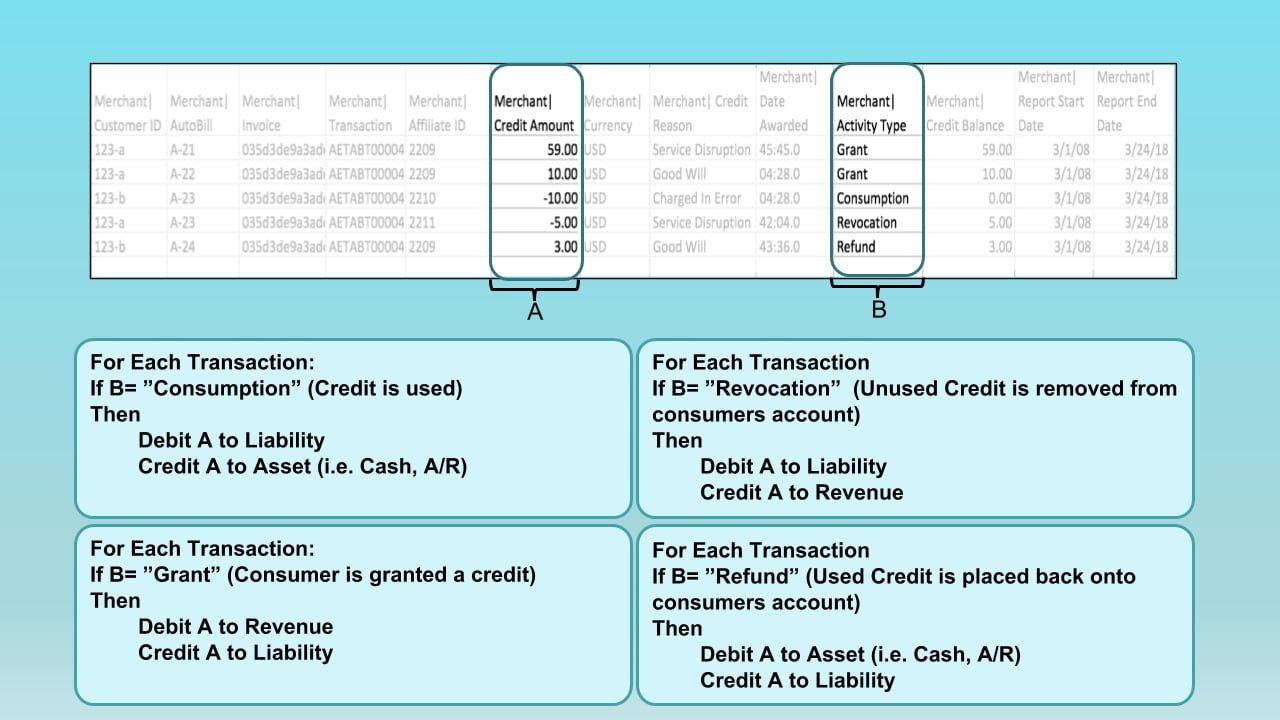
2. To post the credits granted, used, revoked, or refunded:
**Parent topic:**[G/L Journal Entry Support](../topics/2603_r_glJournalEntrySupport#)
## Posting Credits
Subscribe allows qualified users to grant credits to subscriber accounts or subscriptions. Credits granted to the subscriber are automatically applied to the subscriber's next billing cycle, reducing the amount that will be charged to the subscriber's credit card. When granting Credits, users can enter a free-form Reason. The Reason provides additional information on why the Credit was granted. For more information about Credits in Subscribe, see [Credits](https://docs.vindicia.com/bundle/Subscribe_Portal2_User_Guide/page/topics/creditActivity.html) in the **Subscribe Portal User Guide**.
To use the Credit History Report to generate the needed Journal Entries to account for any credits granted to subscribers:
1. Run the Credit History Report.
See [Credit History Report](https://docs.vindicia.com/bundle/Subscribe_Portal2_User_Guide/page/topics/reportsCreditHistory.html) in the **Subscribe Portal User Guide**.
2. To post the credits granted, used, revoked, or refunded:
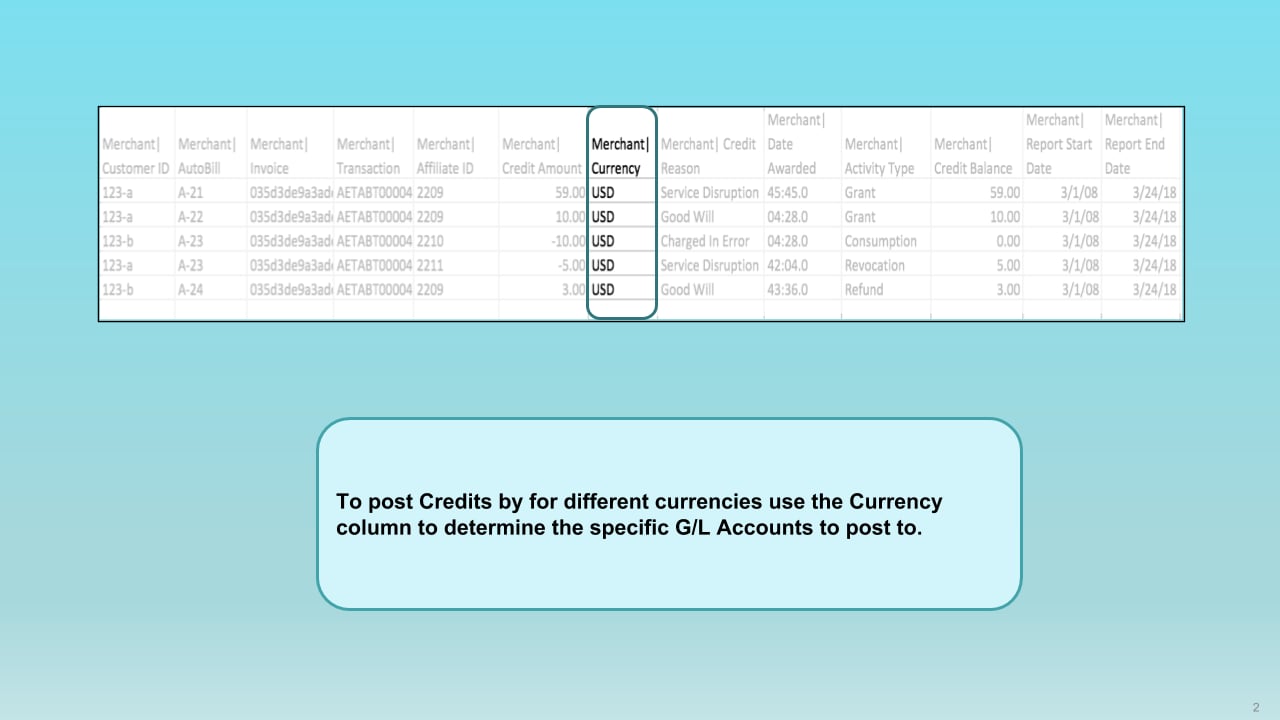
 3. To post credits in different currencies:
 4. To post credits by credit reason:
 **Parent topic:**[G/L Journal Entry Support](../topics/2603_r_glJournalEntrySupport#)
## Account for Taxes
Subscribe automatically calculates and applies taxes based on your Tax Nexus and tracks the individual tax charges for each applicable Tax Jurisdiction. For more information about Subscribe taxation, see [Sales Tax](https://docs.vindicia.com/bundle/howTo/page/topics/Sales_Tax.html).
To use the Sales Tax Detail Report to account for tax changes and to remit taxes owed to the applicable Tax Authority:
1. Run the Sales Tax Detail Report.
See [Sales Tax Detail Report](https://docs.vindicia.com/bundle/Subscribe_Portal2_User_Guide/page/topics/reportsSalesTaxDetail.html) in the **Subscribe Portal User Guide**.
2. To account for taxes for new sales and recurring charges:
**Parent topic:**[G/L Journal Entry Support](../topics/2603_r_glJournalEntrySupport#)
## Account for Taxes
Subscribe automatically calculates and applies taxes based on your Tax Nexus and tracks the individual tax charges for each applicable Tax Jurisdiction. For more information about Subscribe taxation, see [Sales Tax](https://docs.vindicia.com/bundle/howTo/page/topics/Sales_Tax.html).
To use the Sales Tax Detail Report to account for tax changes and to remit taxes owed to the applicable Tax Authority:
1. Run the Sales Tax Detail Report.
See [Sales Tax Detail Report](https://docs.vindicia.com/bundle/Subscribe_Portal2_User_Guide/page/topics/reportsSalesTaxDetail.html) in the **Subscribe Portal User Guide**.
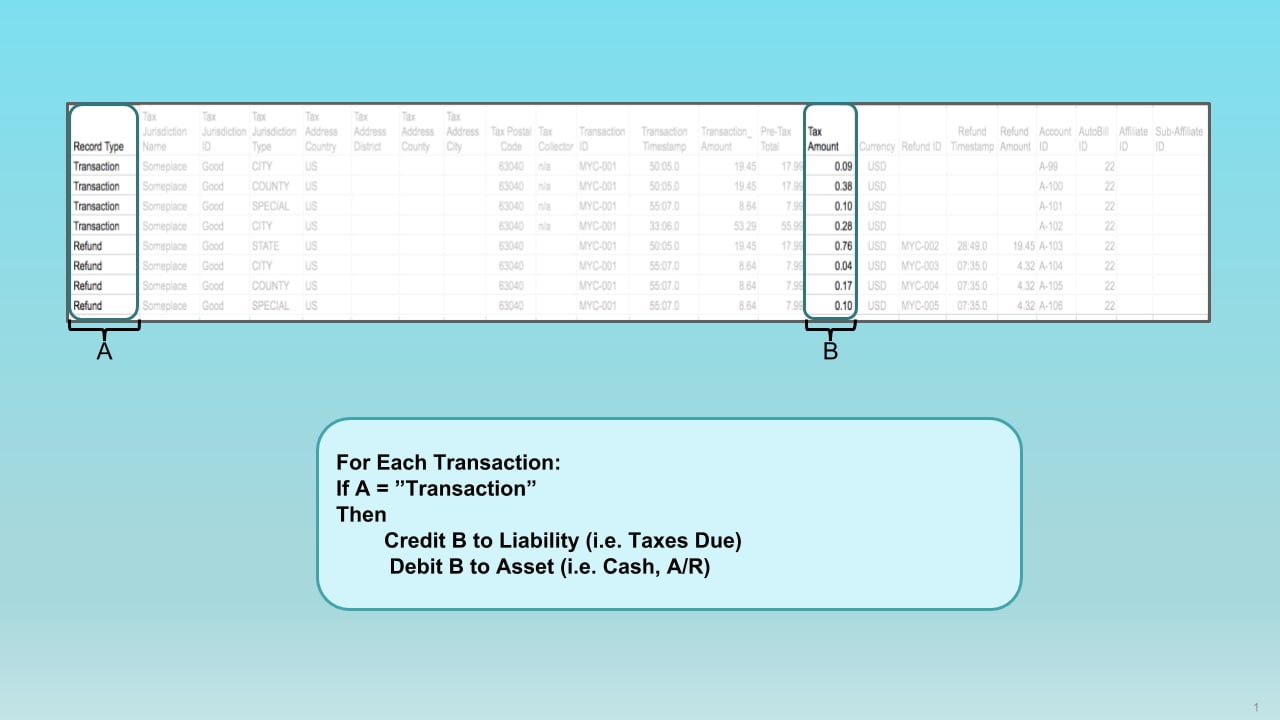
2. To account for taxes for new sales and recurring charges:
 3. To account for taxes for refunds:
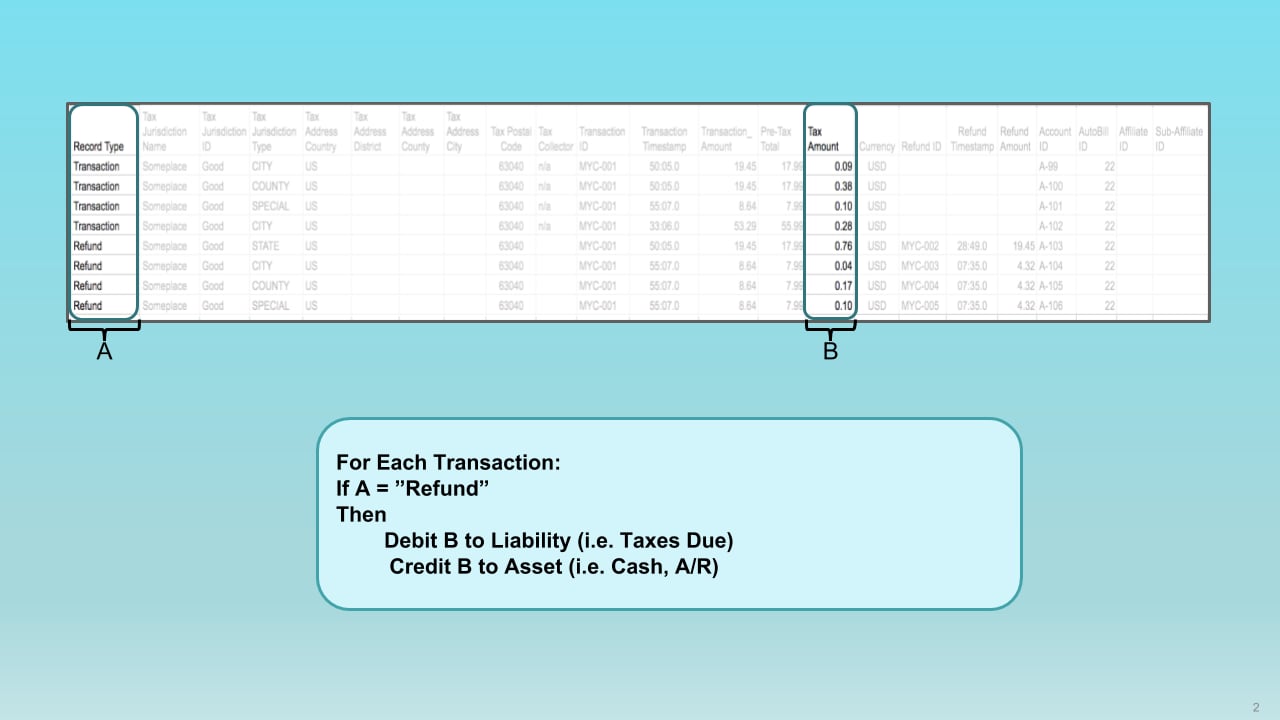 4. To account for taxes in different currencies:
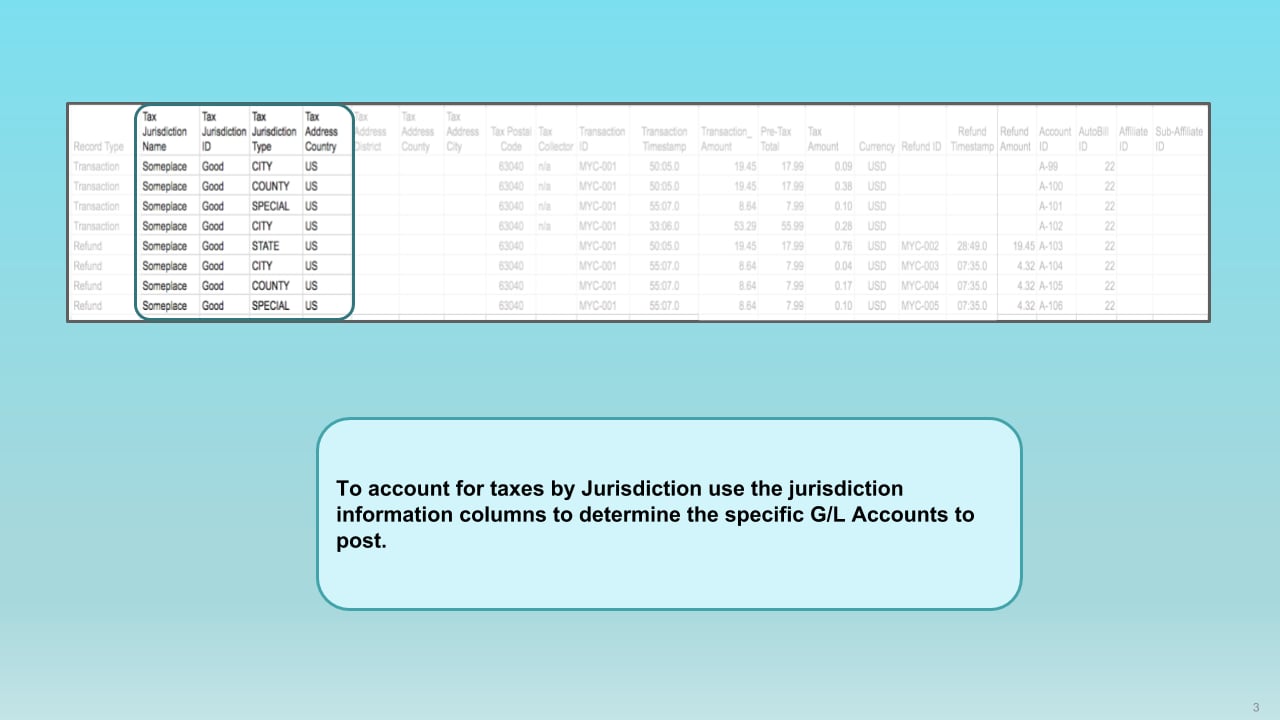
5. To account for taxes by jurisdiction:
4. To account for taxes in different currencies:
5. To account for taxes by jurisdiction:
 **Parent topic:**[G/L Journal Entry Support](../topics/2603_r_glJournalEntrySupport#)
This documentation is built and hosted on [Mintlify](https://mintlify.com), a developer documentation platform.
**Parent topic:**[G/L Journal Entry Support](../topics/2603_r_glJournalEntrySupport#)
This documentation is built and hosted on [Mintlify](https://mintlify.com), a developer documentation platform.