> ## Documentation Index
> Fetch the complete documentation index at: https://docs.slm.m1amdocs.com/llms.txt
> Use this file to discover all available pages before exploring further.
# Configuring Subscribe Admin Tab
Before you use your newly installed Subscribe for Salesforce applications, you must configure it to operate with your Subscribe merchant and custom settings. To configure Subscribe to best serve your business needs, select the Subscribe application and click the **Subscribe Admin** tab. (Select the tab from the **All Tabs** screen, or enter the Subscribe Reporting for Salesforce application using the **Application Selector** in the upper right of your Salesforce.com screen.)
The first time you access this page, you are prompted to identify whether this Salesforce instance is connecting to a Subscribe PRODUCTION or STAGING environment. Depending on this selection, the endpoint URL is automatically set. The login credentials must correspond to the Subscribe environment to which you are connecting.
**Warning:**
A production Salesforce instance is intended to connect to Subscribe PRODUCTION, and a Sandbox Salesforce instance is intended to connect to Subscribe STAGING. It is very important that you do not change environments after you have connected and imported data from one environment—doing so can potentially corrupt your Subscribe data. To prevent the corruption of data, only a Salesforce admin user has the right to change environments on any Salesforce instance.
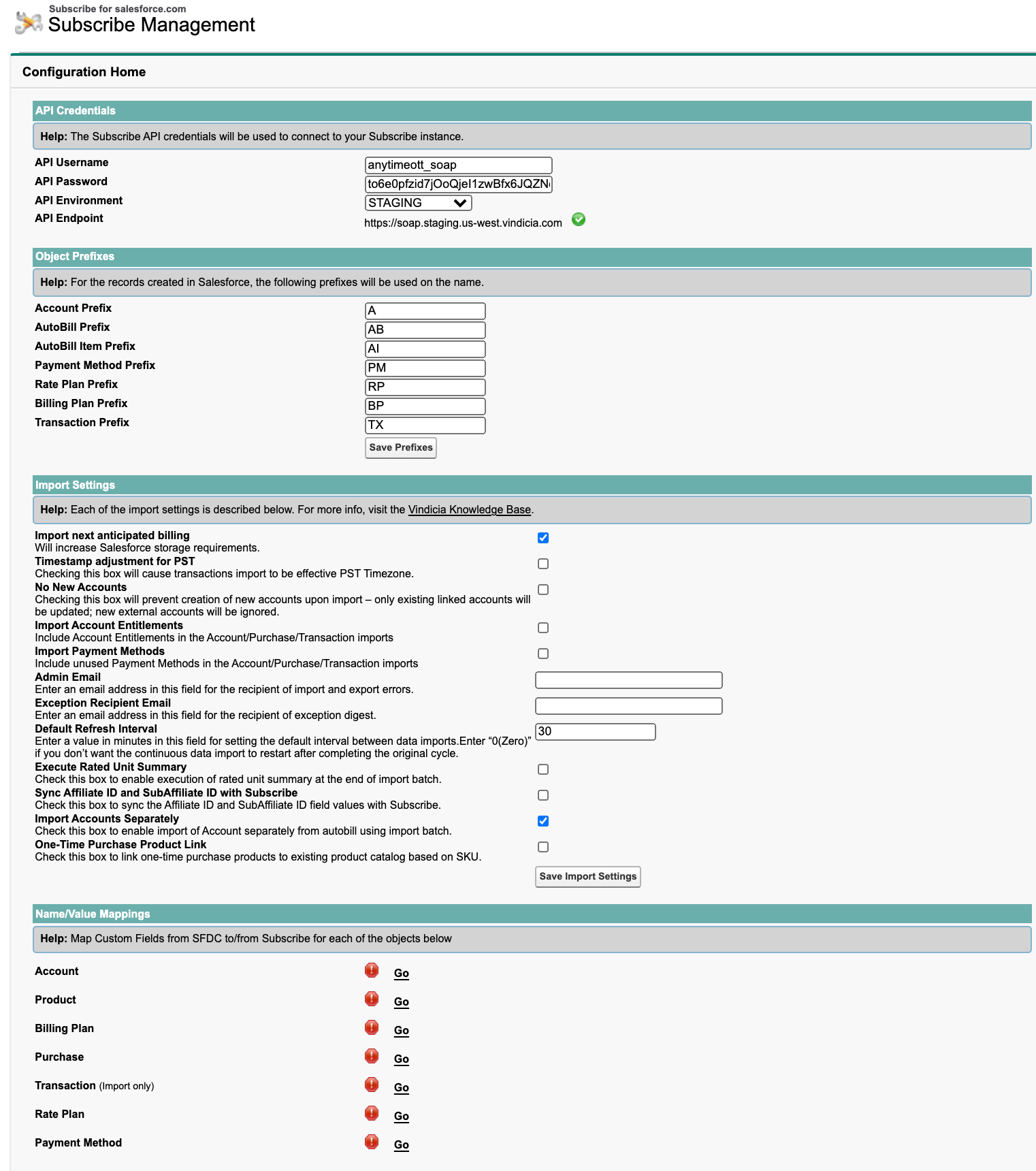
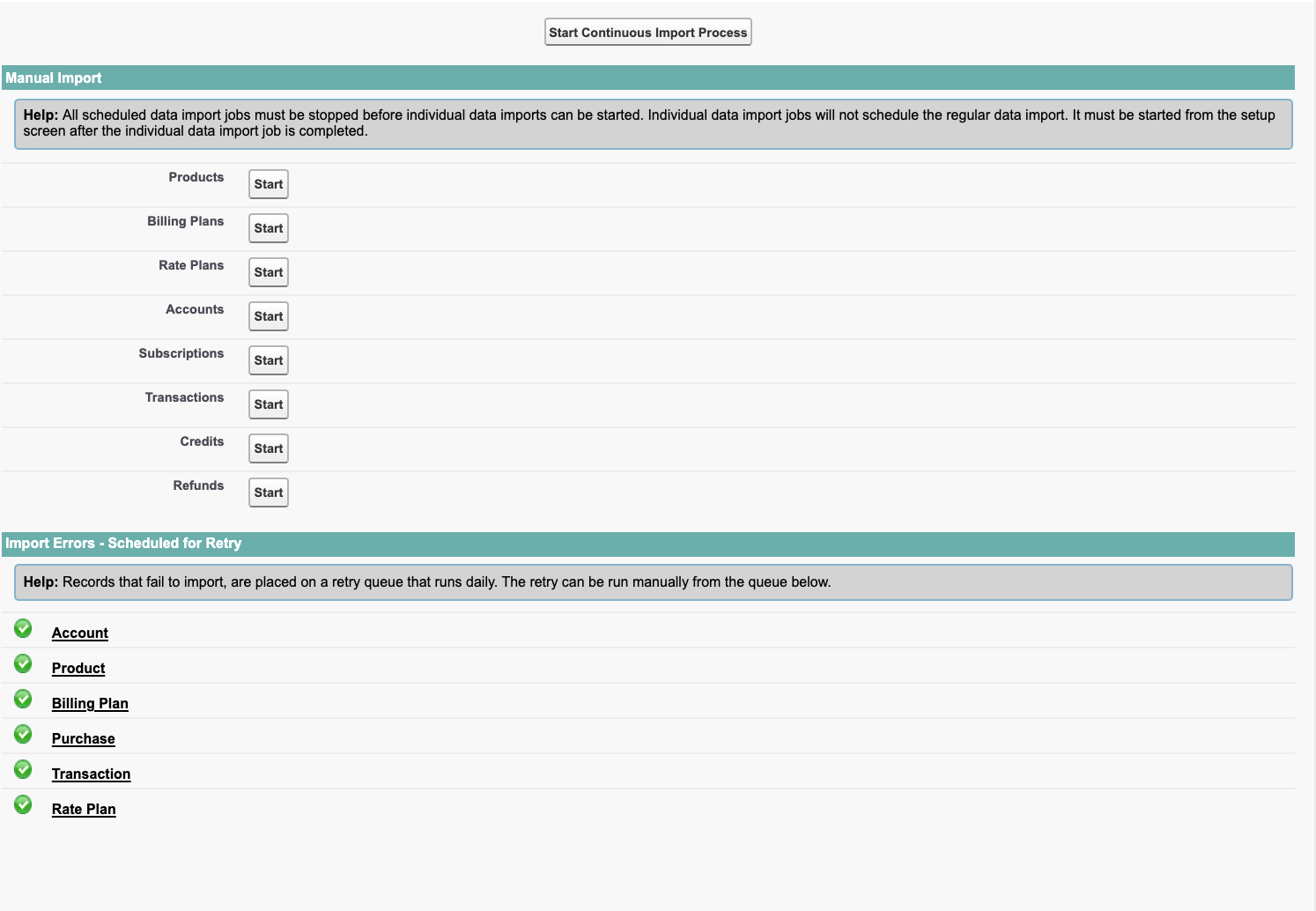
The Admin page is shown in the following figures. See the subsequent sections for details about each area of the Admin page.
 ## Subscribe API Credentials
Configure your SOAP credentials for the Subscribe environment you are connecting to. Enter an API username and password and select an API Environment. When you click **Save and Validate**, your credentials are verified. A green icon with a check mark indicates success. You cannot start data import synchronization until your credentials have been validated.
## Subscribe Object Prefixes
(Optional) You can define a prefix for each record that originates in Salesforce. This enables you to identify the source of each record in Subscribe.
## Subscribe Import Settings
The import settings listed in the following table allow you to configure your application according to your needs.
| Field | Definition |
| - | - |
| **Import next anticipated billing** | This box, when checked, creates a record of a future billing to represent the next billing, including the date and amount. By default, this box is checked. |
| **Timestamp adjustment for PST** | This box affects how timestamps from Salesforce are converted for Subscribe. Set this to the opposite of your Merchant Settings flag `USE_TIMEZONE_IN_SOAP` in Subscribe. By default, this box is unchecked. |
| **No New Accounts** | When this box is unchecked, the Subscribe integration updates your existing Accounts if it finds a match, otherwise it creates a new Account record. When you check this box, the Subscribe integration does not create a new Account and updates existing Accounts only if they match the one that is integrating. A match is identified by either of these two fields: Customer ID (`subscribe_Customer_Id_c`), or Account VID (`subscribe_VID_c`) in that order. This box is unchecked by default. |
| **Admin Email** | Enter an email address if you want to receive notification of import and export log errors. Limited to one email address. |
| **Exception Recipient Email** | Enter an email address if you want to receive exceptions digests. Limited to one email address. |
| **Default Refresh Interval** | Enter a numerical value to specify the number of minutes to wait between import cycles. If you do enter a value, the system defaults to a refresh interval of 30 minutes. Enter **0** (zero) if you don't want the continuous data import to restart after completing the original cycle. |
| **Execute Rated Unit Summary** | Check this box to enable execution of a rated unit summary at the end of an import batch. By default, this box is unchecked. |
| **Sync Affiliate ID and SubAffiliate ID with Subscribe** | Check this box to synchronize the Affiliate ID and SubAffiliate ID field values with Subscribe. By default, this box is unchecked. |
| **Import Accounts Separately** | Check this box to enable the import of Accounts separately from Purchases using import batch. If checked, accounts from Subscribe are imported regardless of whether they have billing activity in Subscribe. By default, this box is checked. |
See the [Troubleshooting Subscribe Applications](r_troubleshootingSubscribeApps) chapter for details about Data Import Shortcuts.
## View Import Errors
When a record fails to import due to a technical problem in Salesforce, a timeout, Database problem, or data validation issue, it is placed in a retry queue. You can view the error records by clicking the links under View Import Errors in the **Subscribe Admin** tab. From there, you can retry them manually (in the case where a data problem causing the error was fixed), otherwise they are automatically retried during the retry jobs, which run daily at midnight Pacific Time.
## Name/Value Mapping
The Setup Status section of the **Subscribe Admin** tab enables you to map any custom field from Salesforce to a name-value pair (NVP) in Subscribe. With these mappings, the integration between Salesforce and Subscribe becomes bi-directional—that is, you can edit a NVP in Salesforce or Subscribe and it will be synchronized automatically. The custom fields you create in Salesforce must be of type: text, because all NVP fields in Subscribe are text fields.
In order for Subscribe NVP’s to be visible in this section, you must first create the custom data fields.
**Note:**
When you edit the content of a field in Salesforce that is mapped to a NVP in Subscribe, the update in Subscribe is immediate. For the reverse, when you update the content of a NVP in Subscribe, the update in Salesforce will occur during the next data import cycle.
**Parent topic:**[Configuring Subscribe Applications](../topics/r_configuringSubscribeApplications)
This documentation is built and hosted on [Mintlify](https://mintlify.com), a developer documentation platform.
## Subscribe API Credentials
Configure your SOAP credentials for the Subscribe environment you are connecting to. Enter an API username and password and select an API Environment. When you click **Save and Validate**, your credentials are verified. A green icon with a check mark indicates success. You cannot start data import synchronization until your credentials have been validated.
## Subscribe Object Prefixes
(Optional) You can define a prefix for each record that originates in Salesforce. This enables you to identify the source of each record in Subscribe.
## Subscribe Import Settings
The import settings listed in the following table allow you to configure your application according to your needs.
| Field | Definition |
| - | - |
| **Import next anticipated billing** | This box, when checked, creates a record of a future billing to represent the next billing, including the date and amount. By default, this box is checked. |
| **Timestamp adjustment for PST** | This box affects how timestamps from Salesforce are converted for Subscribe. Set this to the opposite of your Merchant Settings flag `USE_TIMEZONE_IN_SOAP` in Subscribe. By default, this box is unchecked. |
| **No New Accounts** | When this box is unchecked, the Subscribe integration updates your existing Accounts if it finds a match, otherwise it creates a new Account record. When you check this box, the Subscribe integration does not create a new Account and updates existing Accounts only if they match the one that is integrating. A match is identified by either of these two fields: Customer ID (`subscribe_Customer_Id_c`), or Account VID (`subscribe_VID_c`) in that order. This box is unchecked by default. |
| **Admin Email** | Enter an email address if you want to receive notification of import and export log errors. Limited to one email address. |
| **Exception Recipient Email** | Enter an email address if you want to receive exceptions digests. Limited to one email address. |
| **Default Refresh Interval** | Enter a numerical value to specify the number of minutes to wait between import cycles. If you do enter a value, the system defaults to a refresh interval of 30 minutes. Enter **0** (zero) if you don't want the continuous data import to restart after completing the original cycle. |
| **Execute Rated Unit Summary** | Check this box to enable execution of a rated unit summary at the end of an import batch. By default, this box is unchecked. |
| **Sync Affiliate ID and SubAffiliate ID with Subscribe** | Check this box to synchronize the Affiliate ID and SubAffiliate ID field values with Subscribe. By default, this box is unchecked. |
| **Import Accounts Separately** | Check this box to enable the import of Accounts separately from Purchases using import batch. If checked, accounts from Subscribe are imported regardless of whether they have billing activity in Subscribe. By default, this box is checked. |
See the [Troubleshooting Subscribe Applications](r_troubleshootingSubscribeApps) chapter for details about Data Import Shortcuts.
## View Import Errors
When a record fails to import due to a technical problem in Salesforce, a timeout, Database problem, or data validation issue, it is placed in a retry queue. You can view the error records by clicking the links under View Import Errors in the **Subscribe Admin** tab. From there, you can retry them manually (in the case where a data problem causing the error was fixed), otherwise they are automatically retried during the retry jobs, which run daily at midnight Pacific Time.
## Name/Value Mapping
The Setup Status section of the **Subscribe Admin** tab enables you to map any custom field from Salesforce to a name-value pair (NVP) in Subscribe. With these mappings, the integration between Salesforce and Subscribe becomes bi-directional—that is, you can edit a NVP in Salesforce or Subscribe and it will be synchronized automatically. The custom fields you create in Salesforce must be of type: text, because all NVP fields in Subscribe are text fields.
In order for Subscribe NVP’s to be visible in this section, you must first create the custom data fields.
**Note:**
When you edit the content of a field in Salesforce that is mapped to a NVP in Subscribe, the update in Subscribe is immediate. For the reverse, when you update the content of a NVP in Subscribe, the update in Salesforce will occur during the next data import cycle.
**Parent topic:**[Configuring Subscribe Applications](../topics/r_configuringSubscribeApplications)
This documentation is built and hosted on [Mintlify](https://mintlify.com), a developer documentation platform.