> ## Documentation Index
> Fetch the complete documentation index at: https://docs.slm.m1amdocs.com/llms.txt
> Use this file to discover all available pages before exploring further.
# Configuring Custom Settings
The following figure shows the Custom Settings included in the Subscribe application.
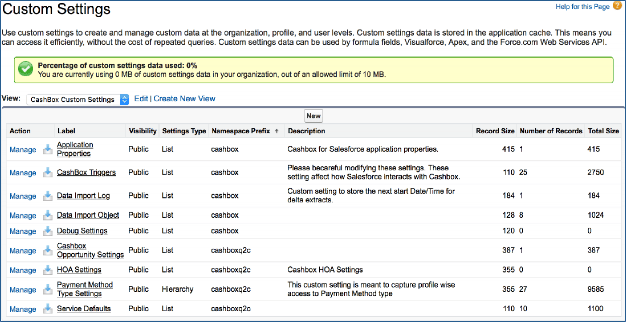 Do not edit or manage custom settings during normal operation. You can disable one or more Subscribe triggers for debugging or testing your custom apex code in your instance.
## Application Properties
In the Application Properties section, Subscribe (Basic) stores certain customer-specific Subscribe information. This information is maintained and automatically updated by the Subscribe package. Do not edit or delete any fields.
## Subscribe Triggers
For the Subscribe applications to work properly you must set triggers to ON. This is the default. However, if you have custom code running in your organization, you may need to turn off Subscribe triggers during testing or debugging. You can disable one or more of the Subscribe triggers from the Custom Settings. Click **Manage Subscribe Triggers** to see a list of all triggers, as shown in the following figure.
Do not edit or manage custom settings during normal operation. You can disable one or more Subscribe triggers for debugging or testing your custom apex code in your instance.
## Application Properties
In the Application Properties section, Subscribe (Basic) stores certain customer-specific Subscribe information. This information is maintained and automatically updated by the Subscribe package. Do not edit or delete any fields.
## Subscribe Triggers
For the Subscribe applications to work properly you must set triggers to ON. This is the default. However, if you have custom code running in your organization, you may need to turn off Subscribe triggers during testing or debugging. You can disable one or more of the Subscribe triggers from the Custom Settings. Click **Manage Subscribe Triggers** to see a list of all triggers, as shown in the following figure.
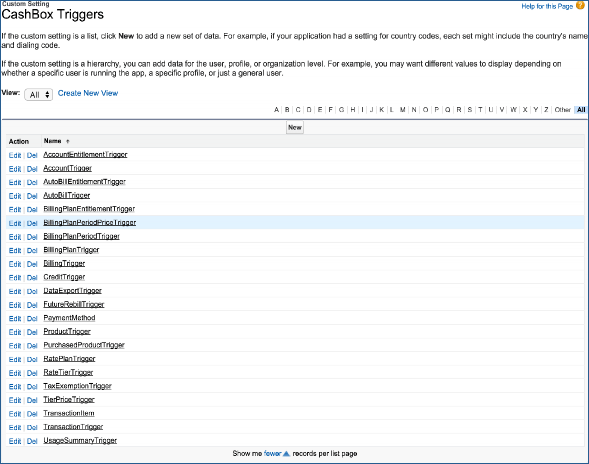 Each trigger has a flag **Not Run Trigger** that you can set to `True` during your testing.
**Warning:**
You must uncheck any flags you check before resuming normal Subscribe operation.
## Data Import Log
Click **Manage Data Import Log** to adjust the start and end time stamps for manual data import. The following figure shows the Data Import Log Edit page.
Each trigger has a flag **Not Run Trigger** that you can set to `True` during your testing.
**Warning:**
You must uncheck any flags you check before resuming normal Subscribe operation.
## Data Import Log
Click **Manage Data Import Log** to adjust the start and end time stamps for manual data import. The following figure shows the Data Import Log Edit page.
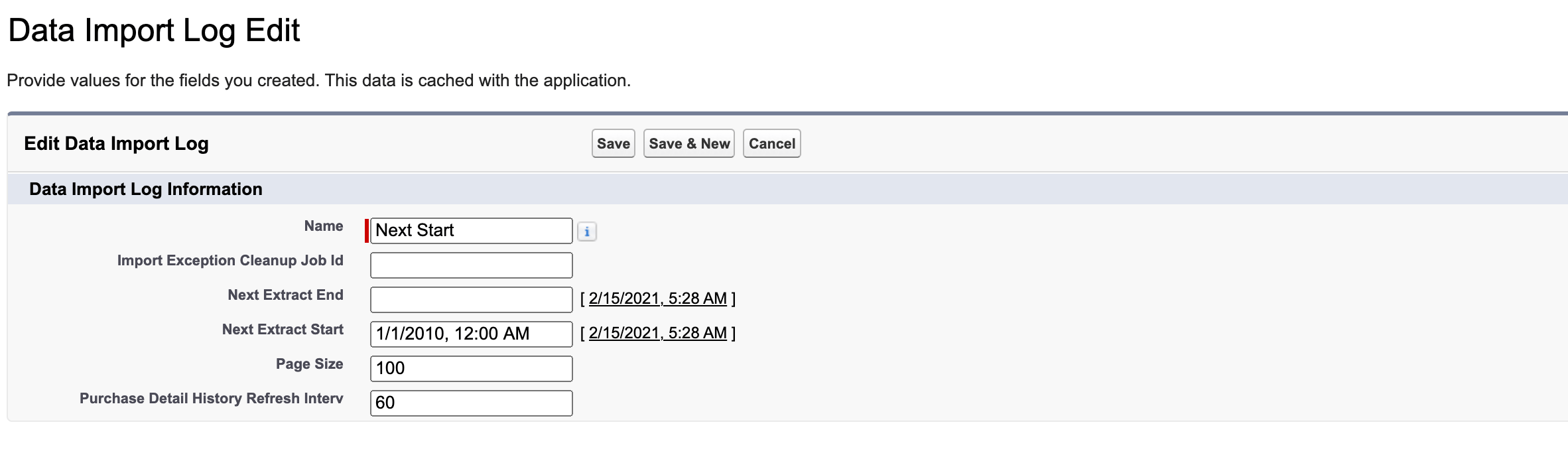 If you are running a continuous Data Import job, the start and end timestamps are automatically updated according to the import job start time plus the wait period set on the **Subscribe Admin** tab.
## Data Import Object
The following figure shows the Data Import Object page.
If you are running a continuous Data Import job, the start and end timestamps are automatically updated according to the import job start time plus the wait period set on the **Subscribe Admin** tab.
## Data Import Object
The following figure shows the Data Import Object page.
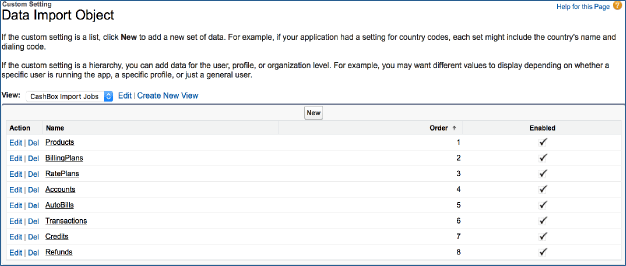 This custom setting allows you to disable the scheduled import jobs. By default, all import jobs are enabled. If you do not want to integrate Products, Billing Plans or Rate Plans in every import cycle, and you do not intend to create or modify them in Subscribe, you can use these settings to turn them off after the initial import into Salesforce. By disabling selected import jobs, you enhance data import performance for the remaining imports.
**Warning:**
Do not edit the order in which import jobs run, even when you disable some of them. Because of data dependencies, import jobs must run in a specific order.
## Debug Settings
This section of Custom Settings is where Subscribe-specific settings and debugging information is stored. Debug settings are automatically updated by the Subscribe (Basic) application. Do not edit or delete any of its fields.
## Subscribe Opportunity Settings
This section of Custom Settings is where Subscribe (Premium) stores Opportunity-related customer settings. By default, only one record is inserted for the Account shipping address override. If you are using custom Opportunity record types, this is where you map all your customer record types to either subscription (AutoBill) or One-Time Charge record types.
## Hosted Order Automation (HOA) Settings
This section of the Custom Settings is where Subscribe (Premium) stores Hosted Order Automation settings. This information is used in the custom Visual Force page, where you create Payment Methods. Do not edit or delete any of these fields.
## Payment Method Type Settings
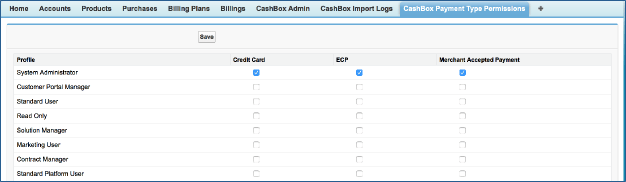
When you configure the full site with access to all users, by default all Payment Methods (Credit Card, ECP, Merchant Accepted Payment) are available to all users in your Salesforce instance. However, if you have a business requirement to allow only certain users access to creating Payment Methods, click the **Subscribe Payment Type Permissions** tab, and assign the payment methods that you want to allow by profile, as shown in the following figure.
This custom setting allows you to disable the scheduled import jobs. By default, all import jobs are enabled. If you do not want to integrate Products, Billing Plans or Rate Plans in every import cycle, and you do not intend to create or modify them in Subscribe, you can use these settings to turn them off after the initial import into Salesforce. By disabling selected import jobs, you enhance data import performance for the remaining imports.
**Warning:**
Do not edit the order in which import jobs run, even when you disable some of them. Because of data dependencies, import jobs must run in a specific order.
## Debug Settings
This section of Custom Settings is where Subscribe-specific settings and debugging information is stored. Debug settings are automatically updated by the Subscribe (Basic) application. Do not edit or delete any of its fields.
## Subscribe Opportunity Settings
This section of Custom Settings is where Subscribe (Premium) stores Opportunity-related customer settings. By default, only one record is inserted for the Account shipping address override. If you are using custom Opportunity record types, this is where you map all your customer record types to either subscription (AutoBill) or One-Time Charge record types.
## Hosted Order Automation (HOA) Settings
This section of the Custom Settings is where Subscribe (Premium) stores Hosted Order Automation settings. This information is used in the custom Visual Force page, where you create Payment Methods. Do not edit or delete any of these fields.
## Payment Method Type Settings
When you configure the full site with access to all users, by default all Payment Methods (Credit Card, ECP, Merchant Accepted Payment) are available to all users in your Salesforce instance. However, if you have a business requirement to allow only certain users access to creating Payment Methods, click the **Subscribe Payment Type Permissions** tab, and assign the payment methods that you want to allow by profile, as shown in the following figure.
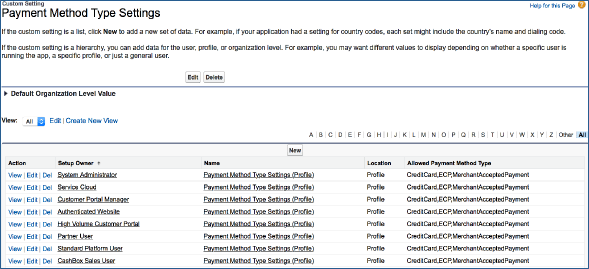
 This action creates an entry under **Custom Settings** > **Manage Payment Method Type Settings** as shown in the following figure.
 ## Service Defaults
This section of the Custom Settings is where all the defaults are stored for your Purchase modification and Payment Method validation policies. You can modify your defaults to suit your business needs. The defaults are set as shown on the following figure.
**Parent topic:**[Configuring Subscribe Applications](../topics/r_configuringSubscribeApplications)
This documentation is built and hosted on [Mintlify](https://mintlify.com), a developer documentation platform.
## Service Defaults
This section of the Custom Settings is where all the defaults are stored for your Purchase modification and Payment Method validation policies. You can modify your defaults to suit your business needs. The defaults are set as shown on the following figure.
**Parent topic:**[Configuring Subscribe Applications](../topics/r_configuringSubscribeApplications)
This documentation is built and hosted on [Mintlify](https://mintlify.com), a developer documentation platform.