> ## Documentation Index
> Fetch the complete documentation index at: https://docs.slm.m1amdocs.com/llms.txt
> Use this file to discover all available pages before exploring further.
# Approval Flows
Subscribe (Premium) allows you to use approval flows for your opportunity generation. Approval flows enable you to regulate the process by which a discount is offered and approved.
To use Approval Flows, you must:
* Define the roles to be included in the flow.
* Define the order in which approval requests are escalated through these roles.
* Define the discount that each defined role is allowed to approve.
To create an Approval Flow, go to: **App Setup** > **Create** > **Workflow** and **Approvals** > **Approval Processes.** and click **Create New Approval Process** > **Jump Start Wizard.**
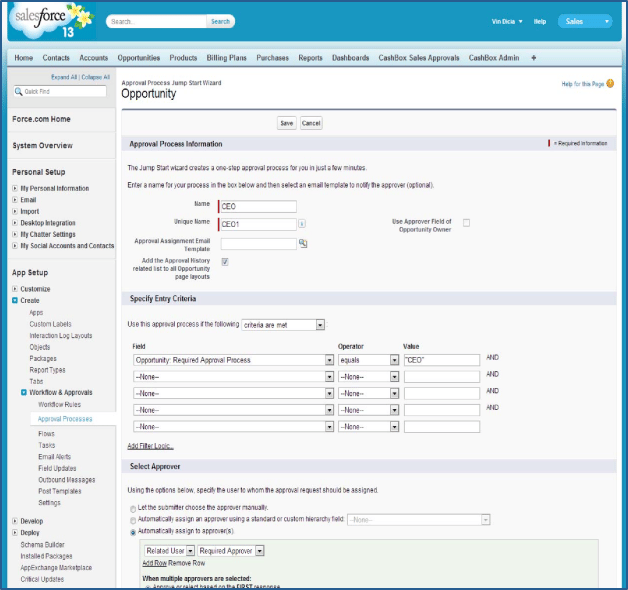
The following figure shows the Approval Process Jump Start Wizard.
 Follow the standard Salesforce Approval Flow setup process, with these two additional requirements.
* Under Specify Entry Criteria, you must set **Field: Opportunity: Required Approval Process** to **Operator: equals** and enter the name you wish to use in the **Approval Thresholds** setting (the process name you use with this and/or other applications or processes within Salesforce).
* Under **Select Approver**, you must select **Automatically assign to approver(s)**, and select **Related User and Required Approver**.
To use the Approval Thresholds function (setting pricing customization limits by Role), you must either create a new approval process for your organization, or modify an existing process to use Subscribe (Premium) settings.
Configure your Sales Approval Setup using the **Subscribe Sales Approvals** tab, shown in the following figure.
Follow the standard Salesforce Approval Flow setup process, with these two additional requirements.
* Under Specify Entry Criteria, you must set **Field: Opportunity: Required Approval Process** to **Operator: equals** and enter the name you wish to use in the **Approval Thresholds** setting (the process name you use with this and/or other applications or processes within Salesforce).
* Under **Select Approver**, you must select **Automatically assign to approver(s)**, and select **Related User and Required Approver**.
To use the Approval Thresholds function (setting pricing customization limits by Role), you must either create a new approval process for your organization, or modify an existing process to use Subscribe (Premium) settings.
Configure your Sales Approval Setup using the **Subscribe Sales Approvals** tab, shown in the following figure.
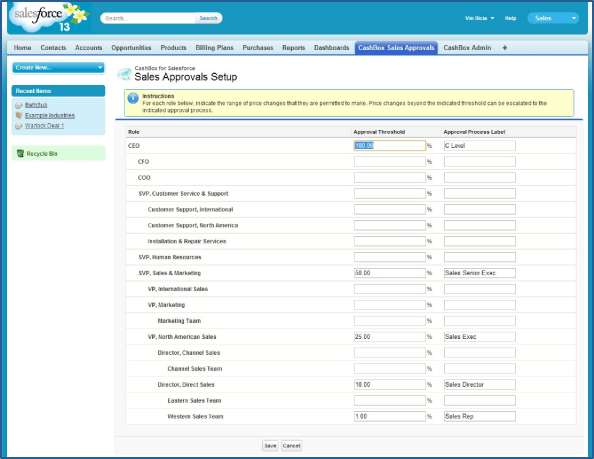 The Sales Approval Setup allows Salesforce Administrators to automatically find all defined Roles and their hierarchy for the Salesforce instance. For each Role in your approval processes, set the **Approval Threshold** and **Approval Process Label** to the percentage of list price within which members of that Role can modify the price.
## Example
If a Sales Rep can offer a discount of up to 5% on their own authority, set their Approval Threshold to 5.00.
**Note:** The top-level Role (typically CEO) must be set to 100.
**Parent topic:**[Configuring Subscribe Applications](../topics/r_configuringSubscribeApplications)
This documentation is built and hosted on [Mintlify](https://mintlify.com), a developer documentation platform.
The Sales Approval Setup allows Salesforce Administrators to automatically find all defined Roles and their hierarchy for the Salesforce instance. For each Role in your approval processes, set the **Approval Threshold** and **Approval Process Label** to the percentage of list price within which members of that Role can modify the price.
## Example
If a Sales Rep can offer a discount of up to 5% on their own authority, set their Approval Threshold to 5.00.
**Note:** The top-level Role (typically CEO) must be set to 100.
**Parent topic:**[Configuring Subscribe Applications](../topics/r_configuringSubscribeApplications)
This documentation is built and hosted on [Mintlify](https://mintlify.com), a developer documentation platform.