> ## Documentation Index
> Fetch the complete documentation index at: https://docs.slm.m1amdocs.com/llms.txt
> Use this file to discover all available pages before exploring further.
# View Transaction Info
* Transactions can't be created in the Subscribe Portal rather only viewed. They hold all the relevant data of the request for funds sent to a payment processor. A full or partial refund can be issued for Captured Transactions.
1. To locate a specific Transaction, go to **Billing** > **Transactions**.
The Transaction Query Filter appears.
2. Search according to relevant data in the key search fields, displayed with a light blue background. At least one key search field (with a blue background) must be used in order to search. Click **Apply**. For more details, see [Filtering Transactions in Subscribe](filterTransactions).
A list of relevant Transactions appears.
**Note:** If the search returns only one result, the details page opens immediately.
3. To view the relevant Transaction page, click the Transaction **ID** field.
The specific Transaction page appears.
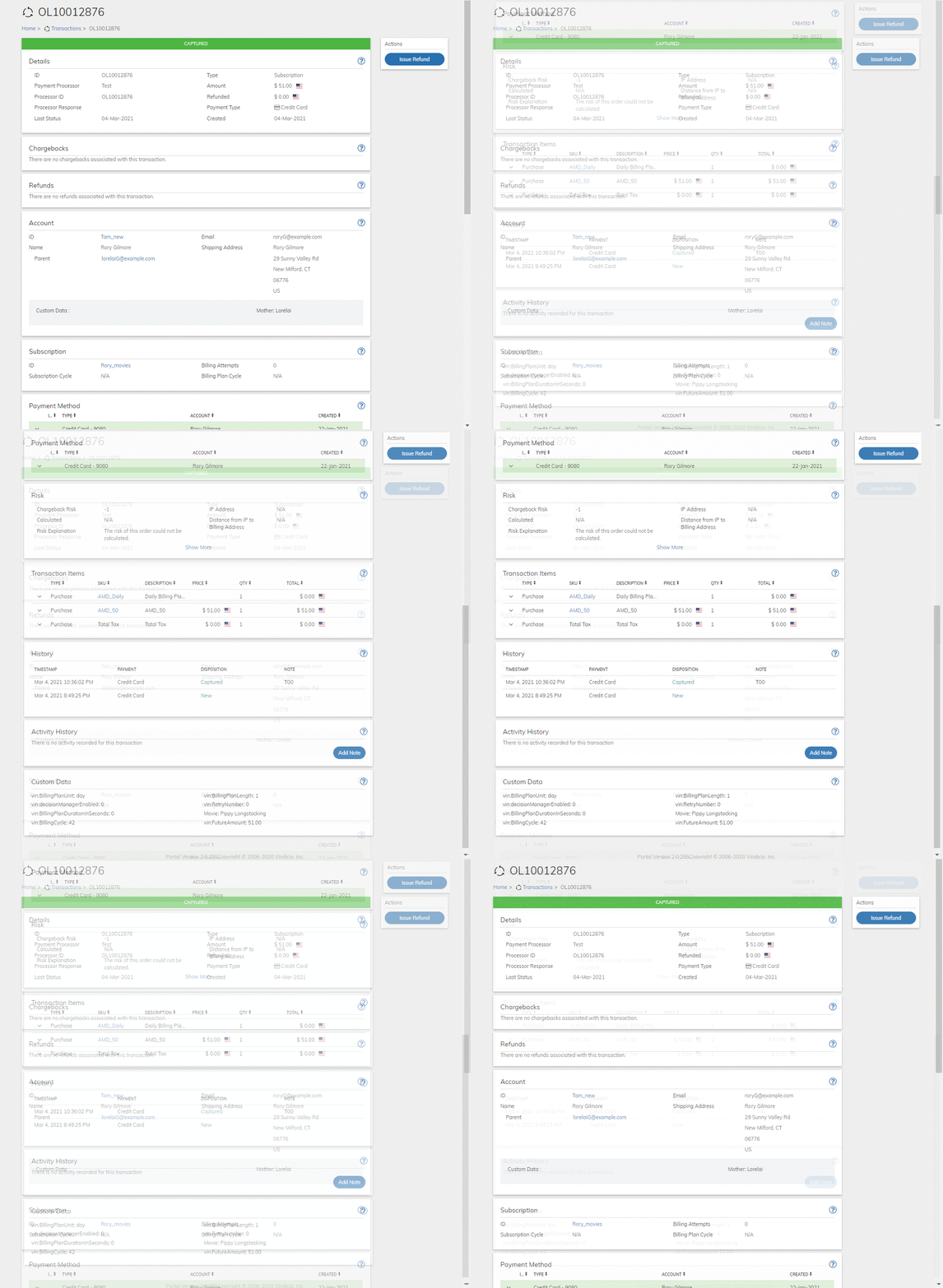 4. View and understand the Transaction data. Refer to the tables below for guidance regarding the fields.
5. For a transaction, you can issue a refund by clicking the [**Issue Refund**](transactionWorking1#) button that appears on the **Actions** panel.
* **[Transaction Details Pane](../topics/transactionWorking1#)**\
The current Transaction status is displayed in the title bar of this pane.
* **[Transaction Chargebacks Pane](../topics/transactionWorking1#)**\
A chargeback is a reversal of a credit card transaction, typically initiated when a customer disputes the legitimacy of a financial transaction. When a chargeback occurs, the amount of the transaction in dispute is taken back from the merchant's account, often together with an additional bank payment processor fee, and the amount will not be returned unless the merchant can prove the original transaction is legitimate.
* **[Transaction Refunds Pane](../topics/transactionWorking1#)**\
Refunds provide a way to reverse a charge, returning money to the customer. A refund can only be executed against an existing, successfully captured transaction. The pane lists all of the refunds issued for the Transaction up to the total Transaction amount.
* **[Transaction Account Pane](../topics/transactionWorking1#)**\
Customer Account information relevant for this transaction.
* **[Transaction Subscription Pane](../topics/transactionWorking1#)**\
The recurring subscription responsible for generating this Transaction. If a One-time purchase generated the transaction, this pane will not appear.
* **[Transaction Payment Methods Pane](../topics/transactionWorking1#)**\
Payment Method(s) for this Transaction. The payment method type is displayed in the bar at the top of the section.
* **[Transaction Risk Pane](../topics/transactionWorking1#)**\
If Chargeback Fraud screening is enabled then the chargeback probability is calculated. This probability is from 0-100.
* **[Transaction Items Pane](../topics/transactionWorking1#)**\
Transaction Items are the line items associated with the transaction. For a Purchase these are the products and billing plans.
* **[Transaction History Pane](../topics/transactionWorking1#)**\
This pane lists the transaction history, that is, the status of payments activity on the transaction.
* **[Transaction Activity History Pane](../topics/transactionWorking1#)**\
This pane lists Subscribe or customer activity, such as email notifications or payments, related to the Transaction.
* **[Custom Data](../topics/transactionWorking1#)**\
Custom data lets you store merchant-specific data to Products, Rate Plans, Billing Plans, Season Sets, Subscriptions, Accounts, and Payment Methods as a pair of matched text strings, called name-value pairs. These name-value pairs can help you categorize and sort aspects of your objects. Use **Name** to define a category, and **Value** to define a specific item in that category. For example, you could use name-value pairs to track your sales teams. Define a name-value pair with Office as the **Name** and the city in which the office is located as the **Value**.
* **[Issue a Refund for a Transaction](../topics/transactionWorking1#)**
**Parent topic:**[Transactions](../topics/transactionAbout)
## Transaction Details Pane
The current Transaction status is displayed in the title bar of this pane.
| Field | Guidance |
| - | - |
| **Transaction ID** | Merchant-specified identifier for this Transaction object. |
| **Status** | The current Transaction status appears in the title bar of this pane. Possible statuses are: - **New**: The Transaction has been created, but not yet submitted for payment. - **Authorized**: Transaction was successfully authorized and is awaiting a capture call. - **Authorized for Validation**: Transaction was successfully validated (for example, by a \$1.00 authorization). - **Authorization Pending**: For example, Paypal Payment Method: Transaction was created (customer clicked the PayPal button on a merchant site), but has not completed the PayPal payment process. Customer has three hours to complete the transaction before it times out. If the transaction times out, Status remains Authorization Pending indefinitely. - **Authorized Pending**: The Transaction passed authorization with the payment processor and the capture of funds is pending. - **Auth Expired**: Transaction was Authorized, but no Capture was made within the payment processor’s authorization time frame and the authorization has expired. - **Captured**: The payment processor successfully captured the Transaction. - **Cancelled**: The Transaction was cancelled because of a hard or soft failure, or because the merchant chose not to capture the transaction, for example, based on a fraud screen result. - **Deposit Retry Pending**: Transaction is being retried within the payment processor system (ECP Transactions only). - **Refunded**: The Transaction was successfully refunded, either fully or partially. - **Pending**: The transaction status is pending. - **Void**: Transaction previously classified as **Auth Expired** has been reversed. Voiding a transaction avoids Visa fees for Authorizations that are not captured. |
| **Last Status** | A transaction may go through multiple statuses and it gets updated as statuses change. This date will reflect the last time the status was changed. |
| **Amount** | Amount and currency symbol for this Transaction. |
| **Submitted** | Date and time at which the Transaction was initially submitted to Retain for processing. |
| **Account ID** | Email address of the subscriber associated with this Transaction. |
| **Subscription ID** | Your unique identifier for the subscription associated with this Transaction. |
| **Started** | Date on which the subscription started. |
| **Email** | Email address of the subscriber associated with this Transaction. |
| **Credit Card** | |
| **Billing Descriptor** | |
| **Division Number** | |
| **Processor Transaction ID** | The identifier assigned to the Transaction by the Payment Processor. In most cases, this is identical to the ID. In some cases due to format requirements of some payment processors, the ID is altered. |
| **AVS Code** | |
| **Billing Address** | |
| **Prev Bill Count** | |
| **Received Auth Code** | Response Code from the Payment processor for this transaction. |
| **Payment Network Token** | |
| **CVN Code** | Response Code from the Payment processor for this transaction. |
| **Retry attempts for Transaction** | |
| **ID** | |
| **Amount** | |
| **Timestamp (UTC)** | |
| **Auth Code** | |
| **Description** | |
| **Type** | The response from the payment provider and the applicable action to take. Common responses are:- **Successful Approved**: The Payment Provider has accepted the transaction. - **Soft Fail**: A payment capture attempt has failed but may indicate that an additional attempt may succeed, such as when the customer has insufficient funds. The classification of the type of fail is performed according to the error code returned by the payment provider and follows industry standards and recommendations. - **Hard Fail**: A payment capture attempt has failed and indicates that additional attempts will subsequently fail, such as when the account has been terminated. The classification of the type of fail is performed according to the error code returned by the payment provider. Hard fails are not resubmitted for capture. |
| **Status** | The type of transaction whether **One time** or **Subscription** (recurring) Transaction. |
| **Force Deposit** | The Amount and currency type successfully refunded by this transaction. |
| **Parent topic:**[View Transaction Info](../topics/transactionWorking1#) | |
## Transaction Chargebacks Pane
A chargeback is a reversal of a credit card transaction, typically initiated when a customer disputes the legitimacy of a financial transaction. When a chargeback occurs, the amount of the transaction in dispute is taken back from the merchant's account, often together with an additional bank payment processor fee, and the amount will not be returned unless the merchant can prove the original transaction is legitimate.
| Field | Guidance | Relevancy |
| - | - | - |
| **ID** | The unique ID identifying the chargeback. | Required |
| **Status** | Status of the Chargeback. Can be one of the following:- **New**: Vindicia has received the Chargeback, but has not yet processed it. - **Retrieval**: Vindicia received a Retrieval/Ticket Request for the Transaction. - **Responded**: Vindicia responded to a retrieval/ticket request for the Transaction. - **Legitimate Fraud**: Vindicia is not challenging the Chargeback because it appears to be a case of true (merchant) fraud. - **Legitimate Other**: Vindicia is not challenging the Chargeback due to a merchant’s customer service/billing issue. - **Challenged**: Vindicia has submitted rebuttal documents to the processor in an attempt to reverse the Chargeback, and is awaiting a response from the processor. - **Appealed**: Vindicia has successfully challenged the Chargeback, but the customer or issuing bank elected to continue the dispute. - **Won**: Vindicia successfully challenged the Chargeback in favor of the merchant. - **Lost**: Vindicia challenged the Chargeback, but the processor determined that the Chargeback stands. No money will be transferred back to the merchant. - **Expired**: Vindicia cannot respond to the Chargeback because required documents or transaction information was received after the deadline. - **Pass**: Vindicia chooses not to challenge the Chargeback even though there is complete transaction and chargeback information. - **Incomplete**: Vindicia cannot yet respond to the Chargeback until missing details or information about the associated transaction are provided. - **Represented**: The merchant submitted proof that the disputed transaction was valid. - **New Second Chargeback**: Vindicia has received a second Chargeback against a transaction previously charged back, disputed, and refunded. (Customers and payment processors are legally permitted to issue a second Chargeback if a merchant wins back the original Chargeback). - **Duplicate**: Vindicia received and entered a duplicate Chargeback on a single transaction. - **Pre-Arbitration**: (Visa only.) The issuing bank indicates that a customer continues to dispute a Chargeback previously reversed in favor of the merchant, and offers the merchant an opportunity to return the funds to the customer before pursuing arbitration. - **Pre-Arbitration Decline**: (Visa only.) A customer continues to dispute a Chargeback previously reversed in favor of the merchant. Vindicia indicates its willingness to engage in arbitration on behalf of the merchant. - **Pre-Arbitration Pass**: (Visa only.) The issuing bank indicated that a customer continued to dispute a transaction previously reversed in favor of the merchant. Even though there is complete Transaction and Chargeback information, Vindicia elects to accept the customer's continued dispute and return the funds to the customer rather than pursuing arbitration. - **Pre-Arbitration Accept**: (Visa only.) A customer continues to dispute a Chargeback previously reversed in favor of the merchant. Vindicia elects to return funds to the customer for the previously won Chargeback rather than pursuing arbitration. - **Pre-Arbitration Won**: (Visa only.) A disputed Chargeback slated for arbitration was reversed in favor of the merchant prior to entering arbitration. - **Arbitration**: The Chargeback is in arbitration, and the card association will rule on the legitimacy of the Chargeback. - **Collections New**: The disputed transaction included a product that was not returned and the Merchant engages a collection agency for the product. - **Collections Won**: The disputed transaction included a product that was not returned and the Merchant engaged a collection agency for the product and received it back. - **Collections Lost**: The disputed transaction included a product that was not returned and the Merchant engaged a collection agency for the product but did not receive it back. | Required |
| **Transaction Date** | The date the original transaction was submitted. | Automatic |
| **Received Date** | The date the processor received the Chargeback notice from the issuing bank. | Required |
| **Amount** | The Chargeback amount and currency as represented by the national flag. | Required |
| **Reason Code** | The reason code from the payment processor associated with the Chargeback | Optional |
| **Card** | Displays the masked credit card number associated with the Chargeback. | Optional |
| **Parent topic:**[View Transaction Info](../topics/transactionWorking1#) | | |
## Transaction Refunds Pane
Refunds provide a way to reverse a charge, returning money to the customer. A refund can only be executed against an existing, successfully captured transaction. The pane lists all of the refunds issued for the Transaction up to the total Transaction amount.
| Field | Guidance | Relevancy |
| - | - | - |
| **Created Date** | Date the refund was created. | Automatic |
| **Amount** | The refunded amount and currency as represented by the national flag. | Required |
| **Includes Tax** | An indication whether the refund includes Tax or not. | Required |
| **Status** | Status of the Refund. When the batch refund job completes, the status will show Complete. | Automatic |
| **Distribution** | What kind of communication was sent. | Optional |
| **Note** | Notes made by the Customer Service Rep when issuing the refund. This is the reason for issuing the refund. | Optional |
**Parent topic:**[View Transaction Info](../topics/transactionWorking1#)
## Transaction Account Pane
Customer Account information relevant for this transaction.
| Field | Guidance | Relevancy |
| - | - | - |
| **ID** | The customer's unique account ID. Click the ID to access the associated account page. | Required |
| **Name** | The Customer's full name on the account. | Required |
| **Parent** | The Parent account linked to the displayed child account. Appears only when relevant. | Optional |
| **Email** | The email address associated with the customer account. | Optional |
| **Shipping Address** | Shipping address for the account. | |
**Parent topic:**[View Transaction Info](../topics/transactionWorking1#)
## Transaction Subscription Pane
The recurring subscription responsible for generating this Transaction. If a One-time purchase generated the transaction, this pane will not appear.
| Field | Guidance | Relevancy |
| - | - | - |
| **ID** | The unique identifier for the Subscription. Click the **Subscription ID** to access the relevant Subscription page | Required |
| **Subscription Cycle** | Current Billing Cycle in the Subscription. | Optional |
| **Billing Attempts** | The number of attempts to bill this transaction in this cycle. | Automatic |
| **Billing Plan Cycle** | Billing Plans may have several cycles. This field indicated the current billing cycle in the Billing Plan | Automatic |
**Parent topic:**[View Transaction Info](../topics/transactionWorking1#)
## Transaction Payment Methods Pane
Payment Method(s) for this Transaction. The payment method type is displayed in the bar at the top of the section.
| Field | Guidance | Relevancy |
| - | - | - |
| **Payment Method ID** | The merchant's customer ID associated with the billing profile. | |
| **Type** | Payment method type | |
| **Account** | Name of the account holder | |
| **Created** | The date the Payment Method was created. | Automatic |
| For Credit Card Payment Method | | |
| Expand | Use the arrow to expand the Payment Method details. The payment Method attributes are displayed. Numbers are masked where required. | |
| **Card Number** | The (hashed) credit card number used for this Transaction | |
| **Card Expiration** | Expiration date of the credit card. | |
| **Billing Address** | Billing address associated with the payment method. | |
| **Phone Number** | The customer Account provided Telephone number | |
| **Card Attributes** | If provided by the customer, card attributes include such things as whether the card is credit or debit, a commercial or consumer card, or a prepaid card. | |
| Other Supported Payment Methods are displayed in the [Account Payment Method Pane](accountViewing1#). | | |
**Parent topic:**[View Transaction Info](../topics/transactionWorking1#)
## Transaction Risk Pane
If Chargeback Fraud screening is enabled then the chargeback probability is calculated. This probability is from 0-100.
| Field | Guidance | Relevancy |
| - | - | - |
| **ChargeBack Risk** | The chargeback probability is calculated as Risk to the Transaction A high Risk may cause a Transaction to be cancelled rather than submitted. Available values: - -2: Error - -1: No risk determined - 0-100: Likelihood of chargeback or exception as a percentage | Optional |
| **Calculated** | The date on which the chargeback risk was calculated. | Automatic |
| **Risk Explanation** | Brief explanation for the Chargeback Risk score. | |
| **IP Address** | The IP Address of the device that initiated the Transaction, if captured. | |
| **Distance from IP to Billing Address** | The physical distance between the customer’s IP address and the customer’s billing address for this Transaction. This distance can be a factor in determining the chargeback risk | |
| **Parent topic:**[View Transaction Info](../topics/transactionWorking1#) | | |
## Transaction Items Pane
Transaction Items are the line items associated with the transaction. For a Purchase these are the products and billing plans.
| Field | Guidance | Relevancy |
| - | - | - |
| **Type** | The supported Transaction Types are: - Purchase - Modification Refund - Discount before Tax - Taxable Credit Click the arrow to expand the line Item for more details. | N/A |
| **SKU** | The Billing Plan or Product ID (also known as Stock Keeping Unit) associated with the Transaction. | N/A |
| **Description** | The description of the Product or Billing Plan. | N/A |
| **Price** | The price of the the line Item along with the national flag icon representing currency. | N/A |
| **QTY** | Quantity of the line item in this Transaction. | N/A |
| **Subtotal** | Amount for this item after discounts have been applied exclusive of tax. | N/A |
| **Taxes** | The Tax amount billed for the purchase. | N/A |
| **Tax Classification** | Subscribe uses the Tax Classification field, in conjunction with merchant nexus and tax rules provided during implementation, to calculate appropriate taxes, if any. This field contains the text string that corresponds to the classification in your tax engine for this product. | N/A |
| **Available Refund** | The amount still available for a refund for the associated line Item.This is displayed along with the national flag icon representing currency. | N/A |
| **Discount** | The discounted amount subtracted from the Total. The discount is applied when a campaign code was provided for the purchased item. | N/A |
| **Service Period** | The service period covered by this Transaction. | N/A |
| **Tax Type** | Available tax type values:- Inclusive Sales Tax - Exclusive Sales Tax - Inclusive Use Tax - Exclusive Use Tax | N/A |
| **Parent topic:**[View Transaction Info](../topics/transactionWorking1#) | | |
## Transaction History Pane
This pane lists the transaction history, that is, the status of payments activity on the transaction.
| Field | Guidance | Relevancy |
| - | - | - |
| **Time Stamp** | Date and time of the activity based on system time. | Automatic |
| **Payment** | Payment type used for this Transaction. | |
| **Disposition** | Status of the Transaction on a particular Date and Time. The disposition values are available Transaction status.For the list of statuses, see [Transaction Details Pane](transactionWorking1#). | |
| **Note** | The notes entered regarding an activity that was logged. | Optional |
| **Parent topic:**[View Transaction Info](../topics/transactionWorking1#) | | |
## Transaction Activity History Pane
This pane lists Subscribe or customer activity, such as email notifications or payments, related to the Transaction.
| Field | Guidance | Relevancy |
| - | - | - |
| **Time Stamp** | Date and time of the activity based on system time. | Automatic |
| **Type** | Type is either a predefined type, or a custom merchant-defined activity added or created through the Subscribe API. Predefined activity types include the following:- Login - Logout - Email - Call - URL access - Product Delivery/Fulfillment - Service Usage - Cancelation Event - Note Click the Type entry to view more details. | By API Call |
| **IP Address** | IP address from which the customer initiated activity, if applicable. | Read Only |
| **Notes** | The notes entered regarding an activity that was logged. | Optional |
| **Add Note Button** | Click the **Add Note** button to record a new activity relevant to the Transaction. | Optional |
| **Parent topic:**[View Transaction Info](../topics/transactionWorking1#) | | |
## Custom Data
Custom data lets you store merchant-specific data to Products, Rate Plans, Billing Plans, Season Sets, Subscriptions, Accounts, and Payment Methods as a pair of matched text strings, called name-value pairs. These name-value pairs can help you categorize and sort aspects of your objects. Use **Name** to define a category, and **Value** to define a specific item in that category. For example, you could use name-value pairs to track your sales teams. Define a name-value pair with Office as the **Name** and the city in which the office is located as the **Value**.
| Field | Guidance | Relevancy |
| - | - | - |
| **Name** | Name is the field for defining metadata. It is unique and once submitted can't be changed. 1. Place your cursor in the selection box and either select from existing Names or enter a new Name. 2. For a new entry , click **Create New:** 3. Enter a Value for the Name. 4. Click **Add** to save this pair. **Note:** - Name field is limited to 255 characters. - System generated parameters use the prefix **vin** in the name field. | Required if adding custom data |
| **Value** | 1. Once you've selected/created a Name 2. Enter the category's Value in the corresponding field. 3. Click **Add** to save this pair. **Note:** Value field is limited to 255 characters. | Required if adding custom data |
| **Parent topic:**[View Transaction Info](../topics/transactionWorking1#) | | |
## Issue a Refund for a Transaction
A refund is a way to reverse a charge, returning money to the customer. A refund can only be executed against an existing, successfully captured transaction. Refunds can be issued for the full transaction amount, a partial transaction amount, or a percentage of the transaction amount.
To issue a refund to the transaction:
1. Search for the relevant transaction from **Billing** > **Subscriptions**.
**Note:** At least one key search field (with a blue background) must be used in order to search.
2. Click the **Issue Refund** button in the **Actions** Panel.
4. View and understand the Transaction data. Refer to the tables below for guidance regarding the fields.
5. For a transaction, you can issue a refund by clicking the [**Issue Refund**](transactionWorking1#) button that appears on the **Actions** panel.
* **[Transaction Details Pane](../topics/transactionWorking1#)**\
The current Transaction status is displayed in the title bar of this pane.
* **[Transaction Chargebacks Pane](../topics/transactionWorking1#)**\
A chargeback is a reversal of a credit card transaction, typically initiated when a customer disputes the legitimacy of a financial transaction. When a chargeback occurs, the amount of the transaction in dispute is taken back from the merchant's account, often together with an additional bank payment processor fee, and the amount will not be returned unless the merchant can prove the original transaction is legitimate.
* **[Transaction Refunds Pane](../topics/transactionWorking1#)**\
Refunds provide a way to reverse a charge, returning money to the customer. A refund can only be executed against an existing, successfully captured transaction. The pane lists all of the refunds issued for the Transaction up to the total Transaction amount.
* **[Transaction Account Pane](../topics/transactionWorking1#)**\
Customer Account information relevant for this transaction.
* **[Transaction Subscription Pane](../topics/transactionWorking1#)**\
The recurring subscription responsible for generating this Transaction. If a One-time purchase generated the transaction, this pane will not appear.
* **[Transaction Payment Methods Pane](../topics/transactionWorking1#)**\
Payment Method(s) for this Transaction. The payment method type is displayed in the bar at the top of the section.
* **[Transaction Risk Pane](../topics/transactionWorking1#)**\
If Chargeback Fraud screening is enabled then the chargeback probability is calculated. This probability is from 0-100.
* **[Transaction Items Pane](../topics/transactionWorking1#)**\
Transaction Items are the line items associated with the transaction. For a Purchase these are the products and billing plans.
* **[Transaction History Pane](../topics/transactionWorking1#)**\
This pane lists the transaction history, that is, the status of payments activity on the transaction.
* **[Transaction Activity History Pane](../topics/transactionWorking1#)**\
This pane lists Subscribe or customer activity, such as email notifications or payments, related to the Transaction.
* **[Custom Data](../topics/transactionWorking1#)**\
Custom data lets you store merchant-specific data to Products, Rate Plans, Billing Plans, Season Sets, Subscriptions, Accounts, and Payment Methods as a pair of matched text strings, called name-value pairs. These name-value pairs can help you categorize and sort aspects of your objects. Use **Name** to define a category, and **Value** to define a specific item in that category. For example, you could use name-value pairs to track your sales teams. Define a name-value pair with Office as the **Name** and the city in which the office is located as the **Value**.
* **[Issue a Refund for a Transaction](../topics/transactionWorking1#)**
**Parent topic:**[Transactions](../topics/transactionAbout)
## Transaction Details Pane
The current Transaction status is displayed in the title bar of this pane.
| Field | Guidance |
| - | - |
| **Transaction ID** | Merchant-specified identifier for this Transaction object. |
| **Status** | The current Transaction status appears in the title bar of this pane. Possible statuses are: - **New**: The Transaction has been created, but not yet submitted for payment. - **Authorized**: Transaction was successfully authorized and is awaiting a capture call. - **Authorized for Validation**: Transaction was successfully validated (for example, by a \$1.00 authorization). - **Authorization Pending**: For example, Paypal Payment Method: Transaction was created (customer clicked the PayPal button on a merchant site), but has not completed the PayPal payment process. Customer has three hours to complete the transaction before it times out. If the transaction times out, Status remains Authorization Pending indefinitely. - **Authorized Pending**: The Transaction passed authorization with the payment processor and the capture of funds is pending. - **Auth Expired**: Transaction was Authorized, but no Capture was made within the payment processor’s authorization time frame and the authorization has expired. - **Captured**: The payment processor successfully captured the Transaction. - **Cancelled**: The Transaction was cancelled because of a hard or soft failure, or because the merchant chose not to capture the transaction, for example, based on a fraud screen result. - **Deposit Retry Pending**: Transaction is being retried within the payment processor system (ECP Transactions only). - **Refunded**: The Transaction was successfully refunded, either fully or partially. - **Pending**: The transaction status is pending. - **Void**: Transaction previously classified as **Auth Expired** has been reversed. Voiding a transaction avoids Visa fees for Authorizations that are not captured. |
| **Last Status** | A transaction may go through multiple statuses and it gets updated as statuses change. This date will reflect the last time the status was changed. |
| **Amount** | Amount and currency symbol for this Transaction. |
| **Submitted** | Date and time at which the Transaction was initially submitted to Retain for processing. |
| **Account ID** | Email address of the subscriber associated with this Transaction. |
| **Subscription ID** | Your unique identifier for the subscription associated with this Transaction. |
| **Started** | Date on which the subscription started. |
| **Email** | Email address of the subscriber associated with this Transaction. |
| **Credit Card** | |
| **Billing Descriptor** | |
| **Division Number** | |
| **Processor Transaction ID** | The identifier assigned to the Transaction by the Payment Processor. In most cases, this is identical to the ID. In some cases due to format requirements of some payment processors, the ID is altered. |
| **AVS Code** | |
| **Billing Address** | |
| **Prev Bill Count** | |
| **Received Auth Code** | Response Code from the Payment processor for this transaction. |
| **Payment Network Token** | |
| **CVN Code** | Response Code from the Payment processor for this transaction. |
| **Retry attempts for Transaction** | |
| **ID** | |
| **Amount** | |
| **Timestamp (UTC)** | |
| **Auth Code** | |
| **Description** | |
| **Type** | The response from the payment provider and the applicable action to take. Common responses are:- **Successful Approved**: The Payment Provider has accepted the transaction. - **Soft Fail**: A payment capture attempt has failed but may indicate that an additional attempt may succeed, such as when the customer has insufficient funds. The classification of the type of fail is performed according to the error code returned by the payment provider and follows industry standards and recommendations. - **Hard Fail**: A payment capture attempt has failed and indicates that additional attempts will subsequently fail, such as when the account has been terminated. The classification of the type of fail is performed according to the error code returned by the payment provider. Hard fails are not resubmitted for capture. |
| **Status** | The type of transaction whether **One time** or **Subscription** (recurring) Transaction. |
| **Force Deposit** | The Amount and currency type successfully refunded by this transaction. |
| **Parent topic:**[View Transaction Info](../topics/transactionWorking1#) | |
## Transaction Chargebacks Pane
A chargeback is a reversal of a credit card transaction, typically initiated when a customer disputes the legitimacy of a financial transaction. When a chargeback occurs, the amount of the transaction in dispute is taken back from the merchant's account, often together with an additional bank payment processor fee, and the amount will not be returned unless the merchant can prove the original transaction is legitimate.
| Field | Guidance | Relevancy |
| - | - | - |
| **ID** | The unique ID identifying the chargeback. | Required |
| **Status** | Status of the Chargeback. Can be one of the following:- **New**: Vindicia has received the Chargeback, but has not yet processed it. - **Retrieval**: Vindicia received a Retrieval/Ticket Request for the Transaction. - **Responded**: Vindicia responded to a retrieval/ticket request for the Transaction. - **Legitimate Fraud**: Vindicia is not challenging the Chargeback because it appears to be a case of true (merchant) fraud. - **Legitimate Other**: Vindicia is not challenging the Chargeback due to a merchant’s customer service/billing issue. - **Challenged**: Vindicia has submitted rebuttal documents to the processor in an attempt to reverse the Chargeback, and is awaiting a response from the processor. - **Appealed**: Vindicia has successfully challenged the Chargeback, but the customer or issuing bank elected to continue the dispute. - **Won**: Vindicia successfully challenged the Chargeback in favor of the merchant. - **Lost**: Vindicia challenged the Chargeback, but the processor determined that the Chargeback stands. No money will be transferred back to the merchant. - **Expired**: Vindicia cannot respond to the Chargeback because required documents or transaction information was received after the deadline. - **Pass**: Vindicia chooses not to challenge the Chargeback even though there is complete transaction and chargeback information. - **Incomplete**: Vindicia cannot yet respond to the Chargeback until missing details or information about the associated transaction are provided. - **Represented**: The merchant submitted proof that the disputed transaction was valid. - **New Second Chargeback**: Vindicia has received a second Chargeback against a transaction previously charged back, disputed, and refunded. (Customers and payment processors are legally permitted to issue a second Chargeback if a merchant wins back the original Chargeback). - **Duplicate**: Vindicia received and entered a duplicate Chargeback on a single transaction. - **Pre-Arbitration**: (Visa only.) The issuing bank indicates that a customer continues to dispute a Chargeback previously reversed in favor of the merchant, and offers the merchant an opportunity to return the funds to the customer before pursuing arbitration. - **Pre-Arbitration Decline**: (Visa only.) A customer continues to dispute a Chargeback previously reversed in favor of the merchant. Vindicia indicates its willingness to engage in arbitration on behalf of the merchant. - **Pre-Arbitration Pass**: (Visa only.) The issuing bank indicated that a customer continued to dispute a transaction previously reversed in favor of the merchant. Even though there is complete Transaction and Chargeback information, Vindicia elects to accept the customer's continued dispute and return the funds to the customer rather than pursuing arbitration. - **Pre-Arbitration Accept**: (Visa only.) A customer continues to dispute a Chargeback previously reversed in favor of the merchant. Vindicia elects to return funds to the customer for the previously won Chargeback rather than pursuing arbitration. - **Pre-Arbitration Won**: (Visa only.) A disputed Chargeback slated for arbitration was reversed in favor of the merchant prior to entering arbitration. - **Arbitration**: The Chargeback is in arbitration, and the card association will rule on the legitimacy of the Chargeback. - **Collections New**: The disputed transaction included a product that was not returned and the Merchant engages a collection agency for the product. - **Collections Won**: The disputed transaction included a product that was not returned and the Merchant engaged a collection agency for the product and received it back. - **Collections Lost**: The disputed transaction included a product that was not returned and the Merchant engaged a collection agency for the product but did not receive it back. | Required |
| **Transaction Date** | The date the original transaction was submitted. | Automatic |
| **Received Date** | The date the processor received the Chargeback notice from the issuing bank. | Required |
| **Amount** | The Chargeback amount and currency as represented by the national flag. | Required |
| **Reason Code** | The reason code from the payment processor associated with the Chargeback | Optional |
| **Card** | Displays the masked credit card number associated with the Chargeback. | Optional |
| **Parent topic:**[View Transaction Info](../topics/transactionWorking1#) | | |
## Transaction Refunds Pane
Refunds provide a way to reverse a charge, returning money to the customer. A refund can only be executed against an existing, successfully captured transaction. The pane lists all of the refunds issued for the Transaction up to the total Transaction amount.
| Field | Guidance | Relevancy |
| - | - | - |
| **Created Date** | Date the refund was created. | Automatic |
| **Amount** | The refunded amount and currency as represented by the national flag. | Required |
| **Includes Tax** | An indication whether the refund includes Tax or not. | Required |
| **Status** | Status of the Refund. When the batch refund job completes, the status will show Complete. | Automatic |
| **Distribution** | What kind of communication was sent. | Optional |
| **Note** | Notes made by the Customer Service Rep when issuing the refund. This is the reason for issuing the refund. | Optional |
**Parent topic:**[View Transaction Info](../topics/transactionWorking1#)
## Transaction Account Pane
Customer Account information relevant for this transaction.
| Field | Guidance | Relevancy |
| - | - | - |
| **ID** | The customer's unique account ID. Click the ID to access the associated account page. | Required |
| **Name** | The Customer's full name on the account. | Required |
| **Parent** | The Parent account linked to the displayed child account. Appears only when relevant. | Optional |
| **Email** | The email address associated with the customer account. | Optional |
| **Shipping Address** | Shipping address for the account. | |
**Parent topic:**[View Transaction Info](../topics/transactionWorking1#)
## Transaction Subscription Pane
The recurring subscription responsible for generating this Transaction. If a One-time purchase generated the transaction, this pane will not appear.
| Field | Guidance | Relevancy |
| - | - | - |
| **ID** | The unique identifier for the Subscription. Click the **Subscription ID** to access the relevant Subscription page | Required |
| **Subscription Cycle** | Current Billing Cycle in the Subscription. | Optional |
| **Billing Attempts** | The number of attempts to bill this transaction in this cycle. | Automatic |
| **Billing Plan Cycle** | Billing Plans may have several cycles. This field indicated the current billing cycle in the Billing Plan | Automatic |
**Parent topic:**[View Transaction Info](../topics/transactionWorking1#)
## Transaction Payment Methods Pane
Payment Method(s) for this Transaction. The payment method type is displayed in the bar at the top of the section.
| Field | Guidance | Relevancy |
| - | - | - |
| **Payment Method ID** | The merchant's customer ID associated with the billing profile. | |
| **Type** | Payment method type | |
| **Account** | Name of the account holder | |
| **Created** | The date the Payment Method was created. | Automatic |
| For Credit Card Payment Method | | |
| Expand | Use the arrow to expand the Payment Method details. The payment Method attributes are displayed. Numbers are masked where required. | |
| **Card Number** | The (hashed) credit card number used for this Transaction | |
| **Card Expiration** | Expiration date of the credit card. | |
| **Billing Address** | Billing address associated with the payment method. | |
| **Phone Number** | The customer Account provided Telephone number | |
| **Card Attributes** | If provided by the customer, card attributes include such things as whether the card is credit or debit, a commercial or consumer card, or a prepaid card. | |
| Other Supported Payment Methods are displayed in the [Account Payment Method Pane](accountViewing1#). | | |
**Parent topic:**[View Transaction Info](../topics/transactionWorking1#)
## Transaction Risk Pane
If Chargeback Fraud screening is enabled then the chargeback probability is calculated. This probability is from 0-100.
| Field | Guidance | Relevancy |
| - | - | - |
| **ChargeBack Risk** | The chargeback probability is calculated as Risk to the Transaction A high Risk may cause a Transaction to be cancelled rather than submitted. Available values: - -2: Error - -1: No risk determined - 0-100: Likelihood of chargeback or exception as a percentage | Optional |
| **Calculated** | The date on which the chargeback risk was calculated. | Automatic |
| **Risk Explanation** | Brief explanation for the Chargeback Risk score. | |
| **IP Address** | The IP Address of the device that initiated the Transaction, if captured. | |
| **Distance from IP to Billing Address** | The physical distance between the customer’s IP address and the customer’s billing address for this Transaction. This distance can be a factor in determining the chargeback risk | |
| **Parent topic:**[View Transaction Info](../topics/transactionWorking1#) | | |
## Transaction Items Pane
Transaction Items are the line items associated with the transaction. For a Purchase these are the products and billing plans.
| Field | Guidance | Relevancy |
| - | - | - |
| **Type** | The supported Transaction Types are: - Purchase - Modification Refund - Discount before Tax - Taxable Credit Click the arrow to expand the line Item for more details. | N/A |
| **SKU** | The Billing Plan or Product ID (also known as Stock Keeping Unit) associated with the Transaction. | N/A |
| **Description** | The description of the Product or Billing Plan. | N/A |
| **Price** | The price of the the line Item along with the national flag icon representing currency. | N/A |
| **QTY** | Quantity of the line item in this Transaction. | N/A |
| **Subtotal** | Amount for this item after discounts have been applied exclusive of tax. | N/A |
| **Taxes** | The Tax amount billed for the purchase. | N/A |
| **Tax Classification** | Subscribe uses the Tax Classification field, in conjunction with merchant nexus and tax rules provided during implementation, to calculate appropriate taxes, if any. This field contains the text string that corresponds to the classification in your tax engine for this product. | N/A |
| **Available Refund** | The amount still available for a refund for the associated line Item.This is displayed along with the national flag icon representing currency. | N/A |
| **Discount** | The discounted amount subtracted from the Total. The discount is applied when a campaign code was provided for the purchased item. | N/A |
| **Service Period** | The service period covered by this Transaction. | N/A |
| **Tax Type** | Available tax type values:- Inclusive Sales Tax - Exclusive Sales Tax - Inclusive Use Tax - Exclusive Use Tax | N/A |
| **Parent topic:**[View Transaction Info](../topics/transactionWorking1#) | | |
## Transaction History Pane
This pane lists the transaction history, that is, the status of payments activity on the transaction.
| Field | Guidance | Relevancy |
| - | - | - |
| **Time Stamp** | Date and time of the activity based on system time. | Automatic |
| **Payment** | Payment type used for this Transaction. | |
| **Disposition** | Status of the Transaction on a particular Date and Time. The disposition values are available Transaction status.For the list of statuses, see [Transaction Details Pane](transactionWorking1#). | |
| **Note** | The notes entered regarding an activity that was logged. | Optional |
| **Parent topic:**[View Transaction Info](../topics/transactionWorking1#) | | |
## Transaction Activity History Pane
This pane lists Subscribe or customer activity, such as email notifications or payments, related to the Transaction.
| Field | Guidance | Relevancy |
| - | - | - |
| **Time Stamp** | Date and time of the activity based on system time. | Automatic |
| **Type** | Type is either a predefined type, or a custom merchant-defined activity added or created through the Subscribe API. Predefined activity types include the following:- Login - Logout - Email - Call - URL access - Product Delivery/Fulfillment - Service Usage - Cancelation Event - Note Click the Type entry to view more details. | By API Call |
| **IP Address** | IP address from which the customer initiated activity, if applicable. | Read Only |
| **Notes** | The notes entered regarding an activity that was logged. | Optional |
| **Add Note Button** | Click the **Add Note** button to record a new activity relevant to the Transaction. | Optional |
| **Parent topic:**[View Transaction Info](../topics/transactionWorking1#) | | |
## Custom Data
Custom data lets you store merchant-specific data to Products, Rate Plans, Billing Plans, Season Sets, Subscriptions, Accounts, and Payment Methods as a pair of matched text strings, called name-value pairs. These name-value pairs can help you categorize and sort aspects of your objects. Use **Name** to define a category, and **Value** to define a specific item in that category. For example, you could use name-value pairs to track your sales teams. Define a name-value pair with Office as the **Name** and the city in which the office is located as the **Value**.
| Field | Guidance | Relevancy |
| - | - | - |
| **Name** | Name is the field for defining metadata. It is unique and once submitted can't be changed. 1. Place your cursor in the selection box and either select from existing Names or enter a new Name. 2. For a new entry , click **Create New:** 3. Enter a Value for the Name. 4. Click **Add** to save this pair. **Note:** - Name field is limited to 255 characters. - System generated parameters use the prefix **vin** in the name field. | Required if adding custom data |
| **Value** | 1. Once you've selected/created a Name 2. Enter the category's Value in the corresponding field. 3. Click **Add** to save this pair. **Note:** Value field is limited to 255 characters. | Required if adding custom data |
| **Parent topic:**[View Transaction Info](../topics/transactionWorking1#) | | |
## Issue a Refund for a Transaction
A refund is a way to reverse a charge, returning money to the customer. A refund can only be executed against an existing, successfully captured transaction. Refunds can be issued for the full transaction amount, a partial transaction amount, or a percentage of the transaction amount.
To issue a refund to the transaction:
1. Search for the relevant transaction from **Billing** > **Subscriptions**.
**Note:** At least one key search field (with a blue background) must be used in order to search.
2. Click the **Issue Refund** button in the **Actions** Panel.
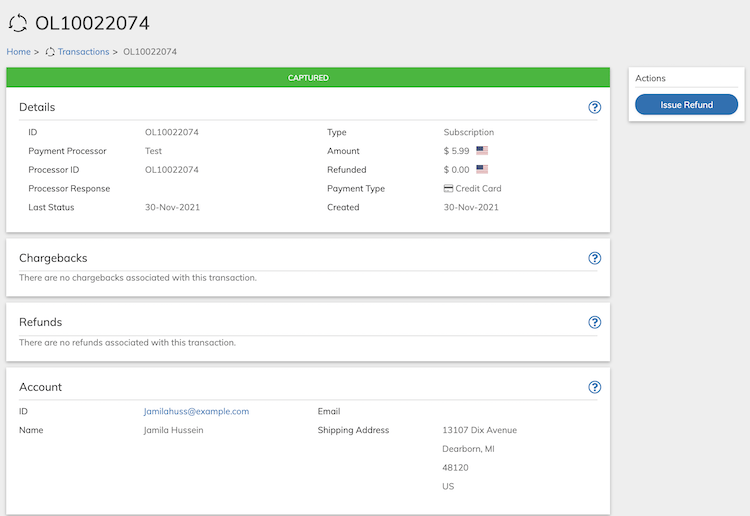 The Refund Transaction dialog box appears.
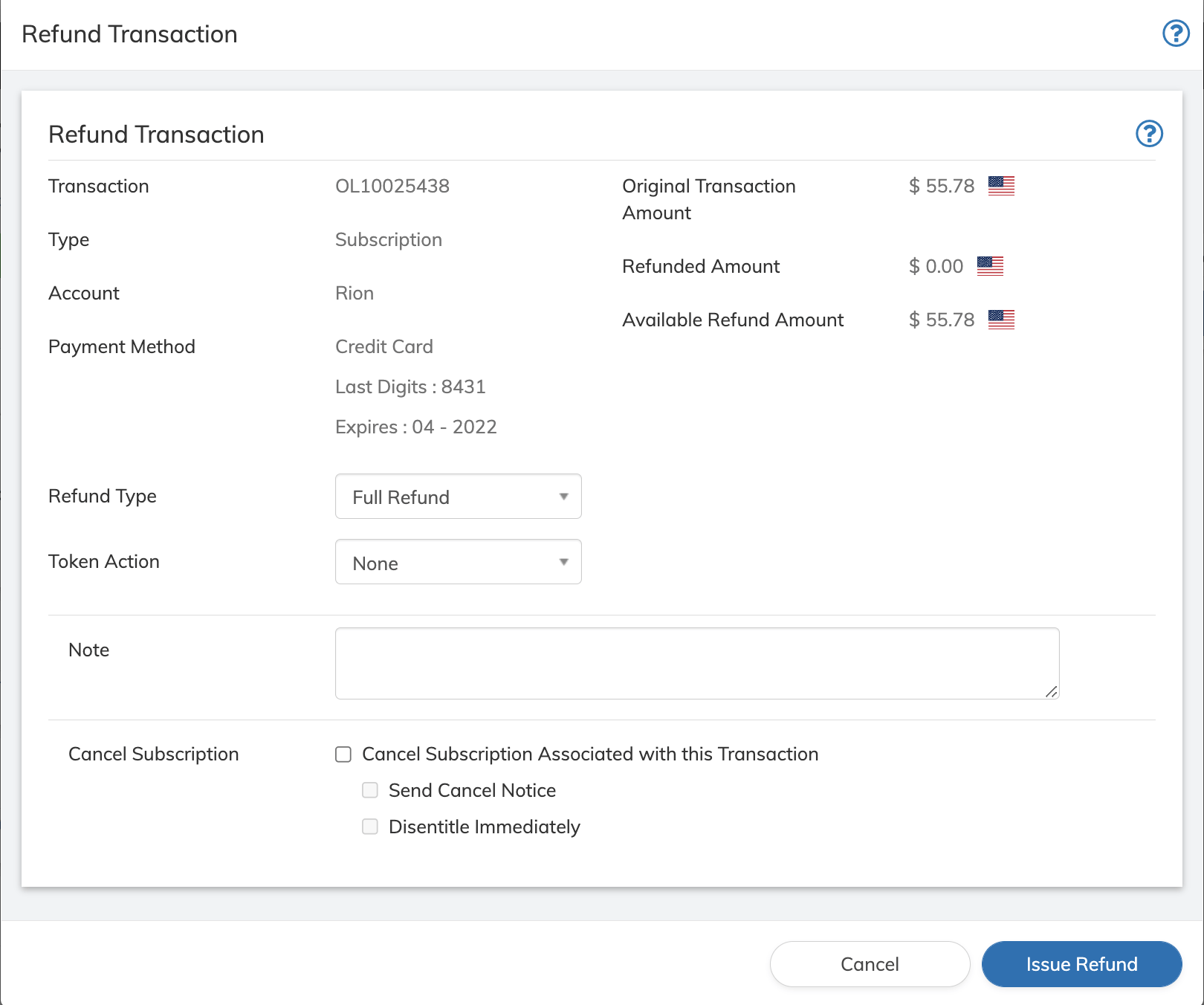 3. Define the Refund Transaction fields as needed. Refer to the table below for guidance regarding the fields.
4.
| Field | Guidance | Relevancy |
| - | - | - |
| **Transaction** | The Transaction ID for which you are issuing a refund. | Automatic |
| **Type** | The type of transaction whether **One time** or **Subscription** (recurring) Transaction. | Automatic |
| **Account** | The customer's name associated with the transaction. | Automatic |
| **Payment Method** | Payment method used for the associated Transaction. Details will include the identifier of the payment method. For example: for credit card it would be the last digits of the account number and expiration date. | Automatic |
| **Original Transaction Amount** | Total amount of the Transaction along with national flag representing the currency. | Automatic |
| **Refunded Amount** | The amount previously refunded for this Transaction. | Optional |
| **Available Refund Amount** | Amount available for refunds after subtracting previous refunds (if any) from the original transaction amount. | Optional |
| **Refund Type** | Select a refund type from the dropdown menu: - **Full Refund**: refunds the entire remaining amount of the Transaction. This is the default value, it is based on the Remaining Balance refund strategy, which allows refunding tax as part of the refund. - **Partial Refund**: lets you enter the amount to refund. - **Percentage**: enter the percentage to refund out of the **Available to Refund** amount. - **By Item**: lets you select a transaction item to refund - **Tax only**: lets you refund the tax amount that was paid in the Transaction. - **Pre-Tax**: The amount charged in the transaction not including the tax. | Required |
| **Token Action** | If tokens were granted by this transaction you can select from the following options: - None: Makes no change to the tokens granted by the Transaction. This is the default value. - Cancel Negative Balance: Reverses the token grant made by the Transaction that is being refunded. If this action causes the Token balance to drop below zero, subsequent Transactions will fail until the balance is positive. - Cancel Zero Balance: Reverses the Token grant made by the Transaction that is being refunded. If this action causes the token balances to drop below zero, Subscribe sets the balance to zero. | Optional |
| **Note** | Provide a detailed description of the reason for the refund. | Optional |
| **Cancel Subscription** | This field allows you to cancel the associated Subscription when issuing a refund for the Transaction. If you wish to cancel the Subscription, select the **Cancel Subscription associated with the Transaction** checkbox. If this is the only checkbox selected, the subscription moves to Pending Cancellation status until the end date.**Note:** If the Subscription is already canceled, the option does not appear. You can optionally select one of the following: - **Send Cancel Notice**: When selected, the cancellation notification (email) that you have defined in the system is sent. - **Disentitle Immediately**: When selected, you terminate the customer's access immediately and the subscription moves to Canceled status. If not selected, the customer is entitled and can access the service until the subscription end date. The subscription moves to Pending Cancellation status. | Optional |
5. Click **Refund** button on the Refund Transaction dialog box.
You will receive a success message if the refund transaction goes through successfully.
**Parent topic:**[View Transaction Info](../topics/transactionWorking1#)
This documentation is built and hosted on [Mintlify](https://mintlify.com), a developer documentation platform.
3. Define the Refund Transaction fields as needed. Refer to the table below for guidance regarding the fields.
4.
| Field | Guidance | Relevancy |
| - | - | - |
| **Transaction** | The Transaction ID for which you are issuing a refund. | Automatic |
| **Type** | The type of transaction whether **One time** or **Subscription** (recurring) Transaction. | Automatic |
| **Account** | The customer's name associated with the transaction. | Automatic |
| **Payment Method** | Payment method used for the associated Transaction. Details will include the identifier of the payment method. For example: for credit card it would be the last digits of the account number and expiration date. | Automatic |
| **Original Transaction Amount** | Total amount of the Transaction along with national flag representing the currency. | Automatic |
| **Refunded Amount** | The amount previously refunded for this Transaction. | Optional |
| **Available Refund Amount** | Amount available for refunds after subtracting previous refunds (if any) from the original transaction amount. | Optional |
| **Refund Type** | Select a refund type from the dropdown menu: - **Full Refund**: refunds the entire remaining amount of the Transaction. This is the default value, it is based on the Remaining Balance refund strategy, which allows refunding tax as part of the refund. - **Partial Refund**: lets you enter the amount to refund. - **Percentage**: enter the percentage to refund out of the **Available to Refund** amount. - **By Item**: lets you select a transaction item to refund - **Tax only**: lets you refund the tax amount that was paid in the Transaction. - **Pre-Tax**: The amount charged in the transaction not including the tax. | Required |
| **Token Action** | If tokens were granted by this transaction you can select from the following options: - None: Makes no change to the tokens granted by the Transaction. This is the default value. - Cancel Negative Balance: Reverses the token grant made by the Transaction that is being refunded. If this action causes the Token balance to drop below zero, subsequent Transactions will fail until the balance is positive. - Cancel Zero Balance: Reverses the Token grant made by the Transaction that is being refunded. If this action causes the token balances to drop below zero, Subscribe sets the balance to zero. | Optional |
| **Note** | Provide a detailed description of the reason for the refund. | Optional |
| **Cancel Subscription** | This field allows you to cancel the associated Subscription when issuing a refund for the Transaction. If you wish to cancel the Subscription, select the **Cancel Subscription associated with the Transaction** checkbox. If this is the only checkbox selected, the subscription moves to Pending Cancellation status until the end date.**Note:** If the Subscription is already canceled, the option does not appear. You can optionally select one of the following: - **Send Cancel Notice**: When selected, the cancellation notification (email) that you have defined in the system is sent. - **Disentitle Immediately**: When selected, you terminate the customer's access immediately and the subscription moves to Canceled status. If not selected, the customer is entitled and can access the service until the subscription end date. The subscription moves to Pending Cancellation status. | Optional |
5. Click **Refund** button on the Refund Transaction dialog box.
You will receive a success message if the refund transaction goes through successfully.
**Parent topic:**[View Transaction Info](../topics/transactionWorking1#)
This documentation is built and hosted on [Mintlify](https://mintlify.com), a developer documentation platform.