> ## Documentation Index
> Fetch the complete documentation index at: https://docs.slm.m1amdocs.com/llms.txt
> Use this file to discover all available pages before exploring further.
# Issue a Refund for a Transaction
A refund is a way to reverse a charge, returning money to the customer. A refund can only be executed against an existing, successfully captured transaction. Refunds can be issued for the full transaction amount, a partial transaction amount, or a percentage of the transaction amount.
To issue a refund to the transaction:
1. Search for the relevant transaction from **Billing** > **Subscriptions**.
**Note:** At least one key search field (with a blue background) must be used in order to search.
2. Click the **Issue Refund** button in the **Actions** Panel.
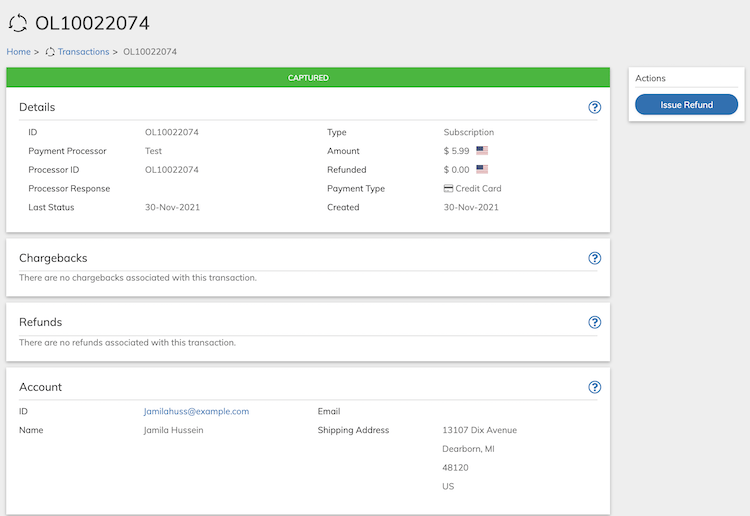 The Refund Transaction dialog box appears.
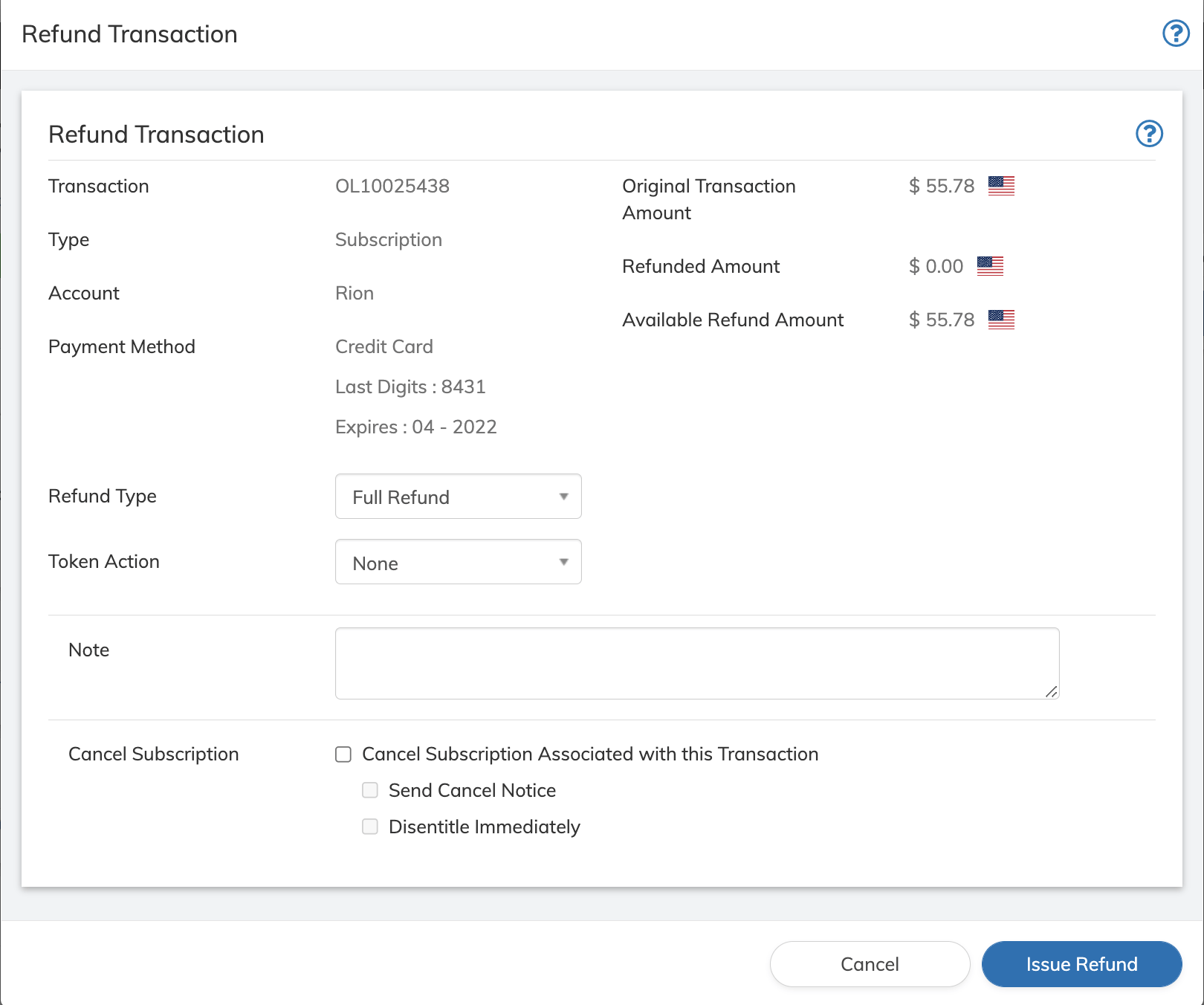 3. Define the Refund Transaction fields as needed. Refer to the table below for guidance regarding the fields.
4.
| Field | Guidance | Relevancy |
| - | - | - |
| **Transaction** | The Transaction ID for which you are issuing a refund. | Automatic |
| **Type** | The type of transaction whether **One time** or **Subscription** (recurring) Transaction. | Automatic |
| **Account** | The customer's name associated with the transaction. | Automatic |
| **Payment Method** | Payment method used for the associated Transaction. Details will include the identifier of the payment method. For example: for credit card it would be the last digits of the account number and expiration date. | Automatic |
| **Original Transaction Amount** | Total amount of the Transaction along with national flag representing the currency. | Automatic |
| **Refunded Amount** | The amount previously refunded for this Transaction. | Optional |
| **Available Refund Amount** | Amount available for refunds after subtracting previous refunds (if any) from the original transaction amount. | Optional |
| **Refund Type** | Select a refund type from the dropdown menu: - **Full Refund**: refunds the entire remaining amount of the Transaction. This is the default value, it is based on the Remaining Balance refund strategy, which allows refunding tax as part of the refund. - **Partial Refund**: lets you enter the amount to refund. - **Percentage**: enter the percentage to refund out of the **Available to Refund** amount. - **By Item**: lets you select a transaction item to refund - **Tax only**: lets you refund the tax amount that was paid in the Transaction. - **Pre-Tax**: The amount charged in the transaction not including the tax. | Required |
| **Token Action** | If tokens were granted by this transaction you can select from the following options: - None: Makes no change to the tokens granted by the Transaction. This is the default value. - Cancel Negative Balance: Reverses the token grant made by the Transaction that is being refunded. If this action causes the Token balance to drop below zero, subsequent Transactions will fail until the balance is positive. - Cancel Zero Balance: Reverses the Token grant made by the Transaction that is being refunded. If this action causes the token balances to drop below zero, Subscribe sets the balance to zero. | Optional |
| **Note** | Provide a detailed description of the reason for the refund. | Optional |
| **Cancel Subscription** | This field allows you to cancel the associated Subscription when issuing a refund for the Transaction. If you wish to cancel the Subscription, select the **Cancel Subscription associated with the Transaction** checkbox. If this is the only checkbox selected, the subscription moves to Pending Cancellation status until the end date.**Note:** If the Subscription is already canceled, the option does not appear. You can optionally select one of the following: - **Send Cancel Notice**: When selected, the cancellation notification (email) that you have defined in the system is sent. - **Disentitle Immediately**: When selected, you terminate the customer's access immediately and the subscription moves to Canceled status. If not selected, the customer is entitled and can access the service until the subscription end date. The subscription moves to Pending Cancellation status. | Optional |
5. Click **Refund** button on the Refund Transaction dialog box.
You will receive a success message if the refund transaction goes through successfully.
**Parent topic:**[View Transaction Info](../topics/transactionWorking)
**Parent topic:**[Transactions](../topics/transactionAbout)
This documentation is built and hosted on [Mintlify](https://mintlify.com), a developer documentation platform.
3. Define the Refund Transaction fields as needed. Refer to the table below for guidance regarding the fields.
4.
| Field | Guidance | Relevancy |
| - | - | - |
| **Transaction** | The Transaction ID for which you are issuing a refund. | Automatic |
| **Type** | The type of transaction whether **One time** or **Subscription** (recurring) Transaction. | Automatic |
| **Account** | The customer's name associated with the transaction. | Automatic |
| **Payment Method** | Payment method used for the associated Transaction. Details will include the identifier of the payment method. For example: for credit card it would be the last digits of the account number and expiration date. | Automatic |
| **Original Transaction Amount** | Total amount of the Transaction along with national flag representing the currency. | Automatic |
| **Refunded Amount** | The amount previously refunded for this Transaction. | Optional |
| **Available Refund Amount** | Amount available for refunds after subtracting previous refunds (if any) from the original transaction amount. | Optional |
| **Refund Type** | Select a refund type from the dropdown menu: - **Full Refund**: refunds the entire remaining amount of the Transaction. This is the default value, it is based on the Remaining Balance refund strategy, which allows refunding tax as part of the refund. - **Partial Refund**: lets you enter the amount to refund. - **Percentage**: enter the percentage to refund out of the **Available to Refund** amount. - **By Item**: lets you select a transaction item to refund - **Tax only**: lets you refund the tax amount that was paid in the Transaction. - **Pre-Tax**: The amount charged in the transaction not including the tax. | Required |
| **Token Action** | If tokens were granted by this transaction you can select from the following options: - None: Makes no change to the tokens granted by the Transaction. This is the default value. - Cancel Negative Balance: Reverses the token grant made by the Transaction that is being refunded. If this action causes the Token balance to drop below zero, subsequent Transactions will fail until the balance is positive. - Cancel Zero Balance: Reverses the Token grant made by the Transaction that is being refunded. If this action causes the token balances to drop below zero, Subscribe sets the balance to zero. | Optional |
| **Note** | Provide a detailed description of the reason for the refund. | Optional |
| **Cancel Subscription** | This field allows you to cancel the associated Subscription when issuing a refund for the Transaction. If you wish to cancel the Subscription, select the **Cancel Subscription associated with the Transaction** checkbox. If this is the only checkbox selected, the subscription moves to Pending Cancellation status until the end date.**Note:** If the Subscription is already canceled, the option does not appear. You can optionally select one of the following: - **Send Cancel Notice**: When selected, the cancellation notification (email) that you have defined in the system is sent. - **Disentitle Immediately**: When selected, you terminate the customer's access immediately and the subscription moves to Canceled status. If not selected, the customer is entitled and can access the service until the subscription end date. The subscription moves to Pending Cancellation status. | Optional |
5. Click **Refund** button on the Refund Transaction dialog box.
You will receive a success message if the refund transaction goes through successfully.
**Parent topic:**[View Transaction Info](../topics/transactionWorking)
**Parent topic:**[Transactions](../topics/transactionAbout)
This documentation is built and hosted on [Mintlify](https://mintlify.com), a developer documentation platform.