> ## Documentation Index
> Fetch the complete documentation index at: https://docs.slm.m1amdocs.com/llms.txt
> Use this file to discover all available pages before exploring further.
# Working with Subscriptions
* Subscriptions are created via API or the Subscribe Portal. In the Portal, the subscription is created from a specific customer Account page.
* On the start date, the subscription is active.
* You can also cancel an active subscription at any time.
* You can immediately activate a pending subscription (via API only)
* You can pause and resume a subscription
* For an existing subscription, you can modify the credit card payment method, make a payment, or grant a credit.
1. Select your starting point from the following options:
* To create a new Subscription, access the accounts list from **Billing** > **Accounts**. Select the relevant account and in the **Actions** panel, click the **New Subscription** button.
* To edit an existing Subscription, Filter for and select the relevant Subscription from **Billing** > **Subscriptions** and click **Edit**.
**Note:** When filtering for specific subscriptions, use at least one key field (blue background) in the filter. For more details, see [Filtering Subscriptions](filterSubscriptions).
* View the subscription details, from **Billing** > **Subscriptions** search for the relevant subscription. For more details, see [Filtering Subscriptions](filterSubscriptions)
The Subscription page appears.
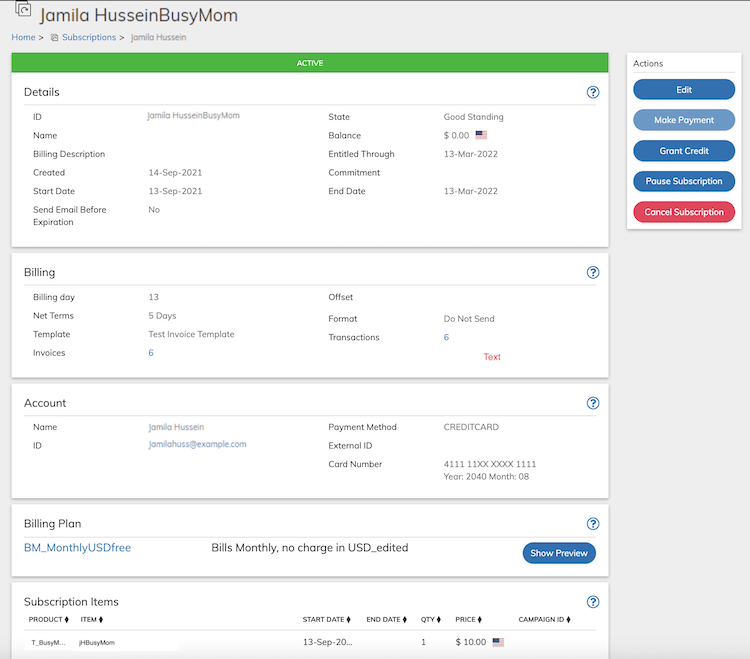
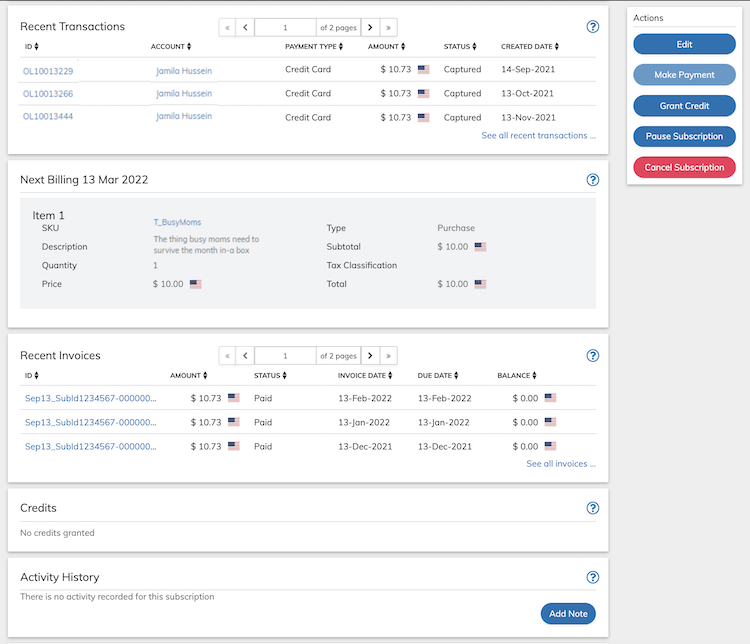 2. Define the subscription fields as needed or view the filled in fields. Refer to the tables below for guidance regarding the fields.
**Note:** For an existing subscription, a banner at the top of the Details pane indicates subscription status.
3. You can edit Subscription details, add Subscription Item, and edit any Subscription Item by clicking **Edit** button that appears on the **Actions** panel. When editing a live Subscription and amending the active item, click the **Modify Active Item** button
2. Define the subscription fields as needed or view the filled in fields. Refer to the tables below for guidance regarding the fields.
**Note:** For an existing subscription, a banner at the top of the Details pane indicates subscription status.
3. You can edit Subscription details, add Subscription Item, and edit any Subscription Item by clicking **Edit** button that appears on the **Actions** panel. When editing a live Subscription and amending the active item, click the **Modify Active Item** button  to change.
4. If you are creating a subscription, click **Save**.
You can return and continue editing the saved Subscription at any time.
If the save is successful, two notifications can appear on the screen:
* **Subscription items were successfully Saved!**
* **Subscription was successfully Saved!**
An error notification appears if an error occurred when saving. Correct the details for new Subscription and save again.
5. If you are editing an existing Subscription, click **Update**.
You can return and continue editing the saved Subscription at any time.
If the save is successful, two notifications can appear on the screen:
* **Subscription items were successfully updated!**
* **Subscription was successfully updated!**
An error notification appears if an error occurred when saving. Correct the details for the existing Subscription and save again.
6. For an existing Subscription, you can apply a payment to the subscription by clicking the [**Make Payment**](subscriptionMakePayment) button that appears in the **Actions** panel.
7. For an existing Subscription, you can apply a currency credit to the subscription by clicking the [**Grant Credit**](subscriptionGrantCredit) button that appears in the **Actions** panel and filling in the relevant details.
8. For an active Subscription, you can pause the service by clicking [**Pause Subscription**](subscriptionPause) button that appears in the **Actions** panel.
The Paused Subscription no longer actively grants service or is billed. If no other action is taken upon the Subscription (resume is not performed), it will remain paused for 5 years, and then automatically move to canceled status.
**Note:** You can also cancel a paused subscription by clicking the **Cancel Subscription** button that appears in the **Actions** panel.
9. For a paused Subscription, resume the Subscription by clicking the [**Resume Subscription**](subscriptionResume) button that appears in the **Actions** panel.
While resuming a Subscription, you can decide whether to keep the previously used billing date (default) or make the current date the new subscription billing date.
This action resets the subscription state to Active.
10. For an existing Subscription, you can cancel the subscription at any time, by clicking the [**Cancel Subscription**](subscriptionDelete) button that appears in the **Actions** panel. Select the cancel method appropriate to the Subscription.
* **[Subscription Details Pane](../topics/subscriptionDetails)**
* **[Subscription Account Pane](../topics/subscriptionAccount)**\
The customer account details. The subscription is associated with one account and that account cannot be changed. Other parameters such as payment method can be edited.
* **[Subscription Items Pane](../topics/subscriptionItems)**\
Subscription Items are the Products and services included in the subscription. In order to enable the field, ensure that you selected the relevant currency in the **Currency** field that is part of the details pane.When editing Subscription Items that are active, note that additional fields are added.
* **[Subscription Billing Plan Pane](../topics/subscriptionBillingPlan)**
* **[Custom Data](../topics/customData)**\
Custom data lets you store merchant-specific data to Products, Rate Plans, Billing Plans, Season Sets, Subscriptions, Accounts, and Payment Methods as a pair of matched text strings, called name-value pairs. These name-value pairs can help you categorize and sort aspects of your objects. Use **Name** to define a category, and **Value** to define a specific item in that category. For example, you could use name-value pairs to track your sales teams. Define a name-value pair with Office as the **Name** and the city in which the office is located as the **Value**.
* **[Make a Payment to Subscription](../topics/subscriptionMakePayment)**\
A two-step process, which allows you to first define the invoice being paid and then perform the payment. The **Make Payment** action is enabled when a due or overdue invoice is associated with the Subscription.
* **[Grant Credit to a Subscription](../topics/subscriptionGrantCredit)**
* **[Revoke Credit](../topics/accountRevokeCredit)**\
You can revoke or take back all or some of the credit that was granted that has not been used.
* **[Pause a Subscription](../topics/subscriptionPause)**
* **[Resume a Subscription](../topics/subscriptionResume)**
* **[Cancel a Subscription](../topics/subscriptionDelete)**
**Parent topic:**[Subscriptions](../topics/subscriptionAbout)
This documentation is built and hosted on [Mintlify](https://mintlify.com), a developer documentation platform.
to change.
4. If you are creating a subscription, click **Save**.
You can return and continue editing the saved Subscription at any time.
If the save is successful, two notifications can appear on the screen:
* **Subscription items were successfully Saved!**
* **Subscription was successfully Saved!**
An error notification appears if an error occurred when saving. Correct the details for new Subscription and save again.
5. If you are editing an existing Subscription, click **Update**.
You can return and continue editing the saved Subscription at any time.
If the save is successful, two notifications can appear on the screen:
* **Subscription items were successfully updated!**
* **Subscription was successfully updated!**
An error notification appears if an error occurred when saving. Correct the details for the existing Subscription and save again.
6. For an existing Subscription, you can apply a payment to the subscription by clicking the [**Make Payment**](subscriptionMakePayment) button that appears in the **Actions** panel.
7. For an existing Subscription, you can apply a currency credit to the subscription by clicking the [**Grant Credit**](subscriptionGrantCredit) button that appears in the **Actions** panel and filling in the relevant details.
8. For an active Subscription, you can pause the service by clicking [**Pause Subscription**](subscriptionPause) button that appears in the **Actions** panel.
The Paused Subscription no longer actively grants service or is billed. If no other action is taken upon the Subscription (resume is not performed), it will remain paused for 5 years, and then automatically move to canceled status.
**Note:** You can also cancel a paused subscription by clicking the **Cancel Subscription** button that appears in the **Actions** panel.
9. For a paused Subscription, resume the Subscription by clicking the [**Resume Subscription**](subscriptionResume) button that appears in the **Actions** panel.
While resuming a Subscription, you can decide whether to keep the previously used billing date (default) or make the current date the new subscription billing date.
This action resets the subscription state to Active.
10. For an existing Subscription, you can cancel the subscription at any time, by clicking the [**Cancel Subscription**](subscriptionDelete) button that appears in the **Actions** panel. Select the cancel method appropriate to the Subscription.
* **[Subscription Details Pane](../topics/subscriptionDetails)**
* **[Subscription Account Pane](../topics/subscriptionAccount)**\
The customer account details. The subscription is associated with one account and that account cannot be changed. Other parameters such as payment method can be edited.
* **[Subscription Items Pane](../topics/subscriptionItems)**\
Subscription Items are the Products and services included in the subscription. In order to enable the field, ensure that you selected the relevant currency in the **Currency** field that is part of the details pane.When editing Subscription Items that are active, note that additional fields are added.
* **[Subscription Billing Plan Pane](../topics/subscriptionBillingPlan)**
* **[Custom Data](../topics/customData)**\
Custom data lets you store merchant-specific data to Products, Rate Plans, Billing Plans, Season Sets, Subscriptions, Accounts, and Payment Methods as a pair of matched text strings, called name-value pairs. These name-value pairs can help you categorize and sort aspects of your objects. Use **Name** to define a category, and **Value** to define a specific item in that category. For example, you could use name-value pairs to track your sales teams. Define a name-value pair with Office as the **Name** and the city in which the office is located as the **Value**.
* **[Make a Payment to Subscription](../topics/subscriptionMakePayment)**\
A two-step process, which allows you to first define the invoice being paid and then perform the payment. The **Make Payment** action is enabled when a due or overdue invoice is associated with the Subscription.
* **[Grant Credit to a Subscription](../topics/subscriptionGrantCredit)**
* **[Revoke Credit](../topics/accountRevokeCredit)**\
You can revoke or take back all or some of the credit that was granted that has not been used.
* **[Pause a Subscription](../topics/subscriptionPause)**
* **[Resume a Subscription](../topics/subscriptionResume)**
* **[Cancel a Subscription](../topics/subscriptionDelete)**
**Parent topic:**[Subscriptions](../topics/subscriptionAbout)
This documentation is built and hosted on [Mintlify](https://mintlify.com), a developer documentation platform.