> ## Documentation Index
> Fetch the complete documentation index at: https://docs.slm.m1amdocs.com/llms.txt
> Use this file to discover all available pages before exploring further.
# Pause a Subscription
Pausing a Subscription can be performed for active subscriptions only. When a Subscription is Paused, the service entitlement and billing of the Subscription are revoked on the effective date of the pause. If no other action is taken, the Subscription will remain paused for 5 years, and then cancel.
You can pause billing for an existing Subscription immediately (default) or at the beginning of the next billing cycle. You can also provide a reason for the pause.
To pause a subscription:
1. Access the subscription from **Billing** > **Subscriptions**.
2. Click **Pause Subscription** in the **Actions** Panel.
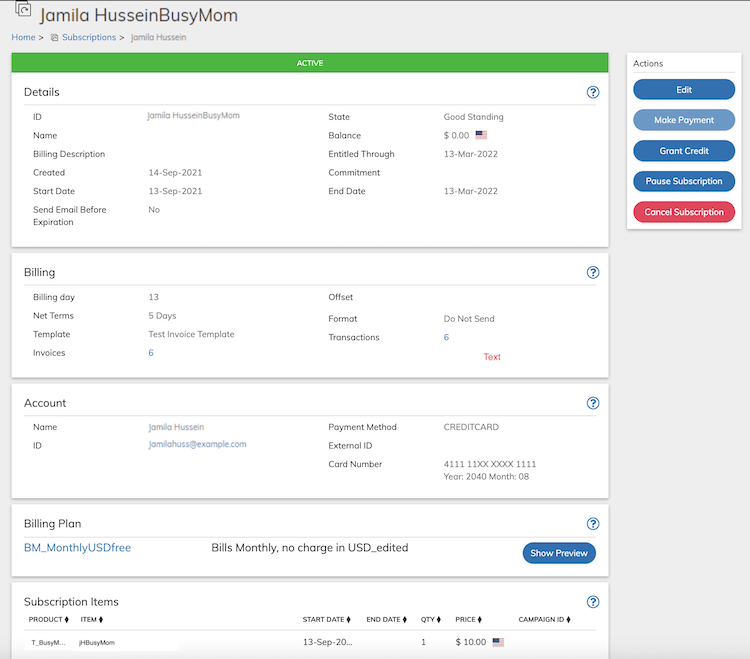 The Pause Subscription dialog box appears.
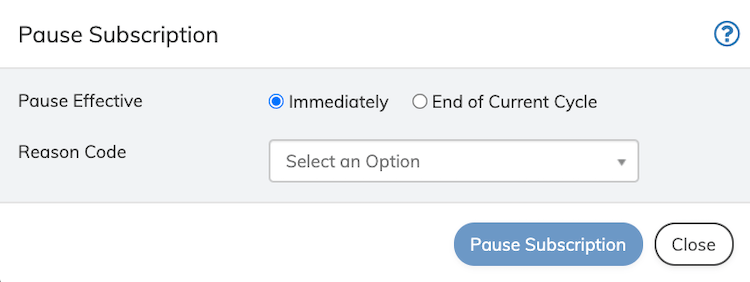 3. Define the fields as needed. Refer to the table below for guidance regarding the fields.
4.
| Field | Guidance | Relevancy |
| - | - | - |
| **Pause Effective** | Select - **Immediately**: If Subscription pause should take effect immediately. The entitlements are revoked immediately but a prorated refund for time remaining in a current service period is not automatically issued. Merchants can choose to separately calculate the refund manually and issue a refund (via API or Portal) in cases where immediate pause is desired. - **End of Current Cycle**: If Subscription pause should take effect at the end of current billing cycle or the next bill date. Default value is **Immediately**. | Required |
| **Reason Code** | Select a pre-defined reason from the dropdown box. Pause reasons include a set of generic merchant reasons which can be used. | Required |
5. Click **Pause Subscription** in the Pause Subscription dialog box.
The Subscription is paused or transferred to a Pending pause status according to the defined parameters.
**Note:** A subscription in Paused or Pending Paused state can be canceled on the portal.
**Parent topic:**[Subscriptions](../topics/subscriptionAbout)
**Parent topic:**[Working with Subscriptions](../topics/subscriptionWorking)
This documentation is built and hosted on [Mintlify](https://mintlify.com), a developer documentation platform.
3. Define the fields as needed. Refer to the table below for guidance regarding the fields.
4.
| Field | Guidance | Relevancy |
| - | - | - |
| **Pause Effective** | Select - **Immediately**: If Subscription pause should take effect immediately. The entitlements are revoked immediately but a prorated refund for time remaining in a current service period is not automatically issued. Merchants can choose to separately calculate the refund manually and issue a refund (via API or Portal) in cases where immediate pause is desired. - **End of Current Cycle**: If Subscription pause should take effect at the end of current billing cycle or the next bill date. Default value is **Immediately**. | Required |
| **Reason Code** | Select a pre-defined reason from the dropdown box. Pause reasons include a set of generic merchant reasons which can be used. | Required |
5. Click **Pause Subscription** in the Pause Subscription dialog box.
The Subscription is paused or transferred to a Pending pause status according to the defined parameters.
**Note:** A subscription in Paused or Pending Paused state can be canceled on the portal.
**Parent topic:**[Subscriptions](../topics/subscriptionAbout)
**Parent topic:**[Working with Subscriptions](../topics/subscriptionWorking)
This documentation is built and hosted on [Mintlify](https://mintlify.com), a developer documentation platform.