> ## Documentation Index
> Fetch the complete documentation index at: https://docs.slm.m1amdocs.com/llms.txt
> Use this file to discover all available pages before exploring further.
# Working with Invoices
* Ensure that you've supplied an email template to Vindicia Client Services.
* Ensure that you've supplied a custom invoice template to Vindicia Client Services or notified that you'll be using the default Vindicia Invoice Template.
* If Dunning notices are to be used, ensure that you've supplied a Dunning Notice template to Vindicia Client Services
1. Invoices/ billing statements are created as part of a Subscription. To ensure that invoices/billing statements are created as part of a Subscription:
1. Access the accounts from **Billing** > **Accounts**.
The Accounts page appears.
2. Search according to relevant key details such as the customer's email, ID or date account created and click **Apply**.
The list of relevant accounts appears.
3. Click the Account listing **ID** field.
The specific account page appears.
4. Click the **New Subscription** button in the **Actions** panel.
The New Subscription page appears.
5. In the Subscription Details pane, make sure to to select the **Invoice Format** to send, whether sending an invoice/billing statement as an **Attachment** or **Inline** as HTML in an email.
6. In the Subscription Details pane, make sure to to select the relevant **Invoice Template** to use for either billing statement or invoice.
7. In the Subscription Details pane, the **Net Terms** defines the number of days before a payment is processed that a billing statement will be sent to the customer . For **Merchant Accepted Payment** payment method, it defines the number of days after the billing date that the Invoice will be due.
8. In the Account pane, to generate an invoice make sure to select the Merchant Accepted Payment value in the **Payment Method** field .
9. Complete the Subscription fields and click **Save**.
The Subscription is created and an invoice is also created and associated with the subscription and the account.
2. To find the relevant existing invoice and manage it:
1. Access the invoices from **Billing** > **Invoices**.
The Invoices page appears.
2. Search according to relevant details such as the customer email, customer name or created date window, then click **Apply**.
The list of relevant invoices appears.
3. Click the relevant invoice listing **ID** field.
The specific invoice page appears.
**Note:** Each pane displays 10 entries by default.
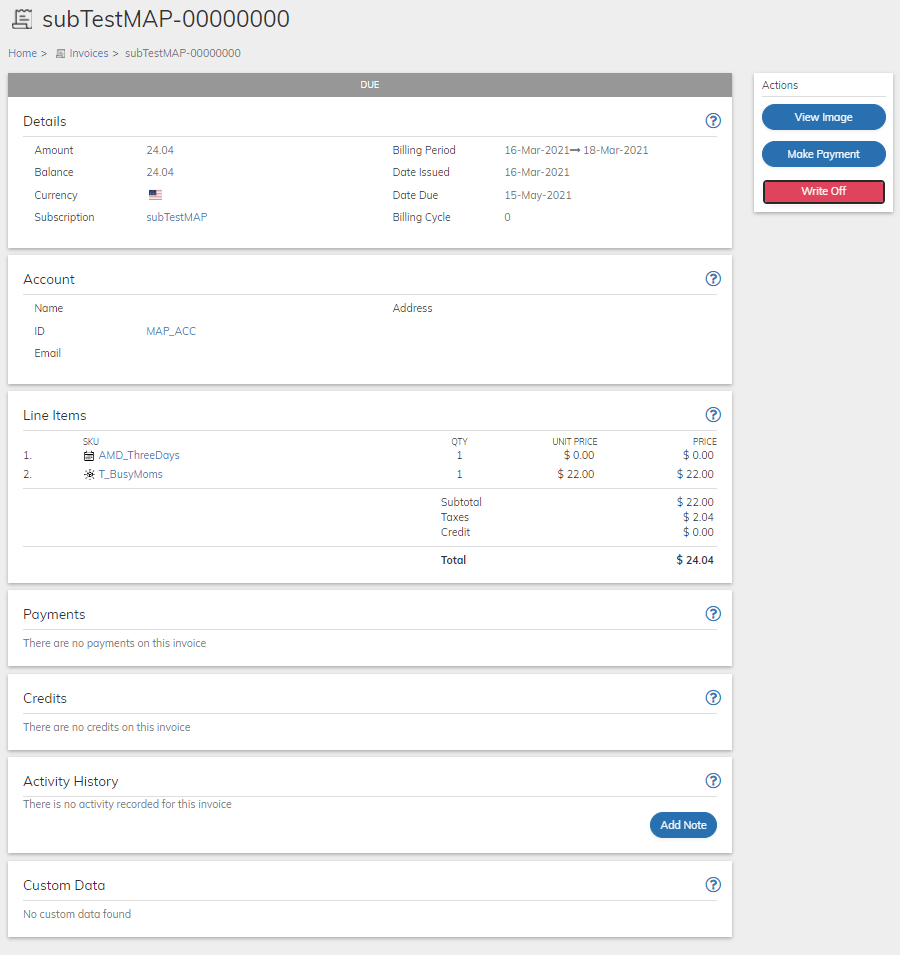 3. View and understand the account data. Refer to the tables below for guidance regarding the fields.
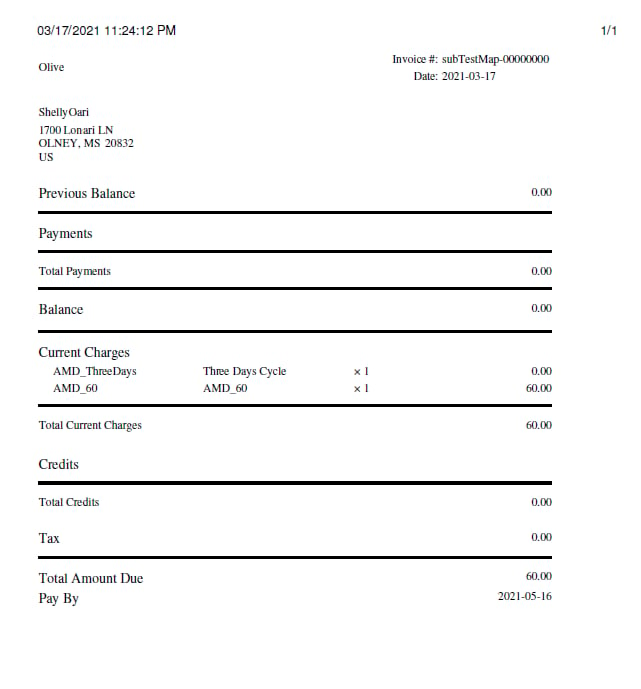
4. To download and view a saved PDF image of the generated invoice, click [**View Image**](invoiceViewImage) button in the **Actions** panel.
3. View and understand the account data. Refer to the tables below for guidance regarding the fields.
4. To download and view a saved PDF image of the generated invoice, click [**View Image**](invoiceViewImage) button in the **Actions** panel.
 5. For an existing Invoice, you can make a payment to it by clicking the [**Make Payment**](invoiceMakePayment) button that appears on the **Actions** panel.
6. For an existing invoice, you can cancel the debt of this invoice by clicking the [**Write-Off**](invoiceWriteoff) button that appears on the **Actions** panel.
A confirmation message appears, click the **Continue** button.
**Note:** Writing off an invoice is a permanent action that can't be undone.
7. For an existing Invoice using the Merchant Accepted Payment payment method, you can reverse a payment by clicking the [**Reverse Payment**](invoiceReversePayment) button that appears on the **Actions** panel.
**Note:** The **Reverse Payment** button is visible only if the selected invoice has one or more captured or authorized transactions with **Merchant Accepted Payment** payment method.
* **[Invoice Details Pane](../topics/invoiceWorking1#)**\
The invoice status is displayed in the title bar of this pane. Possible statuses are Open, Paid, Due, Overdue, Written Off and Closed.
* **[Invoice Account Pane](../topics/invoiceWorking1#)**\
The customer account associated with this invoice.
* **[Invoice Line Items Pane](../topics/invoiceWorking1#)**\
This pane displays the individual items included in the invoice such as the Product and Billing plan, Each line item displays its associated price. A subtotal totals the line items pricing. The Total for the invoice sums the subtotal pricing all applied credits and relevant taxes.
* **[Invoice Payments Pane](../topics/invoiceWorking1#)**\
Payments made on this Invoice.
* **[Invoice Credits Pane](../topics/invoiceWorking1#)**\
Credits applied to this Invoice. Discounts applied due to Promotion Campaigns are also included.
* **[Invoice Activity History Pane](../topics/invoiceWorking1#)**\
Activity History for Invoices
* **[Custom Data](../topics/invoiceWorking1#)**\
Custom data lets you store merchant-specific data to Products, Rate Plans, Billing Plans, Season Sets, Subscriptions, Accounts, and Payment Methods as a pair of matched text strings, called name-value pairs. These name-value pairs can help you categorize and sort aspects of your objects. Use **Name** to define a category, and **Value** to define a specific item in that category. For example, you could use name-value pairs to track your sales teams. Define a name-value pair with Office as the **Name** and the city in which the office is located as the **Value**.
**Parent topic:**[Invoices](../topics/invoiceAbout)
## Invoice Details Pane
The invoice status is displayed in the title bar of this pane. Possible statuses are Open, Paid, Due, Overdue, Written Off and Closed.
| Field | Guidance | Relevancy |
| - | - | - |
| **Amount** | The amount of the invoice on the date it was issued. | |
| **Balance** | The current outstanding balance of the invoice. | |
| **Currency** | The currency on this invoice as represented by the national flag. | |
| **Subscription** | ID of the subscription associated with this invoice. Click the Subscription ID to access the associated subscription. | |
| **Billing Period** | Billing period of the subscription. For example, a billing period from Nov 27, 2019 to Feb 26, 2020 indicates a three month billing cycle. This means the subscription will be billed on the 27th of every third month. Refer to the Subscription and the Billing Plan for details about the service period and number of cycles. | |
| **Date Issued** | Date this invoice was created. | Automatic |
| **Date Due** | Date this invoice's payment is due | |
| **Billing Cycle** | Cycle of the Billing Plan for which this invoice was issued.Cycle starts from 0, which indicates the time the subscription was created. | |
| **Parent topic:**[Working with Invoices](../topics/invoiceWorking1#) | | |
## Invoice Account Pane
The customer account associated with this invoice.
| Field | Guidance | Relevancy |
| - | - | - |
| **Name** | The Customer's full name on the account record. | Read Only |
| **Address** | Shipping address for the account. If a shipping address is not specified, the billing address on the payment method will be displayed. | Read Only |
| **ID** | The customer's unique account ID. Click the ID to access the associated account page. | |
| **Email** | The email address associated with the customer account. | Read Only |
**Parent topic:**[Working with Invoices](../topics/invoiceWorking1#)
## Invoice Line Items Pane
This pane displays the individual items included in the invoice such as the Product and Billing plan, Each line item displays its associated price. A subtotal totals the line items pricing. The Total for the invoice sums the subtotal pricing all applied credits and relevant taxes.
| Field | Guidance | Relevancy |
| - | - | - |
| **SKU** | The Line Item Stock-Keeping Unit is the associated Billing Plan ID or Product ID that is listed in the invoice and is part of the subscription. Click the ID to access the associated line item page. | |
| **QTY** | The quantity of this line item on the invoice. | |
| **Unit Price** | The price per item. | |
| **Price** | The price of this line item multiplied by the quantity of the item. | |
| **Subtotal** | The sum total of the invoice line items before taxes or credits. | |
| **Taxes** | Total taxes relevant for all line items in the invoice. | |
| **Credit** | Any credit amount applied to this invoice. Discounts applied also appear in this field. | |
| **Total** | Total amount of this invoice including taxes, minus any credit applied | |
**Parent topic:**[Working with Invoices](../topics/invoiceWorking1#)
## Invoice Payments Pane
Payments made on this Invoice.
| Field | Guidance | Relevancy |
| - | - | - |
| **Transaction** | Transaction ID of a payment. Click the ID to access the associated Transaction. | |
| **Date** | The date payment was made. | |
| **Amount** | Amount of the payment. | |
| **Payment Method** | The payment method used on this Invoice. | |
| **Status** | Current payment status. | |
| **Total** | Total of the payments made | |
**Parent topic:**[Working with Invoices](../topics/invoiceWorking1#)
## Invoice Credits Pane
Credits applied to this Invoice. Discounts applied due to Promotion Campaigns are also included.
| Field | Guidance | Relevancy |
| - | - | - |
| **Date** | The date credit was applied. | |
| **Tax classification** | The tax classification associated with the credit. | |
| **Qty** | Quantity of associated credit. | |
| **Amount** | Amount of the associated credit. | |
| **Description** | Description as to the reason of the credit. For discounts, the applied Campaign Identifier appears. | |
| **Total** | Total of the applied credits. | |
**Parent topic:**[Working with Invoices](../topics/invoiceWorking1#)
## Invoice Activity History Pane
Activity History for Invoices
| Field | Guidance | Relevancy |
| - | - | - |
| **Time Stamp** | Date and time of the activity based on system time. | Automatic |
| **Type** | Type is either a predefined type, or a custom merchant-defined activity added or created through the Subscribe API. Predefined activity types include the following:- Email - Call - URL access - Note Click the type entry to view more details. | Activity History is saved by API Calls. Notes can be added from the Portal |
| **IP Address** | IP address from which the customer initiated activity, if applicable. | Optional |
| **Notes** | The notes entered regarding an activity that was logged. | |
| **Add Note Button** | Click the **Add Note** Button to record a new activity for the invoice. | Optional |
| **Parent topic:**[Working with Invoices](../topics/invoiceWorking1#) | | |
## Custom Data
Custom data lets you store merchant-specific data to Products, Rate Plans, Billing Plans, Season Sets, Subscriptions, Accounts, and Payment Methods as a pair of matched text strings, called name-value pairs. These name-value pairs can help you categorize and sort aspects of your objects. Use **Name** to define a category, and **Value** to define a specific item in that category. For example, you could use name-value pairs to track your sales teams. Define a name-value pair with Office as the **Name** and the city in which the office is located as the **Value**.
| Field | Guidance | Relevancy |
| - | - | - |
| **Name** | Name is the field for defining metadata. It is unique and once submitted can't be changed. 1. Place your cursor in the selection box and either select from existing Names or enter a new Name. 2. For a new entry , click **Create New:** 3. Enter a Value for the Name. 4. Click **Add** to save this pair. **Note:** - Name field is limited to 255 characters. - System generated parameters use the prefix **vin** in the name field. | Required if adding custom data |
| **Value** | 1. Once you've selected/created a Name 2. Enter the category's Value in the corresponding field. 3. Click **Add** to save this pair. **Note:** Value field is limited to 255 characters. | Required if adding custom data |
| **Parent topic:**[Working with Invoices](../topics/invoiceWorking1#) | | |
This documentation is built and hosted on [Mintlify](https://mintlify.com), a developer documentation platform.
5. For an existing Invoice, you can make a payment to it by clicking the [**Make Payment**](invoiceMakePayment) button that appears on the **Actions** panel.
6. For an existing invoice, you can cancel the debt of this invoice by clicking the [**Write-Off**](invoiceWriteoff) button that appears on the **Actions** panel.
A confirmation message appears, click the **Continue** button.
**Note:** Writing off an invoice is a permanent action that can't be undone.
7. For an existing Invoice using the Merchant Accepted Payment payment method, you can reverse a payment by clicking the [**Reverse Payment**](invoiceReversePayment) button that appears on the **Actions** panel.
**Note:** The **Reverse Payment** button is visible only if the selected invoice has one or more captured or authorized transactions with **Merchant Accepted Payment** payment method.
* **[Invoice Details Pane](../topics/invoiceWorking1#)**\
The invoice status is displayed in the title bar of this pane. Possible statuses are Open, Paid, Due, Overdue, Written Off and Closed.
* **[Invoice Account Pane](../topics/invoiceWorking1#)**\
The customer account associated with this invoice.
* **[Invoice Line Items Pane](../topics/invoiceWorking1#)**\
This pane displays the individual items included in the invoice such as the Product and Billing plan, Each line item displays its associated price. A subtotal totals the line items pricing. The Total for the invoice sums the subtotal pricing all applied credits and relevant taxes.
* **[Invoice Payments Pane](../topics/invoiceWorking1#)**\
Payments made on this Invoice.
* **[Invoice Credits Pane](../topics/invoiceWorking1#)**\
Credits applied to this Invoice. Discounts applied due to Promotion Campaigns are also included.
* **[Invoice Activity History Pane](../topics/invoiceWorking1#)**\
Activity History for Invoices
* **[Custom Data](../topics/invoiceWorking1#)**\
Custom data lets you store merchant-specific data to Products, Rate Plans, Billing Plans, Season Sets, Subscriptions, Accounts, and Payment Methods as a pair of matched text strings, called name-value pairs. These name-value pairs can help you categorize and sort aspects of your objects. Use **Name** to define a category, and **Value** to define a specific item in that category. For example, you could use name-value pairs to track your sales teams. Define a name-value pair with Office as the **Name** and the city in which the office is located as the **Value**.
**Parent topic:**[Invoices](../topics/invoiceAbout)
## Invoice Details Pane
The invoice status is displayed in the title bar of this pane. Possible statuses are Open, Paid, Due, Overdue, Written Off and Closed.
| Field | Guidance | Relevancy |
| - | - | - |
| **Amount** | The amount of the invoice on the date it was issued. | |
| **Balance** | The current outstanding balance of the invoice. | |
| **Currency** | The currency on this invoice as represented by the national flag. | |
| **Subscription** | ID of the subscription associated with this invoice. Click the Subscription ID to access the associated subscription. | |
| **Billing Period** | Billing period of the subscription. For example, a billing period from Nov 27, 2019 to Feb 26, 2020 indicates a three month billing cycle. This means the subscription will be billed on the 27th of every third month. Refer to the Subscription and the Billing Plan for details about the service period and number of cycles. | |
| **Date Issued** | Date this invoice was created. | Automatic |
| **Date Due** | Date this invoice's payment is due | |
| **Billing Cycle** | Cycle of the Billing Plan for which this invoice was issued.Cycle starts from 0, which indicates the time the subscription was created. | |
| **Parent topic:**[Working with Invoices](../topics/invoiceWorking1#) | | |
## Invoice Account Pane
The customer account associated with this invoice.
| Field | Guidance | Relevancy |
| - | - | - |
| **Name** | The Customer's full name on the account record. | Read Only |
| **Address** | Shipping address for the account. If a shipping address is not specified, the billing address on the payment method will be displayed. | Read Only |
| **ID** | The customer's unique account ID. Click the ID to access the associated account page. | |
| **Email** | The email address associated with the customer account. | Read Only |
**Parent topic:**[Working with Invoices](../topics/invoiceWorking1#)
## Invoice Line Items Pane
This pane displays the individual items included in the invoice such as the Product and Billing plan, Each line item displays its associated price. A subtotal totals the line items pricing. The Total for the invoice sums the subtotal pricing all applied credits and relevant taxes.
| Field | Guidance | Relevancy |
| - | - | - |
| **SKU** | The Line Item Stock-Keeping Unit is the associated Billing Plan ID or Product ID that is listed in the invoice and is part of the subscription. Click the ID to access the associated line item page. | |
| **QTY** | The quantity of this line item on the invoice. | |
| **Unit Price** | The price per item. | |
| **Price** | The price of this line item multiplied by the quantity of the item. | |
| **Subtotal** | The sum total of the invoice line items before taxes or credits. | |
| **Taxes** | Total taxes relevant for all line items in the invoice. | |
| **Credit** | Any credit amount applied to this invoice. Discounts applied also appear in this field. | |
| **Total** | Total amount of this invoice including taxes, minus any credit applied | |
**Parent topic:**[Working with Invoices](../topics/invoiceWorking1#)
## Invoice Payments Pane
Payments made on this Invoice.
| Field | Guidance | Relevancy |
| - | - | - |
| **Transaction** | Transaction ID of a payment. Click the ID to access the associated Transaction. | |
| **Date** | The date payment was made. | |
| **Amount** | Amount of the payment. | |
| **Payment Method** | The payment method used on this Invoice. | |
| **Status** | Current payment status. | |
| **Total** | Total of the payments made | |
**Parent topic:**[Working with Invoices](../topics/invoiceWorking1#)
## Invoice Credits Pane
Credits applied to this Invoice. Discounts applied due to Promotion Campaigns are also included.
| Field | Guidance | Relevancy |
| - | - | - |
| **Date** | The date credit was applied. | |
| **Tax classification** | The tax classification associated with the credit. | |
| **Qty** | Quantity of associated credit. | |
| **Amount** | Amount of the associated credit. | |
| **Description** | Description as to the reason of the credit. For discounts, the applied Campaign Identifier appears. | |
| **Total** | Total of the applied credits. | |
**Parent topic:**[Working with Invoices](../topics/invoiceWorking1#)
## Invoice Activity History Pane
Activity History for Invoices
| Field | Guidance | Relevancy |
| - | - | - |
| **Time Stamp** | Date and time of the activity based on system time. | Automatic |
| **Type** | Type is either a predefined type, or a custom merchant-defined activity added or created through the Subscribe API. Predefined activity types include the following:- Email - Call - URL access - Note Click the type entry to view more details. | Activity History is saved by API Calls. Notes can be added from the Portal |
| **IP Address** | IP address from which the customer initiated activity, if applicable. | Optional |
| **Notes** | The notes entered regarding an activity that was logged. | |
| **Add Note Button** | Click the **Add Note** Button to record a new activity for the invoice. | Optional |
| **Parent topic:**[Working with Invoices](../topics/invoiceWorking1#) | | |
## Custom Data
Custom data lets you store merchant-specific data to Products, Rate Plans, Billing Plans, Season Sets, Subscriptions, Accounts, and Payment Methods as a pair of matched text strings, called name-value pairs. These name-value pairs can help you categorize and sort aspects of your objects. Use **Name** to define a category, and **Value** to define a specific item in that category. For example, you could use name-value pairs to track your sales teams. Define a name-value pair with Office as the **Name** and the city in which the office is located as the **Value**.
| Field | Guidance | Relevancy |
| - | - | - |
| **Name** | Name is the field for defining metadata. It is unique and once submitted can't be changed. 1. Place your cursor in the selection box and either select from existing Names or enter a new Name. 2. For a new entry , click **Create New:** 3. Enter a Value for the Name. 4. Click **Add** to save this pair. **Note:** - Name field is limited to 255 characters. - System generated parameters use the prefix **vin** in the name field. | Required if adding custom data |
| **Value** | 1. Once you've selected/created a Name 2. Enter the category's Value in the corresponding field. 3. Click **Add** to save this pair. **Note:** Value field is limited to 255 characters. | Required if adding custom data |
| **Parent topic:**[Working with Invoices](../topics/invoiceWorking1#) | | |
This documentation is built and hosted on [Mintlify](https://mintlify.com), a developer documentation platform.