> ## Documentation Index
> Fetch the complete documentation index at: https://docs.slm.m1amdocs.com/llms.txt
> Use this file to discover all available pages before exploring further.
# Working with Accounts
1. Select your starting point from the following options:
* To create a new account, click the **+ New** button and select **Account**.
* To edit an existing account, select the relevant existing account from **Billing** > **Accounts** and click **Edit**.
**Note:** When filtering for specific accounts, use at least one key field (blue background) in the filter. The 500 most recent results are returned. For more details, see [Filtering Accounts in Subscribe](filterAccounts).
* To duplicate an account, find the account you'd like to duplicate from **Billing** > **Accounts**. Click the 3 dot Actions menu to the right and select **Duplicate**.
The Account page appears.
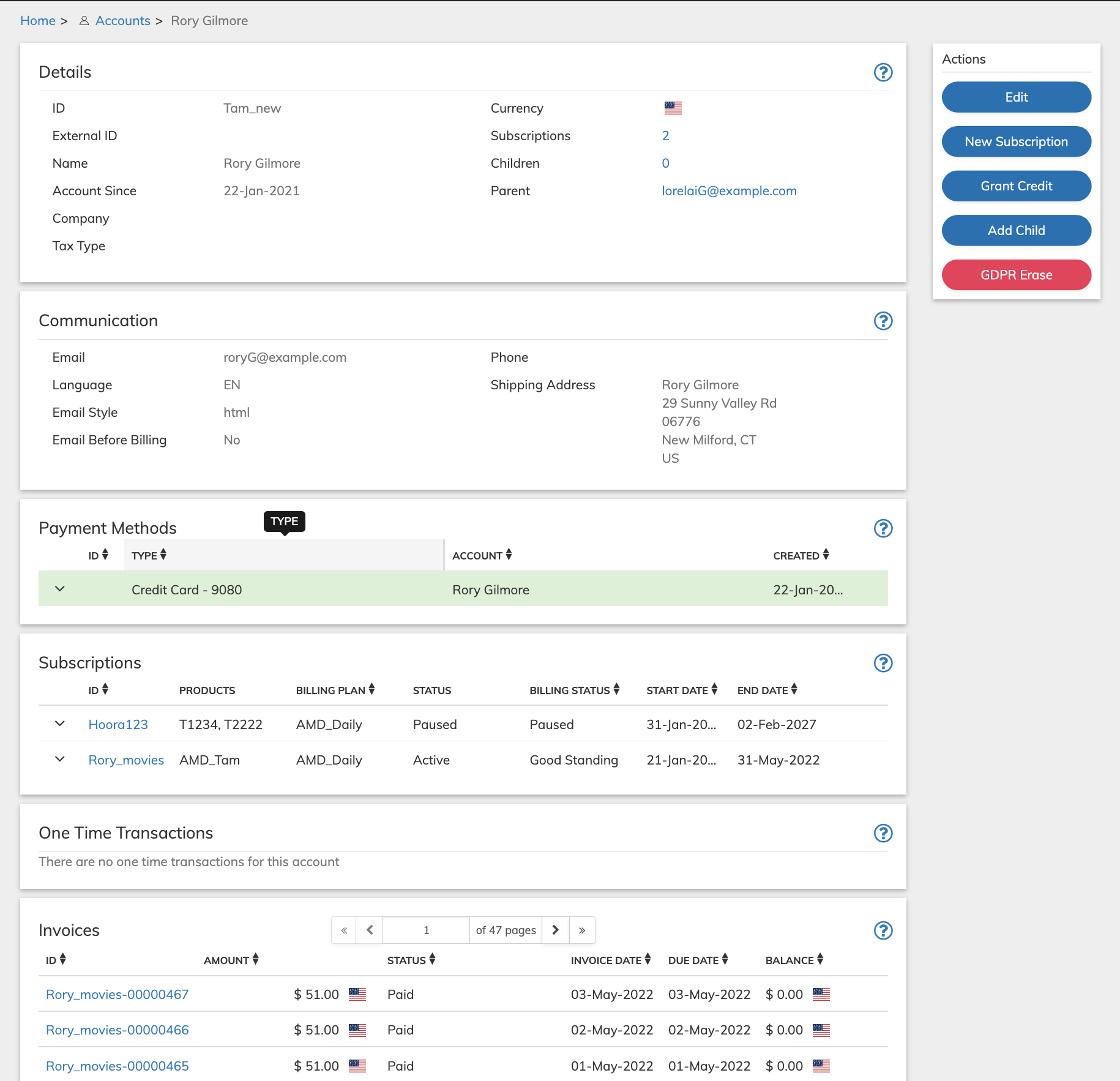 2. Define the Account fields as needed. Refer to the tables below for guidance regarding the fields.
3. When you're done, click **Save** or **Update**.
You can return and continue editing the saved Account at any time.
4. For an existing Account, you can apply a currency credit to the Account by clicking the [**Grant Credit**](accountWorking1#) button that appears in the **Actions** panel and filling in the relevant details.
5. For an existing Account, you can add a child to the Account by clicking the [**Add Child**](accountWorking1#) button that appears in the **Actions** panel.
6. For an Existing Account, you can set up a new Subscription for the Account by clicking the [**New Subscription**](subscriptionWorking1#) button that appears in the **Actions** panel and filling in the relevant details..
7. Merchant users with the Super User role can permanently delete accounts with no active subscriptions by clicking **GDPR Erase**. For more details, see [Account GDPR Erase](accountWorking1#).
* **[Account Details Pane](../topics/accountWorking1#)**
* **[Account Sales Tax Exemptions Pane](../topics/accountWorking1#)**\
Account-specific tax exemption based on country jurisdiction and code. Multiple tax exemptions are supported per account. When a customer with a tax exemption purchases a taxable product, Subscribe will not charge taxes if there is a tax exemption on the account for the applicable country or region.
* **[Account Payment Methods Pane](../topics/accountWorking1#)**\
Payment Methods are the means by which a customer pays for purchases or in other words the account covers its transactions. Defined Payment methods are listed in the order of their preferred use.
* **[Account Add Payment Method Pane](../topics/accountWorking1#)**
* **[Custom Data](../topics/accountWorking1#)**\
Custom data lets you store merchant-specific data to Products, Rate Plans, Billing Plans, Season Sets, Subscriptions, Accounts, and Payment Methods as a pair of matched text strings, called name-value pairs. These name-value pairs can help you categorize and sort aspects of your objects. Use **Name** to define a category, and **Value** to define a specific item in that category. For example, you could use name-value pairs to track your sales teams. Define a name-value pair with Office as the **Name** and the city in which the office is located as the **Value**.
* **[Grant Credit to the Account](../topics/accountWorking1#)**\
You can grant currency or token credits to an account using this page. Typically this is done in response to a customer service call. Account-based credits will be consumed by the next transaction that uses the currency or token on the account, either a subscription renewal transaction or a one-time purchase transaction. Credits granted to a subscription will be used first before account credits.
* **[Revoke Credit](../topics/accountWorking1#)**\
You can revoke or take back all or some of the credit that was granted that has not been used.
* **[Add Child to the Account](../topics/accountWorking1#)**\
Subscribe supports a two-level account hierarchy letting you establish parent and child accounts. This is to allow for customers who use your product or service as a family. A parent account can have multiple child accounts that share the parent account’s payment method. Parent/child accounts can also use different payment methods.
* **[Account GDPR Erase](../topics/accountWorking1#)**
**Parent topic:**[Accounts](../topics/accountsAbout)
## Account Details Pane
| Field | Guidance | Relevancy |
| - | - | - |
| **ID** | Your unique identifier for this customer such as the database ID. The ID is a string of up to 1024 bytes with digits, characters and special symbols support such as [anonymoususer1234@yourcompany.edu](mailto:anonymoususer1234@yourcompany.edu) **Note:** use of the forward slash character (/) in merchant identifiers is not allowed. | Required |
| **Name** | Customer’s full name—typically corresponds to the name associated with the payment method on the account. | Optional |
| **Company** | Name of the company the customer is associated with. | Optional |
| **Email** | Email address associated with this account. If provided, the email address is used by Subscribe to send billing notifications. **Note:** Providing a value for the email fields is recommended. | Optional |
| **Email Style** | Format of email notifications sent to the customer. Select the option from the dropdown menu: - **html**—email is sent in HTML format - **plaintext**—text is sent as plain text | Optional |
| **Email Before Billing** | Indicates whether to send pre-billing notifications to the customer prior to automatic subscription-period renewal. Toggle right for **Yes** or left for **No**. By default, set to No.**Note:** This setting only affects Subscribe pre-billing notifications. Other notifications such as Success, Expiration, and failure messages, are independent of this setting. | Optional |
| **Language** | Select from the dropdown menu the supported language. These are Two- or three-character IANA sub-tag registry language codes. Subscribe uses this setting to determine which of its email templates to use when sending notification messages to the customers.**Note:** Subscribe supports both ISO 639 and IANA language codes, Vindicia recommends using IANA codes. | Optional |
| **Currency** | The currency you specify becomes the default currency for the account. Subscribe uses these when you send in a one- time Transaction or Subscription without specifying a currency. Only one currency can be selected per account. **Note:** At your request, Client Services can define a Global default currency for your business. Place your cursor in the box and select the relevant Currency. To search, enter the relevant letters in the search box.When you do not specify a currency, Subscribe determines the currency to use by proceeding from the specific to the general, in the following order: 1. Transaction 2. Subscription 3. Account 4. Global (merchant) default 5. Vindicia default - USD | Optional |
| **Tax Type** | Customer account-level tax exemption code. Overrides any individual exemptions defined for the account and instructs the tax engine to tax according to the matching predefined taxability profile (usually fully or partially tax exempt). | Optional |
| **External ID** | An optional unique ID you can use in place of the merchantAccountId, or in conjunction with it by mapping the merchantAccountId to your merchant-facing Interface, and the externalId to your external billing system.**Tip:** Best Practice is to use this field when you have two external (non-Subscribe) systems using two different identification schemes for the same customer. Note that the externalId must be unique or null in the Vindicia system. Attempting to create an Account with an existing externalId will return a Failed response to an update Account API call with no specific error. | Optional |
| **Shipping Address and Phone Number** | Used for shipping a product to the customer but can also be used in the calculation of applicable taxes. Merchants who charge taxes typically use the shipping address as the first choice because that is the location where the product will most likely be used. If a shipping address is not provided, the billing address associated with the payment method is used for tax calculation. | Optional |
| **When viewing the Account Details Panel** | | |
| **Account Since** | An automatic entry created by the system indicating when the account was created. | N/A |
| **Parent** | If this is a child account that is linked to a parent account, the Parent's account ID appears here. Click it to open the Parent account. | N/A |
| **Amount Due** | The amount due on the customer account. If no value appears, there is no amount due currently. | N/A |
| **Past Due** | Amount that is overdue from previous billing periods. If no value appears, there is no outstanding debt for the account | N/A |
| **Currency** | The default currency on the account displaying the country flag and name. | N/A |
| **Subscriptions** | Number of subscriptions on the account. Click the number to jump to the Subscriptions Pane. For more details on Subscriptions, refer to [Account Subscriptions Pane](accountViewing1#) | N/A |
| **Children** | The number of accounts linked to this account. Click the number to jump to the Child Accounts Pane. For more details on Child Accounts, refer to [Child Accounts Pane](accountViewing1#) | N/A |
| **Parent topic:**[Working with Accounts](../topics/accountWorking1#) | | |
## Account Sales Tax Exemptions Pane
Account-specific tax exemption based on country jurisdiction and code. Multiple tax exemptions are supported per account. When a customer with a tax exemption purchases a taxable product, Subscribe will not charge taxes if there is a tax exemption on the account for the applicable country or region.
| Field | Guidance | Relevancy |
| - | - | - |
| **Add Exemption** | Click the button if a sales tax exemption is required for the account. Multiple exemptions are supported per account. | Optional |
| **Status** | Select the whether the tax exemption is **Active** (toggle right) or **Inactive**. Default value is Inactive. | Optional |
| **Exemption Code** | The Tax Exemption ID code, provided by the customer. | Optional |
| **Country** | Specifies the country of jurisdiction for the tax exemption. Select the country from the dropdown list. Enter your cursor in the search bar to search for a country. | Optional |
| **Remove** | To remove a Tax Exemption entry, click the 3 dot **Actions** menu to the right of the line and select **Remove**. The Tax exemption entry is removed. | Optional |
| **Parent topic:**[Working with Accounts](../topics/accountWorking1#) | | |
## Account Payment Methods Pane
Payment Methods are the means by which a customer pays for purchases or in other words the account covers its transactions. Defined Payment methods are listed in the order of their preferred use.
| Field | Guidance | Relevancy |
| - | - | - |
| **Editing Account Payment Methods Panel** | | |
| **Add Payment Method** | To add a new Payment Method, click the button. The first Payment method entered is designated the default Account Payment method. The following Payment methods can be added in the Portal: - Credit card - ECP - External Billing - Direct Debit - Carrier Billing - Merchant Accepted Payment - Military Star - Boleto | Optional |
| **Make Primary** | To make a Payment method the primary one to charge, click the 3 dot **Actions** menu to the right of the payment method entry and select **Make Primary**. The Payment Method entry becomes the primary one on the account. | Optional |
| **Edit** | To modify the Payment method, click the 3 dot **Actions** menu to the right of the payment method entry and select **Edit**. The Update Payment Method screen appears. If you are only making changes to Payment Method-related fields, the View mode of the Accounts screen appears when changes are successfully submitted. | Optional |
| **Duplicate** | To duplicate a Payment method, click the 3 dot **Actions** menu to the right of the payment method entry and select **Duplicate**. The Add Payment Method screen appears. | Optional |
| **Delete** | To remove a Payment method, click the 3 dot **Actions** menu to the right of the line and select **Delete**. The Payment Method entry is removed.**Note:** Payment Methods that are used in a subscription can't be deleted. | Optional |
| **Viewing the Payment Methods Pane** | | |
| **Payment Method** | Use the arrow to expand the Payment Method details. The payment Method attributes are displayed. Numbers are masked where required. | Optional |
| **Payment Method Custom Data** | Displays merchant-defined custom data (Name -Value pairs) originating from the API related to the payment method. | Read-only |
| **Primary** | Denotes whether payment method is the primary payment method with a value of Yes or No. | Read-only |
| **Credit Card** | - **Card Number**: the Masked credit card account number. - **Card Expiration**: Month and Year of card expiration. - **Billing Address**: The credit card holder billing name and address. - **Card Type**: The name of the credit card network. | Credit Cards can be viewed and added via the Portal |
| For Payment Method Type > Credit Card:**Account Updater** | - **Last Request**: Date when the last request was sent to Account Updater. - **Last Updated**: Date when the credit card was updated by Account Updater. - **Response Code**: Account Updater response code for the credit card. - **Message**: Message from Account Updater. When Account Updater information is not available, **No Account Updater Activity for this Card** appears. | Read-only |
| **ECP— (Electronic Check Payment)/ACH** | - **Account**: the bank account number, masked. - **Routing Number**: the Bank Routing Number. | ECP can be viewed and added via the Portal |
| **External Billing** | - **ID**: The payment method unique ID - **Bill Receiver**: The payment provider. - **Payment Channel**: The customer paymentChannelId in the billing system. - **Financial Account**: The customer financial Account ID in the External Billing system. | External Billing can be viewed and added via the Portal |
| **Direct Debit** | - **ID**: The payment method unique ID - **Account Number**: the customer's bank Account Number, masked. - **Country**: The country in which the related bank account is located. - **Billing Address**: The bank account holder billing name and address. | Direct Debit can be viewed and added via the Portal |
| **Military Star** | - **Account Number**: The MilitaryStar account number.. - **CID Number**: The Customer Identification Number, masked. | Military Star can be viewed and added via the Portal |
| **Boleto** | - **Fiscal Number**: The fiscal number that appears on the customer’s Boleto Bancário payment slip. This number is formally called Casadastro de Pessoas | Boleto can be viewed and added via the Portal |
| **Merchant Accepted Payment** | - **Payment ID**: The merchant's payment ID. Only digits are supported. - Last digits: The last digits of the account number. - **Billing Address**: The account holder billing name and address. | Merchant Accepted Payment can be viewed and added via the Portal |
| **PayPal** | - **ID**: The payment method unique ID - **PAYPAL Email**: Email address used by the customer for the Paypal account - **Paypal Payer ID**: PayerID for Paypal account - **Request Reference ID**: A field indicating whether the reference ID was requested. - **PAYPAL Reference ID**: Reference ID for payment, the Billing Agreement ID or Reference Transaction ID associated with a PayPal Billing Agreement. | Only available for viewing. Adding a PayPal payment method is available via API. |
| **Venmo** | - **Venmo Username**: The customer's Venmo username. - **Venmo Merchant Customer ID**: A unique merchant identification for the Venmo account. - **Venmo User ID**: Venmo's user id for the customer. | Only available for viewing. Adding a Venmo payment method is available via API. |
| **Apple Pay** | - **Payment Instrument Name**: The payment details for the payment method used in Apple Pay. - **ID**:The unique ID of the Apple Pay payment method. - **Expiration Date**: The expiration date of the credit card used for Apple Pay. | Only available for viewing. Adding an Apple Pay payment method is available via API. |
| **Hosted Page** | - **Payment Provider**: The payment provider selected for the Transaction. - **Country Code**: The country code where the payment is processed - **Return URL**: The redirect URL after a successful payment. - **Language**: The ISO 639-1 language matrix code for the payment pages. - **Payment Details**: Notes or details provided by the hosted page as part of the payment. - **Billing Agreement**: When supported, this is the token used to rebill the payment method in the future. | Only available for viewing. Adding a Hosted Page payment method is available via API. |
| **Amazon Pay** | - **ID**: The payment method unique ID - **Buyer Name**: The name Amazon associates with the billing agreement identifier. - **Buyer Email**: The email Amazon associates with the billing agreement identifier. - **Billing Agreement ID**: The Amazon billing agreement identifier. This value is returned by the OffAmazonPayments getAmazonBillingAgreementId API call - **Address**: The billing address Amazon associates with the buyer’s payment method. | Only available for viewing. Adding an Amazon Pay payment method is available via API. |
| **Google Pay** | - **ID**: The payment method unique ID - **Address**: The billing address associated with the Google Pay customer. | Only available for viewing. Adding a Google Pay payment method is available via API. |
| **Token** | - **Token Type**: This is the name of the token type for the payment method as defined in Catalog > Tokens - **Token Description**: This is the Token's detailed description. - **Token Balance**: The customer's Token amount. | Only available for viewing. Adding a Token payment method is available via API. |
| **Parent topic:**[Working with Accounts](../topics/accountWorking1#) | | |
## Account Add Payment Method Pane
| Field | Guidance | Relevancy |
| - | - | - |
| **Set Primary** | Enable the toggle switch, by moving to the right, to make this the default payment method for new subscription for this account. The Primary Payment Method is applied only when a purchase is made without supplying a Payment Method.. | Optional |
| **Payment Type** | Select an option from the dropdown list. The following payment methods are the only ones available to customer support representatives. All other supported payment methods require direct online customer interaction.- Credit card - ECP - External Billing - Direct Debit - Carrier Billing - Merchant Accepted Payment - Military Star - Boleto | Required |
| **Account Holder** | Enter the payee name as relevant for the payment method. | Optional |
| **ID** | The merchant's customer ID associated with the billing profile. | Optional |
| **Account Specified— customer specified information** | | |
| **Custom Type** | Payment method type provided by the customer. | Optional |
| **Description** | Payment method description provided by the customer. | Optional |
| **All Subscriptions Use This Method** | Enable the toggle switch, by moving to the right, to move all existing account subscriptions to this payment method. This setting is defined for the time of submission only. The default value is No. | Optional |
| **Billing Address** | Billing address associated with the payment method. Click **Same as Shipping**to automatically populate with the previously defined Shipping Address. | Optional |
| **Payment Type Specific Details** | | |
| **Credit Card** | | |
| **Card Number** | Masked credit card account number. Enter a card number here when editing or adding a new card. | Required |
| **Security Code** | CVV for the card. Enter the 3 or 4 digit CVV. This field is not visible when viewing the card details as this data is not stored in database. | Optional |
| **Expiration Date** | Month and Year of card expiration. Select from the drop down list. Default values are current Month and year. | Required |
| **Credit Card Type** | The name of the credit card network. | Read-only |
| **ECP— (Electronic Check Payment)/ACH** | | |
| **Account Type** | The type of bank account that issues this electronic check. Valid types include: - Consumer Checking - Consumer Savings - Corporate Checking - Corporate Savings | Required |
| **Transaction Type** | The supported types of Transactions. Select one of the following from the dropdown menu:- All - Inbound - originates with customers and incoming to merchant bank account. - Outbound - withdrawn from merchant bank account and deposited into customer's account - Inbound and Outbound - N/A - Transfer | Optional |
| **Account Number** | Enter the bank account number. When viewing this field, the bank account number is masked. | Required |
| **Routing Number** | Enter the Bank Routing Number. | Required |
| **External Billing** | | |
| **Bill Receiver** | The payment provider. In this case the payment provider is one of the Amdocs Billing Systems. (CES, Ensemble or Optima). | Optional |
| **Payment Channel** | The customer paymentChannelId in the billing system. | Optional |
| **Financial Account** | The customer financial Account ID in the External Billing system. | Optional |
| **Direct Debit** | | |
| **Account Number** | Enter the customer's bank Account Number. When viewing this field the account number is masked. | Required |
| **Bank Sort Code** | The European bank sort code that identifies the bank that houses the customer’s bank account whose number is specified in the account field. This code is similar to the bank routing number in the United States. When viewing this field the number is masked. | Required |
| **RIB Code** | **France only.** The RIB code for a Direct Debit account. | Optional |
| **Country** | The country in which the related bank account is located. Select the ISO two-letter code for the country from the dropdown menu. | Required |
| **Carrier Billing** | | |
| **Phone Number** | The Customer phone number being charged | Required |
| **Encoded Phone Number** | Payment Provider encoded phone number used in the Transaction. | Optional |
| **Payment Provider** | Payment Provider selected for the Transaction. Select from the dropdown menu. | Required |
| **Currency** | Select the relevant currency from the dropdown menu. | Required |
| **Country** | The customer's Country code. Select the ISO two-letter code for the country from the dropdown menu. | Required |
| **Name** | Name is the field for defining metadata. It is unique and once submitted can't be changed. 1. Place your cursor in the selection box and either select from existing Names or enter a new Name. 2. For a new entry , click **Create New:** 3. Enter a Value for the Name. 4. Click **Add** to save this pair. **Note:** - Name field is limited to 255 characters. - System generated parameters use the prefix **vin** in the name field. | Required if adding custom data |
| **Value** | 1. Once you've selected/created a Name 2. Enter the category's Value in the corresponding field. 3. Click **Add** to save this pair. **Note:** Value field is limited to 255 characters. | Required if adding custom data |
| **Merchant Accepted Payment** | | |
| **ID** | The merchant's payment ID. Only digits are supported. | Required |
| **Type** | The type of payment accepted by the merchant. | Optional |
| **Account** | The full account number that provided the payment | Required |
| **Note** | An optional memo regarding the payment made. | Optional |
| **Military Star** | | |
| **Account Number** | The MilitaryStar full account number. | Required |
| **CID Number** | The Customer Identification Number, of the account holder. When viewing this field, characters are masked. | Required |
| **Boleto Bancario** | | |
| **Fiscal Number** | The fiscal number that appears on the customer’s Boleto Bancário payment slip. This number is formally called Casadastro de Pessoas. | Required |
| Other Supported Payment Methods — unavailable from the Portal due to subscriber redirect are displayed in the Account Payment Method Pane above [Account Payment Method Pane](accountViewing1#) | | |
| **Parent topic:**[Working with Accounts](../topics/accountWorking1#) | | |
## Custom Data
Custom data lets you store merchant-specific data to Products, Rate Plans, Billing Plans, Season Sets, Subscriptions, Accounts, and Payment Methods as a pair of matched text strings, called name-value pairs. These name-value pairs can help you categorize and sort aspects of your objects. Use **Name** to define a category, and **Value** to define a specific item in that category. For example, you could use name-value pairs to track your sales teams. Define a name-value pair with Office as the **Name** and the city in which the office is located as the **Value**.
| Field | Guidance | Relevancy |
| - | - | - |
| **Name** | Name is the field for defining metadata. It is unique and once submitted can't be changed. 1. Place your cursor in the selection box and either select from existing Names or enter a new Name. 2. For a new entry , click **Create New:** 3. Enter a Value for the Name. 4. Click **Add** to save this pair. **Note:** - Name field is limited to 255 characters. - System generated parameters use the prefix **vin** in the name field. | Required if adding custom data |
| **Value** | 1. Once you've selected/created a Name 2. Enter the category's Value in the corresponding field. 3. Click **Add** to save this pair. **Note:** Value field is limited to 255 characters. | Required if adding custom data |
| **Parent topic:**[Working with Accounts](../topics/accountWorking1#) | | |
## Grant Credit to the Account
You can grant currency or token credits to an account using this page. Typically this is done in response to a customer service call. Account-based credits will be consumed by the next transaction that uses the currency or token on the account, either a subscription renewal transaction or a one-time purchase transaction. Credits granted to a subscription will be used first before account credits.
To grant a credit to the account:
1. Access the account from **Billing** > **Accounts**.
2. Click **Grant Credit** in the **Actions** Panel.
The Grant Credit dialog box appears.
2. Define the Account fields as needed. Refer to the tables below for guidance regarding the fields.
3. When you're done, click **Save** or **Update**.
You can return and continue editing the saved Account at any time.
4. For an existing Account, you can apply a currency credit to the Account by clicking the [**Grant Credit**](accountWorking1#) button that appears in the **Actions** panel and filling in the relevant details.
5. For an existing Account, you can add a child to the Account by clicking the [**Add Child**](accountWorking1#) button that appears in the **Actions** panel.
6. For an Existing Account, you can set up a new Subscription for the Account by clicking the [**New Subscription**](subscriptionWorking1#) button that appears in the **Actions** panel and filling in the relevant details..
7. Merchant users with the Super User role can permanently delete accounts with no active subscriptions by clicking **GDPR Erase**. For more details, see [Account GDPR Erase](accountWorking1#).
* **[Account Details Pane](../topics/accountWorking1#)**
* **[Account Sales Tax Exemptions Pane](../topics/accountWorking1#)**\
Account-specific tax exemption based on country jurisdiction and code. Multiple tax exemptions are supported per account. When a customer with a tax exemption purchases a taxable product, Subscribe will not charge taxes if there is a tax exemption on the account for the applicable country or region.
* **[Account Payment Methods Pane](../topics/accountWorking1#)**\
Payment Methods are the means by which a customer pays for purchases or in other words the account covers its transactions. Defined Payment methods are listed in the order of their preferred use.
* **[Account Add Payment Method Pane](../topics/accountWorking1#)**
* **[Custom Data](../topics/accountWorking1#)**\
Custom data lets you store merchant-specific data to Products, Rate Plans, Billing Plans, Season Sets, Subscriptions, Accounts, and Payment Methods as a pair of matched text strings, called name-value pairs. These name-value pairs can help you categorize and sort aspects of your objects. Use **Name** to define a category, and **Value** to define a specific item in that category. For example, you could use name-value pairs to track your sales teams. Define a name-value pair with Office as the **Name** and the city in which the office is located as the **Value**.
* **[Grant Credit to the Account](../topics/accountWorking1#)**\
You can grant currency or token credits to an account using this page. Typically this is done in response to a customer service call. Account-based credits will be consumed by the next transaction that uses the currency or token on the account, either a subscription renewal transaction or a one-time purchase transaction. Credits granted to a subscription will be used first before account credits.
* **[Revoke Credit](../topics/accountWorking1#)**\
You can revoke or take back all or some of the credit that was granted that has not been used.
* **[Add Child to the Account](../topics/accountWorking1#)**\
Subscribe supports a two-level account hierarchy letting you establish parent and child accounts. This is to allow for customers who use your product or service as a family. A parent account can have multiple child accounts that share the parent account’s payment method. Parent/child accounts can also use different payment methods.
* **[Account GDPR Erase](../topics/accountWorking1#)**
**Parent topic:**[Accounts](../topics/accountsAbout)
## Account Details Pane
| Field | Guidance | Relevancy |
| - | - | - |
| **ID** | Your unique identifier for this customer such as the database ID. The ID is a string of up to 1024 bytes with digits, characters and special symbols support such as [anonymoususer1234@yourcompany.edu](mailto:anonymoususer1234@yourcompany.edu) **Note:** use of the forward slash character (/) in merchant identifiers is not allowed. | Required |
| **Name** | Customer’s full name—typically corresponds to the name associated with the payment method on the account. | Optional |
| **Company** | Name of the company the customer is associated with. | Optional |
| **Email** | Email address associated with this account. If provided, the email address is used by Subscribe to send billing notifications. **Note:** Providing a value for the email fields is recommended. | Optional |
| **Email Style** | Format of email notifications sent to the customer. Select the option from the dropdown menu: - **html**—email is sent in HTML format - **plaintext**—text is sent as plain text | Optional |
| **Email Before Billing** | Indicates whether to send pre-billing notifications to the customer prior to automatic subscription-period renewal. Toggle right for **Yes** or left for **No**. By default, set to No.**Note:** This setting only affects Subscribe pre-billing notifications. Other notifications such as Success, Expiration, and failure messages, are independent of this setting. | Optional |
| **Language** | Select from the dropdown menu the supported language. These are Two- or three-character IANA sub-tag registry language codes. Subscribe uses this setting to determine which of its email templates to use when sending notification messages to the customers.**Note:** Subscribe supports both ISO 639 and IANA language codes, Vindicia recommends using IANA codes. | Optional |
| **Currency** | The currency you specify becomes the default currency for the account. Subscribe uses these when you send in a one- time Transaction or Subscription without specifying a currency. Only one currency can be selected per account. **Note:** At your request, Client Services can define a Global default currency for your business. Place your cursor in the box and select the relevant Currency. To search, enter the relevant letters in the search box.When you do not specify a currency, Subscribe determines the currency to use by proceeding from the specific to the general, in the following order: 1. Transaction 2. Subscription 3. Account 4. Global (merchant) default 5. Vindicia default - USD | Optional |
| **Tax Type** | Customer account-level tax exemption code. Overrides any individual exemptions defined for the account and instructs the tax engine to tax according to the matching predefined taxability profile (usually fully or partially tax exempt). | Optional |
| **External ID** | An optional unique ID you can use in place of the merchantAccountId, or in conjunction with it by mapping the merchantAccountId to your merchant-facing Interface, and the externalId to your external billing system.**Tip:** Best Practice is to use this field when you have two external (non-Subscribe) systems using two different identification schemes for the same customer. Note that the externalId must be unique or null in the Vindicia system. Attempting to create an Account with an existing externalId will return a Failed response to an update Account API call with no specific error. | Optional |
| **Shipping Address and Phone Number** | Used for shipping a product to the customer but can also be used in the calculation of applicable taxes. Merchants who charge taxes typically use the shipping address as the first choice because that is the location where the product will most likely be used. If a shipping address is not provided, the billing address associated with the payment method is used for tax calculation. | Optional |
| **When viewing the Account Details Panel** | | |
| **Account Since** | An automatic entry created by the system indicating when the account was created. | N/A |
| **Parent** | If this is a child account that is linked to a parent account, the Parent's account ID appears here. Click it to open the Parent account. | N/A |
| **Amount Due** | The amount due on the customer account. If no value appears, there is no amount due currently. | N/A |
| **Past Due** | Amount that is overdue from previous billing periods. If no value appears, there is no outstanding debt for the account | N/A |
| **Currency** | The default currency on the account displaying the country flag and name. | N/A |
| **Subscriptions** | Number of subscriptions on the account. Click the number to jump to the Subscriptions Pane. For more details on Subscriptions, refer to [Account Subscriptions Pane](accountViewing1#) | N/A |
| **Children** | The number of accounts linked to this account. Click the number to jump to the Child Accounts Pane. For more details on Child Accounts, refer to [Child Accounts Pane](accountViewing1#) | N/A |
| **Parent topic:**[Working with Accounts](../topics/accountWorking1#) | | |
## Account Sales Tax Exemptions Pane
Account-specific tax exemption based on country jurisdiction and code. Multiple tax exemptions are supported per account. When a customer with a tax exemption purchases a taxable product, Subscribe will not charge taxes if there is a tax exemption on the account for the applicable country or region.
| Field | Guidance | Relevancy |
| - | - | - |
| **Add Exemption** | Click the button if a sales tax exemption is required for the account. Multiple exemptions are supported per account. | Optional |
| **Status** | Select the whether the tax exemption is **Active** (toggle right) or **Inactive**. Default value is Inactive. | Optional |
| **Exemption Code** | The Tax Exemption ID code, provided by the customer. | Optional |
| **Country** | Specifies the country of jurisdiction for the tax exemption. Select the country from the dropdown list. Enter your cursor in the search bar to search for a country. | Optional |
| **Remove** | To remove a Tax Exemption entry, click the 3 dot **Actions** menu to the right of the line and select **Remove**. The Tax exemption entry is removed. | Optional |
| **Parent topic:**[Working with Accounts](../topics/accountWorking1#) | | |
## Account Payment Methods Pane
Payment Methods are the means by which a customer pays for purchases or in other words the account covers its transactions. Defined Payment methods are listed in the order of their preferred use.
| Field | Guidance | Relevancy |
| - | - | - |
| **Editing Account Payment Methods Panel** | | |
| **Add Payment Method** | To add a new Payment Method, click the button. The first Payment method entered is designated the default Account Payment method. The following Payment methods can be added in the Portal: - Credit card - ECP - External Billing - Direct Debit - Carrier Billing - Merchant Accepted Payment - Military Star - Boleto | Optional |
| **Make Primary** | To make a Payment method the primary one to charge, click the 3 dot **Actions** menu to the right of the payment method entry and select **Make Primary**. The Payment Method entry becomes the primary one on the account. | Optional |
| **Edit** | To modify the Payment method, click the 3 dot **Actions** menu to the right of the payment method entry and select **Edit**. The Update Payment Method screen appears. If you are only making changes to Payment Method-related fields, the View mode of the Accounts screen appears when changes are successfully submitted. | Optional |
| **Duplicate** | To duplicate a Payment method, click the 3 dot **Actions** menu to the right of the payment method entry and select **Duplicate**. The Add Payment Method screen appears. | Optional |
| **Delete** | To remove a Payment method, click the 3 dot **Actions** menu to the right of the line and select **Delete**. The Payment Method entry is removed.**Note:** Payment Methods that are used in a subscription can't be deleted. | Optional |
| **Viewing the Payment Methods Pane** | | |
| **Payment Method** | Use the arrow to expand the Payment Method details. The payment Method attributes are displayed. Numbers are masked where required. | Optional |
| **Payment Method Custom Data** | Displays merchant-defined custom data (Name -Value pairs) originating from the API related to the payment method. | Read-only |
| **Primary** | Denotes whether payment method is the primary payment method with a value of Yes or No. | Read-only |
| **Credit Card** | - **Card Number**: the Masked credit card account number. - **Card Expiration**: Month and Year of card expiration. - **Billing Address**: The credit card holder billing name and address. - **Card Type**: The name of the credit card network. | Credit Cards can be viewed and added via the Portal |
| For Payment Method Type > Credit Card:**Account Updater** | - **Last Request**: Date when the last request was sent to Account Updater. - **Last Updated**: Date when the credit card was updated by Account Updater. - **Response Code**: Account Updater response code for the credit card. - **Message**: Message from Account Updater. When Account Updater information is not available, **No Account Updater Activity for this Card** appears. | Read-only |
| **ECP— (Electronic Check Payment)/ACH** | - **Account**: the bank account number, masked. - **Routing Number**: the Bank Routing Number. | ECP can be viewed and added via the Portal |
| **External Billing** | - **ID**: The payment method unique ID - **Bill Receiver**: The payment provider. - **Payment Channel**: The customer paymentChannelId in the billing system. - **Financial Account**: The customer financial Account ID in the External Billing system. | External Billing can be viewed and added via the Portal |
| **Direct Debit** | - **ID**: The payment method unique ID - **Account Number**: the customer's bank Account Number, masked. - **Country**: The country in which the related bank account is located. - **Billing Address**: The bank account holder billing name and address. | Direct Debit can be viewed and added via the Portal |
| **Military Star** | - **Account Number**: The MilitaryStar account number.. - **CID Number**: The Customer Identification Number, masked. | Military Star can be viewed and added via the Portal |
| **Boleto** | - **Fiscal Number**: The fiscal number that appears on the customer’s Boleto Bancário payment slip. This number is formally called Casadastro de Pessoas | Boleto can be viewed and added via the Portal |
| **Merchant Accepted Payment** | - **Payment ID**: The merchant's payment ID. Only digits are supported. - Last digits: The last digits of the account number. - **Billing Address**: The account holder billing name and address. | Merchant Accepted Payment can be viewed and added via the Portal |
| **PayPal** | - **ID**: The payment method unique ID - **PAYPAL Email**: Email address used by the customer for the Paypal account - **Paypal Payer ID**: PayerID for Paypal account - **Request Reference ID**: A field indicating whether the reference ID was requested. - **PAYPAL Reference ID**: Reference ID for payment, the Billing Agreement ID or Reference Transaction ID associated with a PayPal Billing Agreement. | Only available for viewing. Adding a PayPal payment method is available via API. |
| **Venmo** | - **Venmo Username**: The customer's Venmo username. - **Venmo Merchant Customer ID**: A unique merchant identification for the Venmo account. - **Venmo User ID**: Venmo's user id for the customer. | Only available for viewing. Adding a Venmo payment method is available via API. |
| **Apple Pay** | - **Payment Instrument Name**: The payment details for the payment method used in Apple Pay. - **ID**:The unique ID of the Apple Pay payment method. - **Expiration Date**: The expiration date of the credit card used for Apple Pay. | Only available for viewing. Adding an Apple Pay payment method is available via API. |
| **Hosted Page** | - **Payment Provider**: The payment provider selected for the Transaction. - **Country Code**: The country code where the payment is processed - **Return URL**: The redirect URL after a successful payment. - **Language**: The ISO 639-1 language matrix code for the payment pages. - **Payment Details**: Notes or details provided by the hosted page as part of the payment. - **Billing Agreement**: When supported, this is the token used to rebill the payment method in the future. | Only available for viewing. Adding a Hosted Page payment method is available via API. |
| **Amazon Pay** | - **ID**: The payment method unique ID - **Buyer Name**: The name Amazon associates with the billing agreement identifier. - **Buyer Email**: The email Amazon associates with the billing agreement identifier. - **Billing Agreement ID**: The Amazon billing agreement identifier. This value is returned by the OffAmazonPayments getAmazonBillingAgreementId API call - **Address**: The billing address Amazon associates with the buyer’s payment method. | Only available for viewing. Adding an Amazon Pay payment method is available via API. |
| **Google Pay** | - **ID**: The payment method unique ID - **Address**: The billing address associated with the Google Pay customer. | Only available for viewing. Adding a Google Pay payment method is available via API. |
| **Token** | - **Token Type**: This is the name of the token type for the payment method as defined in Catalog > Tokens - **Token Description**: This is the Token's detailed description. - **Token Balance**: The customer's Token amount. | Only available for viewing. Adding a Token payment method is available via API. |
| **Parent topic:**[Working with Accounts](../topics/accountWorking1#) | | |
## Account Add Payment Method Pane
| Field | Guidance | Relevancy |
| - | - | - |
| **Set Primary** | Enable the toggle switch, by moving to the right, to make this the default payment method for new subscription for this account. The Primary Payment Method is applied only when a purchase is made without supplying a Payment Method.. | Optional |
| **Payment Type** | Select an option from the dropdown list. The following payment methods are the only ones available to customer support representatives. All other supported payment methods require direct online customer interaction.- Credit card - ECP - External Billing - Direct Debit - Carrier Billing - Merchant Accepted Payment - Military Star - Boleto | Required |
| **Account Holder** | Enter the payee name as relevant for the payment method. | Optional |
| **ID** | The merchant's customer ID associated with the billing profile. | Optional |
| **Account Specified— customer specified information** | | |
| **Custom Type** | Payment method type provided by the customer. | Optional |
| **Description** | Payment method description provided by the customer. | Optional |
| **All Subscriptions Use This Method** | Enable the toggle switch, by moving to the right, to move all existing account subscriptions to this payment method. This setting is defined for the time of submission only. The default value is No. | Optional |
| **Billing Address** | Billing address associated with the payment method. Click **Same as Shipping**to automatically populate with the previously defined Shipping Address. | Optional |
| **Payment Type Specific Details** | | |
| **Credit Card** | | |
| **Card Number** | Masked credit card account number. Enter a card number here when editing or adding a new card. | Required |
| **Security Code** | CVV for the card. Enter the 3 or 4 digit CVV. This field is not visible when viewing the card details as this data is not stored in database. | Optional |
| **Expiration Date** | Month and Year of card expiration. Select from the drop down list. Default values are current Month and year. | Required |
| **Credit Card Type** | The name of the credit card network. | Read-only |
| **ECP— (Electronic Check Payment)/ACH** | | |
| **Account Type** | The type of bank account that issues this electronic check. Valid types include: - Consumer Checking - Consumer Savings - Corporate Checking - Corporate Savings | Required |
| **Transaction Type** | The supported types of Transactions. Select one of the following from the dropdown menu:- All - Inbound - originates with customers and incoming to merchant bank account. - Outbound - withdrawn from merchant bank account and deposited into customer's account - Inbound and Outbound - N/A - Transfer | Optional |
| **Account Number** | Enter the bank account number. When viewing this field, the bank account number is masked. | Required |
| **Routing Number** | Enter the Bank Routing Number. | Required |
| **External Billing** | | |
| **Bill Receiver** | The payment provider. In this case the payment provider is one of the Amdocs Billing Systems. (CES, Ensemble or Optima). | Optional |
| **Payment Channel** | The customer paymentChannelId in the billing system. | Optional |
| **Financial Account** | The customer financial Account ID in the External Billing system. | Optional |
| **Direct Debit** | | |
| **Account Number** | Enter the customer's bank Account Number. When viewing this field the account number is masked. | Required |
| **Bank Sort Code** | The European bank sort code that identifies the bank that houses the customer’s bank account whose number is specified in the account field. This code is similar to the bank routing number in the United States. When viewing this field the number is masked. | Required |
| **RIB Code** | **France only.** The RIB code for a Direct Debit account. | Optional |
| **Country** | The country in which the related bank account is located. Select the ISO two-letter code for the country from the dropdown menu. | Required |
| **Carrier Billing** | | |
| **Phone Number** | The Customer phone number being charged | Required |
| **Encoded Phone Number** | Payment Provider encoded phone number used in the Transaction. | Optional |
| **Payment Provider** | Payment Provider selected for the Transaction. Select from the dropdown menu. | Required |
| **Currency** | Select the relevant currency from the dropdown menu. | Required |
| **Country** | The customer's Country code. Select the ISO two-letter code for the country from the dropdown menu. | Required |
| **Name** | Name is the field for defining metadata. It is unique and once submitted can't be changed. 1. Place your cursor in the selection box and either select from existing Names or enter a new Name. 2. For a new entry , click **Create New:** 3. Enter a Value for the Name. 4. Click **Add** to save this pair. **Note:** - Name field is limited to 255 characters. - System generated parameters use the prefix **vin** in the name field. | Required if adding custom data |
| **Value** | 1. Once you've selected/created a Name 2. Enter the category's Value in the corresponding field. 3. Click **Add** to save this pair. **Note:** Value field is limited to 255 characters. | Required if adding custom data |
| **Merchant Accepted Payment** | | |
| **ID** | The merchant's payment ID. Only digits are supported. | Required |
| **Type** | The type of payment accepted by the merchant. | Optional |
| **Account** | The full account number that provided the payment | Required |
| **Note** | An optional memo regarding the payment made. | Optional |
| **Military Star** | | |
| **Account Number** | The MilitaryStar full account number. | Required |
| **CID Number** | The Customer Identification Number, of the account holder. When viewing this field, characters are masked. | Required |
| **Boleto Bancario** | | |
| **Fiscal Number** | The fiscal number that appears on the customer’s Boleto Bancário payment slip. This number is formally called Casadastro de Pessoas. | Required |
| Other Supported Payment Methods — unavailable from the Portal due to subscriber redirect are displayed in the Account Payment Method Pane above [Account Payment Method Pane](accountViewing1#) | | |
| **Parent topic:**[Working with Accounts](../topics/accountWorking1#) | | |
## Custom Data
Custom data lets you store merchant-specific data to Products, Rate Plans, Billing Plans, Season Sets, Subscriptions, Accounts, and Payment Methods as a pair of matched text strings, called name-value pairs. These name-value pairs can help you categorize and sort aspects of your objects. Use **Name** to define a category, and **Value** to define a specific item in that category. For example, you could use name-value pairs to track your sales teams. Define a name-value pair with Office as the **Name** and the city in which the office is located as the **Value**.
| Field | Guidance | Relevancy |
| - | - | - |
| **Name** | Name is the field for defining metadata. It is unique and once submitted can't be changed. 1. Place your cursor in the selection box and either select from existing Names or enter a new Name. 2. For a new entry , click **Create New:** 3. Enter a Value for the Name. 4. Click **Add** to save this pair. **Note:** - Name field is limited to 255 characters. - System generated parameters use the prefix **vin** in the name field. | Required if adding custom data |
| **Value** | 1. Once you've selected/created a Name 2. Enter the category's Value in the corresponding field. 3. Click **Add** to save this pair. **Note:** Value field is limited to 255 characters. | Required if adding custom data |
| **Parent topic:**[Working with Accounts](../topics/accountWorking1#) | | |
## Grant Credit to the Account
You can grant currency or token credits to an account using this page. Typically this is done in response to a customer service call. Account-based credits will be consumed by the next transaction that uses the currency or token on the account, either a subscription renewal transaction or a one-time purchase transaction. Credits granted to a subscription will be used first before account credits.
To grant a credit to the account:
1. Access the account from **Billing** > **Accounts**.
2. Click **Grant Credit** in the **Actions** Panel.
The Grant Credit dialog box appears.
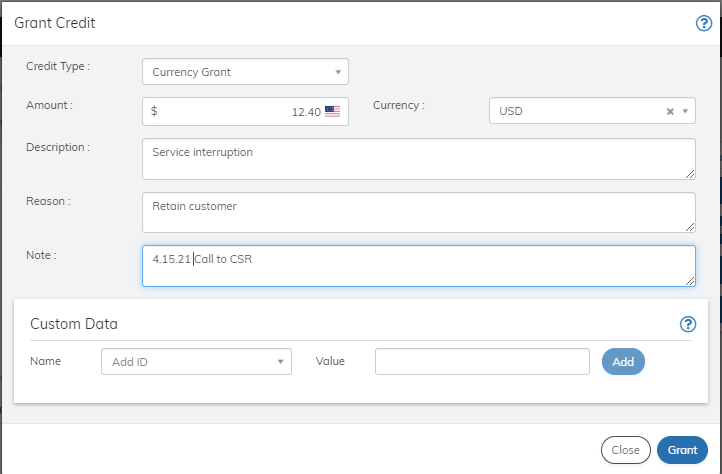 3. Define the Grant Credit fields as needed. Refer to the table below for guidance regarding the fields.
4. When you're done, click **Grant**. The credit is granted to the account and appears in the Credits pane.
| Field | Guidance | Relevancy |
| - | - | - |
| **Credit Type** | Select **Currency Grant** or **Token Grant** from the dropdown menu. Default value is Currency Grant | Required |
| **Currency Grant** | | |
| **Amount** | The credit amount you want to give. | Optional |
| **Currency** | The currency of the credit. Place your cursor in the box and select the relevant Currency. To search, enter the relevant letters in the search box. | Required |
| **Description** | Enter a description of the credit being granted | Optional |
| **Reason** | Enter a reason for the credit being granted | Optional |
| **Note** | Enter any additional information about the grant you would like to add | Optional |
| **Custom Data Name** | 1. Place your cursor in the selection box and either select from existing Names or enter a new Name. 2. For a new entry , click **Create New:** 3. Enter a Value for the Name. 4. Click **Add** to save this pair. **Note:** Note field is limited to 255 characters. | Optional |
| **Value** | 1. Once you've selected/created a Name 2. Enter the category's Value in the corresponding field. 3. Click **Add** to save this pair. **Note:** Value field is limited to 255 characters. | Optional |
| **Token Grant** | | |
| **Token** | Select a token to grant from the dropdown menu. Contact the business development department to create tokens if you don't see the one you need listed. | Required |
| **Amount** | The number of tokens you'd like to grant. | Required |
| **Note** | Enter any additional information about the grant you would like to add | Optional |
| **Parent topic:**[Working with Accounts](../topics/accountWorking1#) | | |
## Revoke Credit
You can revoke or take back all or some of the credit that was granted that has not been used.
To revoke a credit in the account or subscription:
1. Access the account from **Billing** > **Accounts**or the subscription from **Billing** > **Subscriptions**.
2. Go to the **Credits** Pane.
3. Find the relevant credit to revoke from the list.
4. Click the 3 dot action icon next to the credit listing and select **Revoke**.
The Revoke Credit dialog box appears.
3. Define the Grant Credit fields as needed. Refer to the table below for guidance regarding the fields.
4. When you're done, click **Grant**. The credit is granted to the account and appears in the Credits pane.
| Field | Guidance | Relevancy |
| - | - | - |
| **Credit Type** | Select **Currency Grant** or **Token Grant** from the dropdown menu. Default value is Currency Grant | Required |
| **Currency Grant** | | |
| **Amount** | The credit amount you want to give. | Optional |
| **Currency** | The currency of the credit. Place your cursor in the box and select the relevant Currency. To search, enter the relevant letters in the search box. | Required |
| **Description** | Enter a description of the credit being granted | Optional |
| **Reason** | Enter a reason for the credit being granted | Optional |
| **Note** | Enter any additional information about the grant you would like to add | Optional |
| **Custom Data Name** | 1. Place your cursor in the selection box and either select from existing Names or enter a new Name. 2. For a new entry , click **Create New:** 3. Enter a Value for the Name. 4. Click **Add** to save this pair. **Note:** Note field is limited to 255 characters. | Optional |
| **Value** | 1. Once you've selected/created a Name 2. Enter the category's Value in the corresponding field. 3. Click **Add** to save this pair. **Note:** Value field is limited to 255 characters. | Optional |
| **Token Grant** | | |
| **Token** | Select a token to grant from the dropdown menu. Contact the business development department to create tokens if you don't see the one you need listed. | Required |
| **Amount** | The number of tokens you'd like to grant. | Required |
| **Note** | Enter any additional information about the grant you would like to add | Optional |
| **Parent topic:**[Working with Accounts](../topics/accountWorking1#) | | |
## Revoke Credit
You can revoke or take back all or some of the credit that was granted that has not been used.
To revoke a credit in the account or subscription:
1. Access the account from **Billing** > **Accounts**or the subscription from **Billing** > **Subscriptions**.
2. Go to the **Credits** Pane.
3. Find the relevant credit to revoke from the list.
4. Click the 3 dot action icon next to the credit listing and select **Revoke**.
The Revoke Credit dialog box appears.
 5. Define the Revoke Credit fields as needed. Refer to the table below for guidance regarding the fields.
6. When you're done, click **Submit**. The credit is revoked and no longer appears in the Credits pane.
7. To see the revoke activity, From the **Insights** menu option, select **Token Activity** or **Credit Activity** as relevant.
| Field | Guidance | Relevancy |
| - | - | - |
| **Remaining Credit** | The unused credit remaining on the account. | Automatic |
| **Amount To Revoke** | Enter the amount to revoke. Can be any amount up to remaining credit amount. | Required |
| **Note** | Enter the reason for the credit revoke, and any other pertinent information. | Optional |
**Parent topic:**[Working with Accounts](../topics/accountWorking1#)
## Add Child to the Account
Subscribe supports a two-level account hierarchy letting you establish parent and child accounts. This is to allow for customers who use your product or service as a family. A parent account can have multiple child accounts that share the parent account’s payment method. Parent/child accounts can also use different payment methods.
To add a child to the account:
1. Create/find the child account. For more details, refer to [Working with Accounts](accountWorking1#).
2. Note the Account ID for the child account.
3. Access the parent account you'd like to link from **Billing** > **Accounts**.
4. Click **Add child** in the **Actions** Panel.
The Add Child box appears.
5. Define the Revoke Credit fields as needed. Refer to the table below for guidance regarding the fields.
6. When you're done, click **Submit**. The credit is revoked and no longer appears in the Credits pane.
7. To see the revoke activity, From the **Insights** menu option, select **Token Activity** or **Credit Activity** as relevant.
| Field | Guidance | Relevancy |
| - | - | - |
| **Remaining Credit** | The unused credit remaining on the account. | Automatic |
| **Amount To Revoke** | Enter the amount to revoke. Can be any amount up to remaining credit amount. | Required |
| **Note** | Enter the reason for the credit revoke, and any other pertinent information. | Optional |
**Parent topic:**[Working with Accounts](../topics/accountWorking1#)
## Add Child to the Account
Subscribe supports a two-level account hierarchy letting you establish parent and child accounts. This is to allow for customers who use your product or service as a family. A parent account can have multiple child accounts that share the parent account’s payment method. Parent/child accounts can also use different payment methods.
To add a child to the account:
1. Create/find the child account. For more details, refer to [Working with Accounts](accountWorking1#).
2. Note the Account ID for the child account.
3. Access the parent account you'd like to link from **Billing** > **Accounts**.
4. Click **Add child** in the **Actions** Panel.
The Add Child box appears.
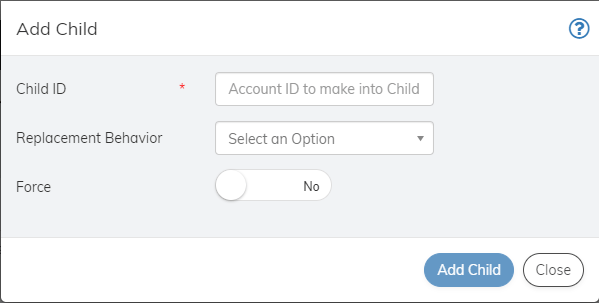 5. Define the fields as needed. Refer to the table below for guidance regarding the fields.
6. When you're done, click **Add Child**. The account is linked as a child account and appears in the Child Accounts pane.
| Field | Guidance | Relevancy |
| - | - | - |
| **Child ID** | Account ID of the child account. | Required |
| **Replacement Behavior** | Select the Payment method replacement behavior from the dropdown menu: - **Replace On All Subscriptions** makes the Parent's Payment Method the primary method for use for all of the child's subscriptions. - **Replace On Future Subscriptions**places the parent's payment method on all new subscriptions created for the child account from this point forward. The child Account payment method continues to pay for existing subscriptions. | Optional |
| **Force** | A child account can only be linked to one parent account. Select whether to replace existing parent with a force condition.- **Yes**—replaces the linked parent account that this child may already have with the selected account. - **No**—does not replace an existing parent, and will issue a warning if the account is already linked. | Required |
| **Parent topic:**[Working with Accounts](../topics/accountWorking1#) | | |
## Account GDPR Erase
General Data Protection Regulation (GDPR) is an expansive privacy and security law that gives European Union (EU) citizens more control over their data and may often also be followed elsewhere in the world. Vindicia allows Super Users role holders to delete individual customer accounts when a customer requested erasure. Deletion is allowed only when there are no active subscriptions associated with the account.
Merchant Super Users, complete the following steps to perform a GDPR erasure of an account:
1. On the **Accounts** filter search page, enter the **ID** or **Email** associated with the account.
2. To erase the account from the Account Search page, click the 3 dot Action menu for the specific account and click **GDPR Erase**.
3. To erase the account from the Account Details page, click **GDPR Erase** on the **Actions** panel.
4. On the **GDPR Erase Account?** page, confirm that the correct account **ID** and **Email** appear and click **GDPR Erase**.
5. Define the fields as needed. Refer to the table below for guidance regarding the fields.
6. When you're done, click **Add Child**. The account is linked as a child account and appears in the Child Accounts pane.
| Field | Guidance | Relevancy |
| - | - | - |
| **Child ID** | Account ID of the child account. | Required |
| **Replacement Behavior** | Select the Payment method replacement behavior from the dropdown menu: - **Replace On All Subscriptions** makes the Parent's Payment Method the primary method for use for all of the child's subscriptions. - **Replace On Future Subscriptions**places the parent's payment method on all new subscriptions created for the child account from this point forward. The child Account payment method continues to pay for existing subscriptions. | Optional |
| **Force** | A child account can only be linked to one parent account. Select whether to replace existing parent with a force condition.- **Yes**—replaces the linked parent account that this child may already have with the selected account. - **No**—does not replace an existing parent, and will issue a warning if the account is already linked. | Required |
| **Parent topic:**[Working with Accounts](../topics/accountWorking1#) | | |
## Account GDPR Erase
General Data Protection Regulation (GDPR) is an expansive privacy and security law that gives European Union (EU) citizens more control over their data and may often also be followed elsewhere in the world. Vindicia allows Super Users role holders to delete individual customer accounts when a customer requested erasure. Deletion is allowed only when there are no active subscriptions associated with the account.
Merchant Super Users, complete the following steps to perform a GDPR erasure of an account:
1. On the **Accounts** filter search page, enter the **ID** or **Email** associated with the account.
2. To erase the account from the Account Search page, click the 3 dot Action menu for the specific account and click **GDPR Erase**.
3. To erase the account from the Account Details page, click **GDPR Erase** on the **Actions** panel.
4. On the **GDPR Erase Account?** page, confirm that the correct account **ID** and **Email** appear and click **GDPR Erase**.
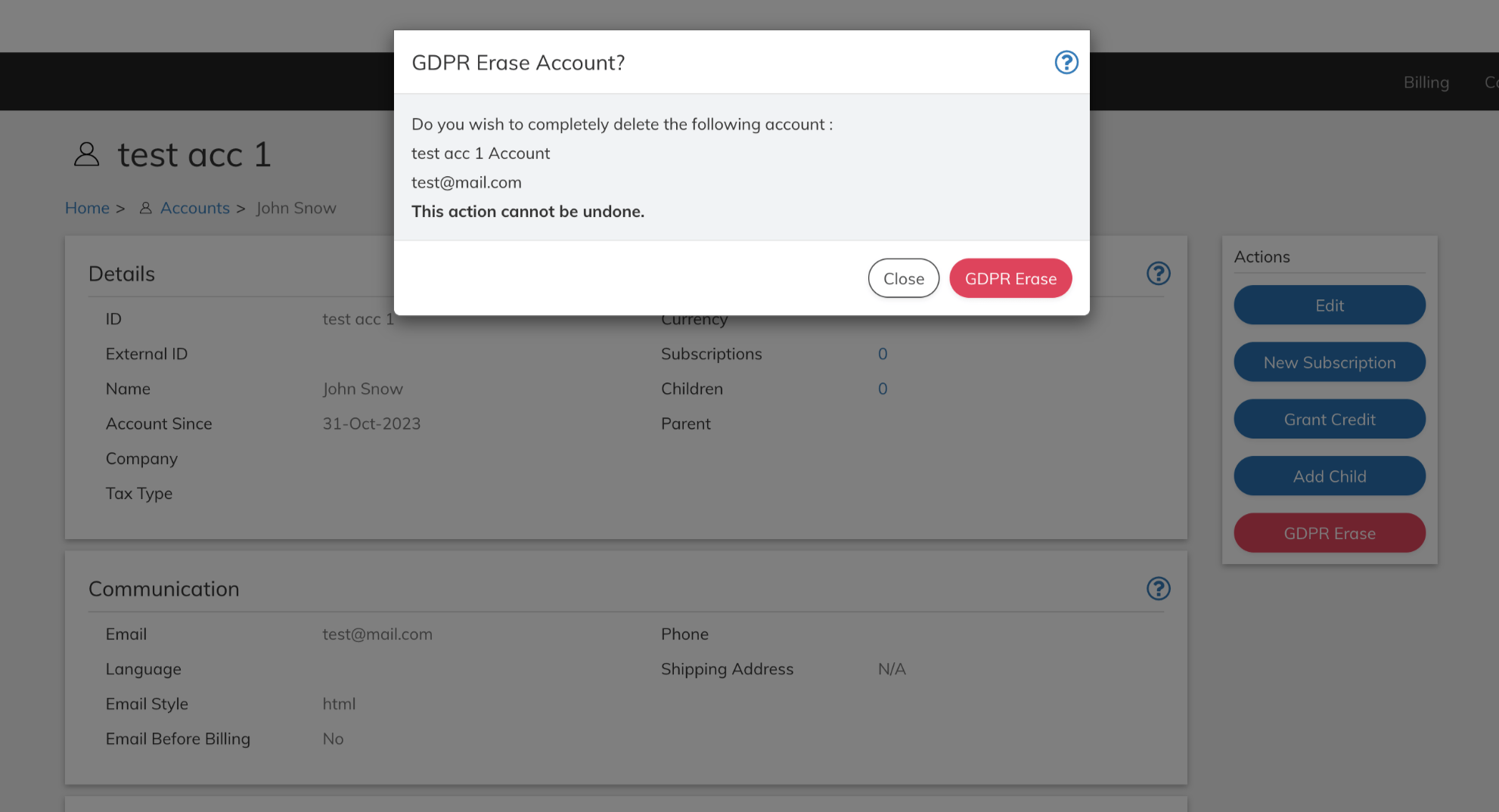 **Important:** Selecting **GDPR Erase** on the confirmation page deletes the individual account. Once this action is completed that account is completely deleted and can't be recovered.
The account identifiers are erased and a prefix saying Removed\_ is added.
**Parent topic:**[Working with Accounts](../topics/accountWorking1#)
This documentation is built and hosted on [Mintlify](https://mintlify.com), a developer documentation platform.
**Important:** Selecting **GDPR Erase** on the confirmation page deletes the individual account. Once this action is completed that account is completely deleted and can't be recovered.
The account identifiers are erased and a prefix saying Removed\_ is added.
**Parent topic:**[Working with Accounts](../topics/accountWorking1#)
This documentation is built and hosted on [Mintlify](https://mintlify.com), a developer documentation platform.